
Turn Audio into a Visual Plan
Use the song structure, tempo, and mood to shape the first storyboard.
Turn a track into a storyboard, connected scenes, and a cut you can refine.


Let the track guide pacing, scenes, lyrics, and visual direction.
Use the song structure, tempo, and mood to shape the first storyboard.
Define the artist, setting, style, and scene changes that support the music.
Upload a supported track or link, then add a concise creative brief.
Build a narrative, performance, lyric, visualizer, or social-first cut.
Review pacing, continuity, lyrics, captions, and performance scenes in focused passes.
Prepare horizontal, vertical, or square versions for the intended channel.
Start with a clear creative decision, then develop and review the result in context.
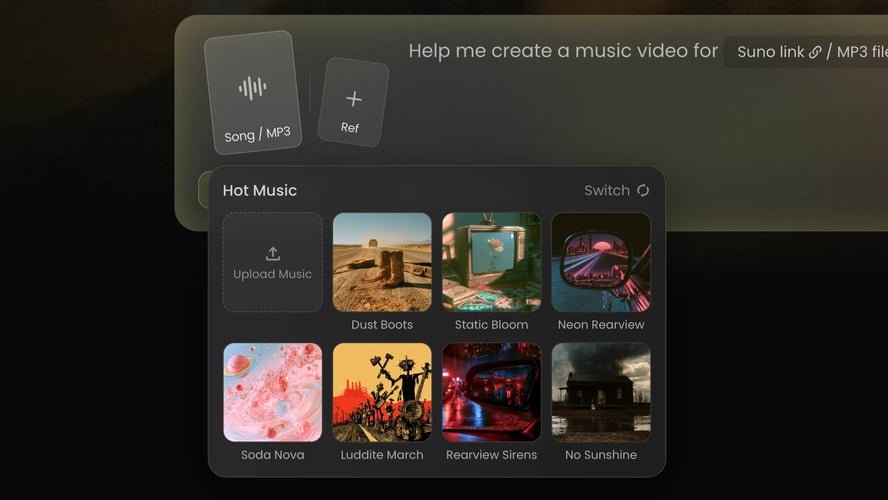 STEP 01
Bring an MP3 or supported music link. Our AI Music Video Generator analyzes the rhythm, tempo, structure, and mood.
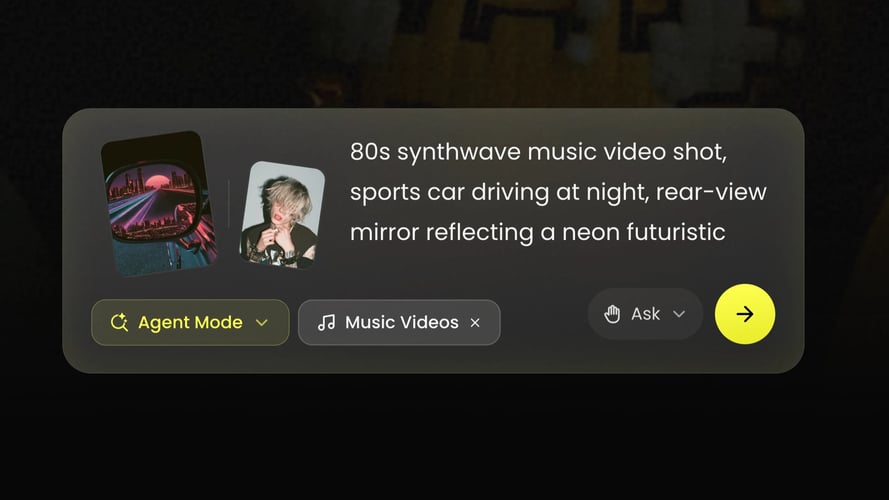 STEP 02
Choose a storytelling or performance direction, add a reference image if you need a consistent person or character, and select an aspect ratio.
 STEP 03
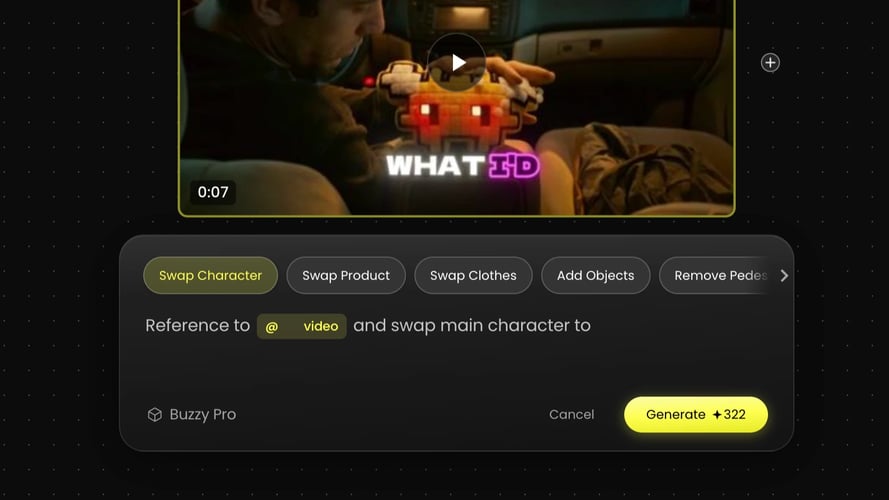
We create the storyboard and video.
Buzzy
Direction, Review, Creative workflow
When the cut is ready, export in 16:9, 9:16, or 1:1.
At Buzzy, we treat the audio as the starting point for the visual work.
Use the first creative decision to guide the next scene or revision.
Review each creative decision in the context of the larger project.
Use the live Buzzy workspace to select the creative route that fits your project.
At Buzzy, we treat the audio as the starting point for the visual work.
The most useful prompt does more than name a genre.


A music to video AI workflow is most useful when it respects the order in which you make decisions: audio first, visual direction second, then a.
An AI music video maker is not only for one type of artist or one musical style.
Choose the creative workflow that gives your next project a clear starting point.
Answers to common AI Music Video Generator questions.
An AI Music Video Generator is a tool that turns a song into a music video.
Upload an MP3 or paste a supported music link, then describe your idea.
You can set the visual direction with a description or preset and guide the mood, color, lighting, camera style, and overall look.
Yes. You can upload an MP3 or import a track through a supported music link.
For singing and performance shots, Buzzy can match mouth movement to vocals and lyrics. You can also edit lyrics and captions during review.
You can create videos in 16:9, 9:16, and 1:1. Choose the aspect ratio that fits the destination for your music video, then review scenes, lyrics, captions, and composition in that frame before exporting.
Commercial use depends on your plan, the assets you use, and the terms of service. Before publishing, make sure you have the rights to all songs, images, likenesses, trademarks, and other materials in the video.
AI Music Video Generator for turning a track into a storyboard-led visual in Buzzy. Upload a song, guide the look, refine scenes, and export.
At Buzzy, we treat the audio as the starting point for the visual work. Our AI Music Video Generator analyzes a track’s rhythm, tempo, structure, and mood, then uses that reading to organize a concept, story, shots, pacing, motion, and transitions. The goal is not to place unrelated images beside a song; it is to begin with the musical shape that gives scenes a reason to change.
That approach gives you a practical first decision: choose the kind of video the track calls for. A storytelling direction can follow an idea across scenes. A performance direction can put an artist or character at the center. A lyric or caption-led edit can make words part of the viewing experience. You remain responsible for the creative choice; we give that choice a workable visual sequence.
Start with the audio you want to see.
Upload an MP3 or paste a supported music link. A complete, clear track gives our AI Music Video Generator more to work from when it reads the rhythm and overall structure. If you are still deciding between mixes, use the version whose tempo, mood, and song sections best reflect the release you want to visualize.
Before you generate, name the feeling and the visual world rather than trying to describe every frame at once. A few useful decisions are the dominant mood, whether the video should feel narrative or performance-led, and whether you want a familiar artist or character to anchor the scenes. This turns a broad idea into direction the video can follow.
Let the song set the pace.
A chorus, verse, change in energy, or instrumental passage can call for different images and movement. Our AI Music Video Generator uses the track’s rhythm, tempo, and structure so cuts, motion, and transitions can follow the music. You do not have to map every change on a timeline before seeing a first version.
The first cut is a working visual plan, not the end of your involvement. Review where the story changes, where a performance shot appears, and where lyrics or captions should carry more weight. That review helps you decide which scenes should stay, which need new direction, and which parts of the song deserve a different treatment.
Build around a reference when consistency matters.
If a recurring person, character, look, or outfit matters to the release, add a reference image or create a character. We can use that direction to keep the same look, outfit, and style across the video. This is especially useful when a music video needs an artist presence, a recurring visual motif, or an identity that continues into future content.
A reference is a creative input, not a substitute for rights clearance. Only use songs, images, likenesses, trademarks, and other materials that you have permission to use. Keeping your source materials organized before generation also makes it easier to maintain a clear visual direction during review.
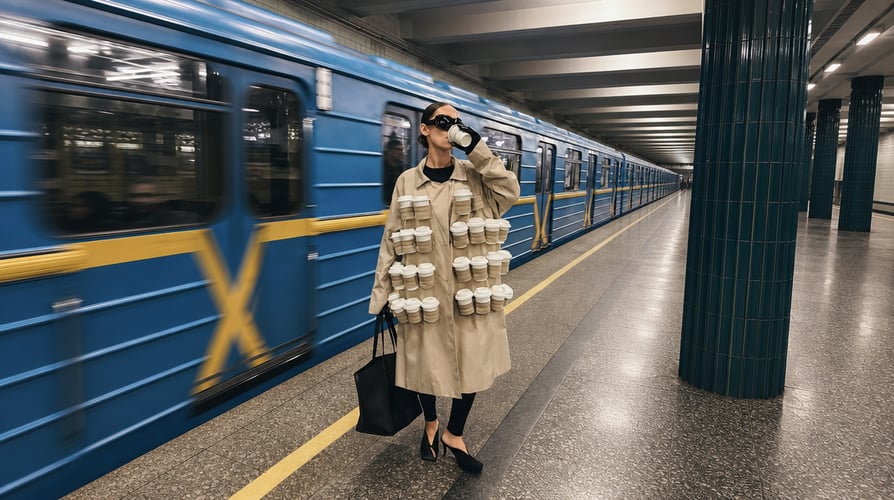
The most useful prompt does more than name a genre. Give our AI Music Video Generator a visual brief that explains what should be on screen and how it should feel. You can describe a look in your own words or start with a preset, then set the mood, color, lighting, camera style, and overall direction.
Think of the prompt as a conversation starter for the visual system. It does not need to be a production script. A concise direction that combines subject, setting, movement, and atmosphere is often easier to review than a list of disconnected effects. If the song has a contrast between verses and a chorus, include that contrast in the direction so the storyboard has a clear change to interpret.
Use a concise creative brief.
Decision — What to provide — Why it helps the video Track — An MP3 or supported music link — Gives the workflow the rhythm, tempo, structure, and mood to analyze. Visual direction — A description or preset — Establishes the look, mood, color, lighting, camera style, and overall direction. Subject reference — A reference image or character, when appropriate — Helps maintain a consistent artist or character look across scenes. Video approach — Storytelling or performance direction — Clarifies whether the scenes should follow a narrative idea or an on-screen performer. Frame — An aspect ratio — Prepares the project for the intended viewing format.
A detailed brief can be useful, but it should not trap the video before you have seen a storyboard. Begin with the creative choices that need to remain stable, such as the artist, setting, mood, and visual style. Then use the scene review to improve the decisions that depend on timing, such as a transition at the chorus or a new image for a lyric.
Give lyrics and vocals their own role.
For singing or performance shots, our AI Music Video Generator can match mouth movement to vocals and lyrics. You can also edit lyrics and captions during refinement. Decide early whether the words should be the focus of a scene, a supporting caption, or absent altogether. That choice keeps lyric content from competing with the visual narrative.
The result can vary with the audio, reference image, and generation settings. Review performance shots closely before export, particularly when the lyrics, image reference, or scene direction changes. A careful review is part of directing the cut, not an extra step after the creative work is done.
A music to video AI workflow is most useful when it respects the order in which you make decisions: audio first, visual direction second, then a reviewable sequence. At Buzzy, the track gives the agent musical context; your prompt and references give it creative context. Together, they create a starting point for a music video rather than a collection of unrelated clips.
Upload your song.
Bring an MP3 or supported music link. Our AI Music Video Generator analyzes the rhythm, tempo, structure, and mood. Use a complete track where possible so you can review the song’s larger changes as part of one visual plan.
Describe what the song should become.
Choose a storytelling or performance direction, add a reference image if you need a consistent person or character, and select an aspect ratio. Describe the scene world with details that affect the image: color, lighting, camera style, mood, subject, and movement. This is where a music to video AI project becomes specific to your track.
Generate, review, and adjust.
We create the storyboard and video. Review the individual scenes, update any scene that no longer fits the song, and edit lyrics or captions when needed. The AI Music Video Generator gives you a first cut to direct; refinement turns that cut into a more deliberate release asset. Use the AI Music Video Generator again when a new visual direction needs a fresh scene.
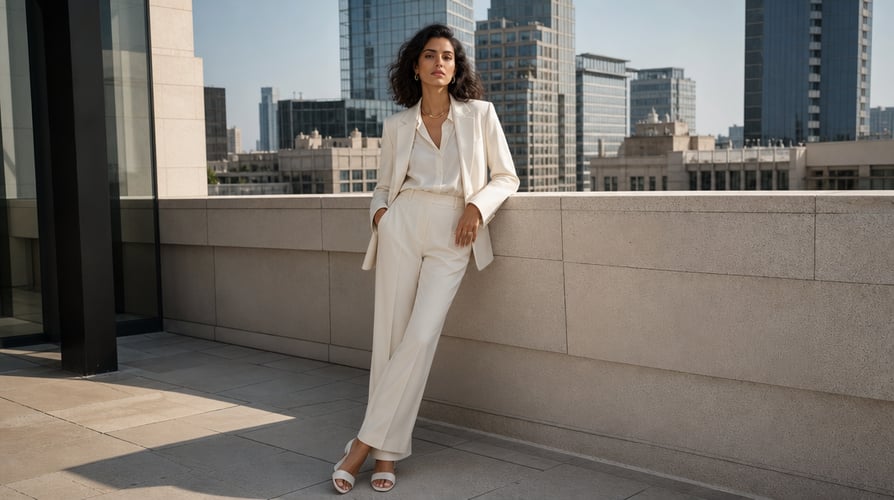
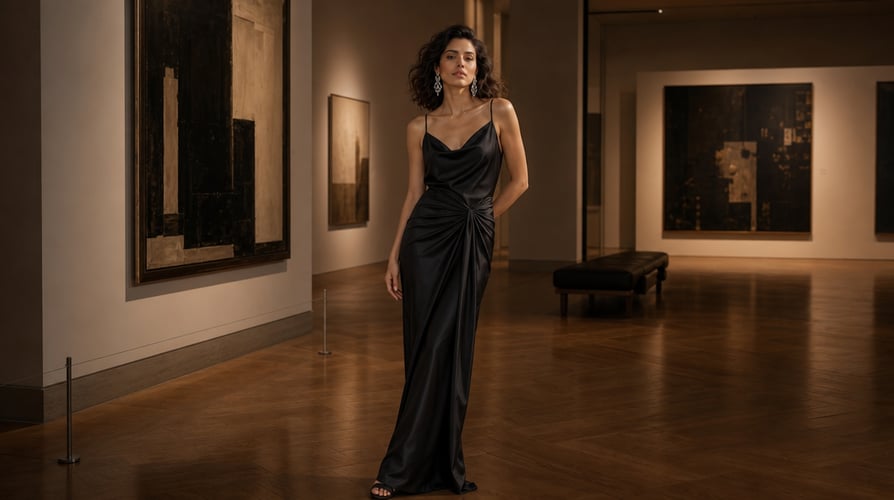
An AI music video maker is not only for one type of artist or one musical style. The same workflow can support a narrative release, a performance-led cut, a lyric video, a visualizer, or a social version of a track. What matters is choosing a purpose before you choose effects.
Narrative videos.
A narrative direction works when the track suggests a place, character, situation, or emotional change. Use the prompt to identify the story world and its atmosphere. When you review the storyboard, check whether the scenes move the idea forward instead of repeating the same visual at every section of the song.
Performance and artist-led videos.
A performance direction works when the vocalist, artist, or character should carry the release. Add a reference image or create a character when maintaining the same look, outfit, and style across scenes is important. For vocals on screen, review lip sync and the placement of lyrics before you export.
Lyric, caption, and visualizer-led cuts.
Some tracks need words or music-reactive movement more than a literal story. Use lyrics and captions as editorial elements, then adjust them after you review the video. For a visualizer or abstract direction, focus the brief on color, motion, lighting, rhythm, and the energy shifts you want the viewer to notice.
Whatever direction you choose, avoid using material you do not have the right to use. The song, images, likenesses, trademarks, and other assets in your video remain your responsibility. This is an important check whether the final video is for a personal release, a client project, or a brand channel.
Generation produces a storyboard and video, but the scene review is where your judgment matters most. Open the cut with the song playing and look for moments where the visual direction drifts from the music. You may want to update an individual scene, change the visual style, revise a lyric, or edit a caption. Small changes can help the final cut feel more intentional without rebuilding the whole project.
Review in passes rather than trying to solve every decision at once. First, check whether the scene order and pacing fit the track. Next, confirm the artist or character stays visually coherent where you intended that consistency. Then inspect any lyrics, captions, and performance shots. Finally, play the full video in the frame you plan to publish. This sequence gives the AI Music Video Generator a clear editing path while keeping you in control of the final approval.
When the cut is ready, export in 16:9, 9:16, or 1:1. The right aspect ratio depends on where you plan to show the video: a horizontal music video, a vertical short-form post, or a square post. Set the frame early enough that the subject, captions, and key visual details can be reviewed in the intended composition.
Our AI Music Video Generator supports this review-to-export flow for YouTube, TikTok, Instagram, Shorts, and Reels. Available resolution, length, and export options may vary by plan and product version, so confirm the settings available in your project before committing to a release schedule. Export only after you have checked that you hold the necessary rights to the audio and all assets used in the final video.
Bring an MP3 or supported music link. Our AI Music Video Generator analyzes the rhythm, tempo, structure, and mood. Use a complete track where possible so you can review the song’s larger changes as part of one visual plan.
Choose a storytelling or performance direction, add a reference image if you need a consistent person or character, and select an aspect ratio. Describe the scene world with details that affect the image: color, lighting, camera style, mood, subject, and movement. This is where a music to video AI project becomes specific to your track.
We create the storyboard and video. Review the individual scenes, update any scene that no longer fits the song, and edit lyrics or captions when needed. The AI Music Video Generator gives you a first cut to direct; refinement turns that cut into a more deliberate release asset. Use the AI Music Video Generator again when a new visual direction needs a fresh scene.
Direction, Review, Creative workflow
When the cut is ready, export in 16:9, 9:16, or 1:1. The right aspect ratio depends on where you plan to show the video: a horizontal music video, a vertical short-form post, or a square post.
At Buzzy, we treat the audio as the starting point for the visual work. Our AI Music Video Generator analyzes a track’s rhythm, tempo, structure, and mood, then uses that reading to organize a concept…
Use the first creative decision to guide the next scene or revision.
Review each creative decision in the context of the larger project.
At Buzzy, we treat the audio as the starting point for the visual work. Our AI Music Video Generator analyzes a track’s rhythm, tempo, structure, and mood, then uses that reading to organize a concept, story, shots, pacing, motion, and transitions. The goal is not to place unrelated images beside a song; it is to begin with the musical shape that gives scenes a reason to change.
That approach gives you a practical first decision: choose the kind of video the track calls for. A storytelling direction can follow an idea across scenes. A performance direction can put an artist or character at the center. A lyric or caption-led edit can make words part of the viewing experience. You remain responsible for the creative choice; we give that choice a workable visual sequence.
Start with the audio you want to see.
Upload an MP3 or paste a supported music link. A complete, clear track gives our AI Music Video Generator more to work from when it reads the rhythm and overall structure. If you are still deciding between mixes, use the version whose tempo, mood, and song sections best reflect the release you want to visualize.
Before you generate, name the feeling and the visual world rather than trying to describe every frame at once. A few useful decisions are the dominant mood, whether the video should feel narrative or performance-led, and whether you want a familiar artist or character to anchor the scenes. This turns a broad idea into direction the video can follow.
Let the song set the pace.
A chorus, verse, change in energy, or instrumental passage can call for different images and movement. Our AI Music Video Generator uses the track’s rhythm, tempo, and structure so cuts, motion, and transitions can follow the music. You do not have to map every change on a timeline before seeing a first version.
The first cut is a working visual plan, not the end of your involvement. Review where the story changes, where a performance shot appears, and where lyrics or captions should carry more weight. That review helps you decide which scenes should stay, which need new direction, and which parts of the song deserve a different treatment.
Build around a reference when consistency matters.
If a recurring person, character, look, or outfit matters to the release, add a reference image or create a character. We can use that direction to keep the same look, outfit, and style across the video. This is especially useful when a music video needs an artist presence, a recurring visual motif, or an identity that continues into future content.
A reference is a creative input, not a substitute for rights clearance. Only use songs, images, likenesses, trademarks, and other materials that you have permission to use. Keeping your source materials organized before generation also makes it easier to maintain a clear visual direction during review.
The most useful prompt does more than name a genre. Give our AI Music Video Generator a visual brief that explains what should be on screen and how it should feel. You can describe a look in your own words or start with a preset, then set the mood, color, lighting, camera style, and overall direction.
Think of the prompt as a conversation starter for the visual system. It does not need to be a production script. A concise direction that combines subject, setting, movement, and atmosphere is often easier to review than a list of disconnected effects. If the song has a contrast between verses and a chorus, include that contrast in the direction so the storyboard has a clear change to interpret.
Use a concise creative brief.
Decision — What to provide — Why it helps the video Track — An MP3 or supported music link — Gives the workflow the rhythm, tempo, structure, and mood to analyze. Visual direction — A description or preset — Establishes the look, mood, color, lighting, camera style, and overall direction. Subject reference — A reference image or character, when appropriate — Helps maintain a consistent artist or character look across scenes. Video approach — Storytelling or performance direction — Clarifies whether the scenes should follow a narrative idea or an on-screen performer. Frame — An aspect ratio — Prepares the project for the intended viewing format.
A detailed brief can be useful, but it should not trap the video before you have seen a storyboard. Begin with the creative choices that need to remain stable, such as the artist, setting, mood, and visual style. Then use the scene review to improve the decisions that depend on timing, such as a transition at the chorus or a new image for a lyric.
Give lyrics and vocals their own role.
For singing or performance shots, our AI Music Video Generator can match mouth movement to vocals and lyrics. You can also edit lyrics and captions during refinement. Decide early whether the words should be the focus of a scene, a supporting caption, or absent altogether. That choice keeps lyric content from competing with the visual narrative.
The result can vary with the audio, reference image, and generation settings. Review performance shots closely before export, particularly when the lyrics, image reference, or scene direction changes. A careful review is part of directing the cut, not an extra step after the creative work is done.
A music to video AI workflow is most useful when it respects the order in which you make decisions: audio first, visual direction second, then a reviewable sequence. At Buzzy, the track gives the agent musical context; your prompt and references give it creative context. Together, they create a starting point for a music video rather than a collection of unrelated clips.
Upload your song.
Bring an MP3 or supported music link. Our AI Music Video Generator analyzes the rhythm, tempo, structure, and mood. Use a complete track where possible so you can review the song’s larger changes as part of one visual plan.
Describe what the song should become.
Choose a storytelling or performance direction, add a reference image if you need a consistent person or character, and select an aspect ratio. Describe the scene world with details that affect the image: color, lighting, camera style, mood, subject, and movement. This is where a music to video AI project becomes specific to your track.
Generate, review, and adjust.
We create the storyboard and video. Review the individual scenes, update any scene that no longer fits the song, and edit lyrics or captions when needed. The AI Music Video Generator gives you a first cut to direct; refinement turns that cut into a more deliberate release asset. Use the AI Music Video Generator again when a new visual direction needs a fresh scene.
An AI music video maker is not only for one type of artist or one musical style. The same workflow can support a narrative release, a performance-led cut, a lyric video, a visualizer, or a social version of a track. What matters is choosing a purpose before you choose effects.
Narrative videos.
A narrative direction works when the track suggests a place, character, situation, or emotional change. Use the prompt to identify the story world and its atmosphere. When you review the storyboard, check whether the scenes move the idea forward instead of repeating the same visual at every section of the song.
Performance and artist-led videos.
A performance direction works when the vocalist, artist, or character should carry the release. Add a reference image or create a character when maintaining the same look, outfit, and style across scenes is important. For vocals on screen, review lip sync and the placement of lyrics before you export.
Lyric, caption, and visualizer-led cuts.
Some tracks need words or music-reactive movement more than a literal story. Use lyrics and captions as editorial elements, then adjust them after you review the video. For a visualizer or abstract direction, focus the brief on color, motion, lighting, rhythm, and the energy shifts you want the viewer to notice.
Whatever direction you choose, avoid using material you do not have the right to use. The song, images, likenesses, trademarks, and other assets in your video remain your responsibility. This is an important check whether the final video is for a personal release, a client project, or a brand channel.
An AI Music Video Generator is a tool that turns a song into a music video. At Buzzy, it analyzes the track and generates scenes, shots, motion, and transitions from your creative direction, giving you a storyboard and video to review.
Upload an MP3 or paste a supported music link, then describe your idea. Our AI Music Video Generator analyzes the rhythm, tempo, structure, and mood of the track, then creates a storyboard and video that you can refine scene by scene.
You can set the visual direction with a description or preset and guide the mood, color, lighting, camera style, and overall look. After generation, you can review the storyboard, update individual scenes, and edit lyrics or captions.
Yes. You can upload an MP3 or import a track through a supported music link. Use audio that you have the rights to use, and choose a clear, complete track so the workflow can analyze its rhythm, tempo, structure, and mood.
For singing and performance shots, Buzzy can match mouth movement to vocals and lyrics. You can also edit lyrics and captions during review. Results can vary based on the audio, reference image, and generation settings, so review performance scenes before export.
You can create videos in 16:9, 9:16, and 1:1. Choose the aspect ratio that fits the destination for your music video, then review scenes, lyrics, captions, and composition in that frame before exporting.
Commercial use depends on your plan, the assets you use, and the terms of service. Before publishing, make sure you have the rights to all songs, images, likenesses, trademarks, and other materials in the video.
Bring the track, choose the visual direction, and let the first storyboard give you something concrete to direct.