
Give Every Scene a Clear Job
Define what the scene should establish, reveal, or change before you generate.
Turn a clear story brief into connected scenes you can refine.

Plan each scene, guide the visuals, and refine the sequence.
Define what the scene should establish, reveal, or change before you generate.
Map the opening, action, transition, and closing beat so every clip supports the narrative.
Carry the same subject, setting, mood, and story direction from one scene to the next.
Begin with a prompt, reference image, existing clip, or music track based on the scene you need.
Set the format, duration, framing, and references that directly support the story.
State the subject, action, setting, mood, and camera direction in clear language.
Plan the scene, choose your inputs, and refine the result.
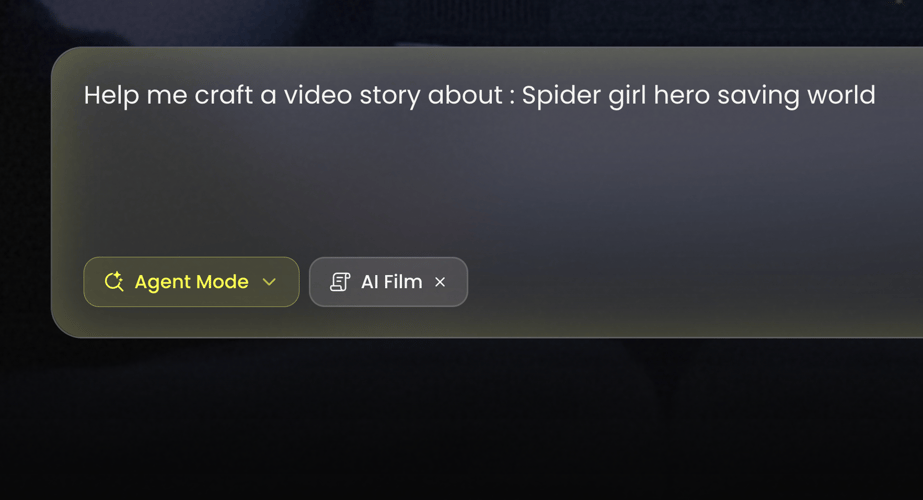 STEP 01
Decide what the viewer should understand, feel, or see change in this moment.
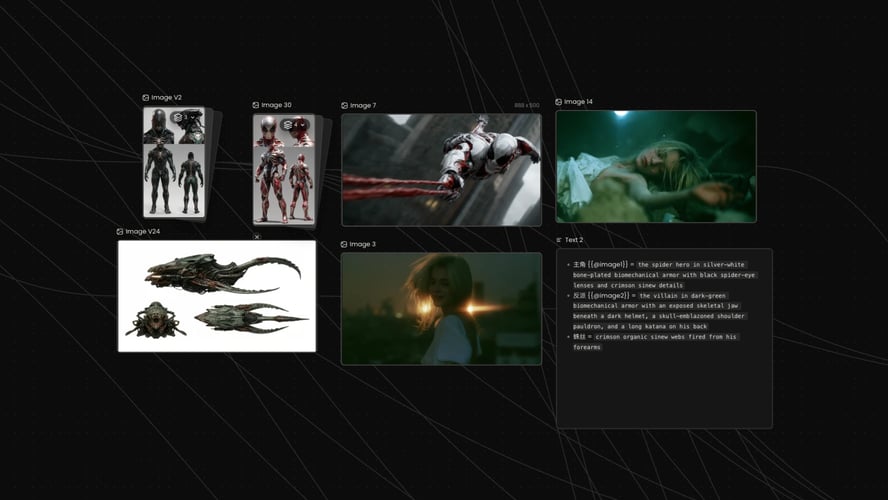 STEP 02
Describe the subject, action, setting, and mood. Add a reference only when it clarifies the scene.
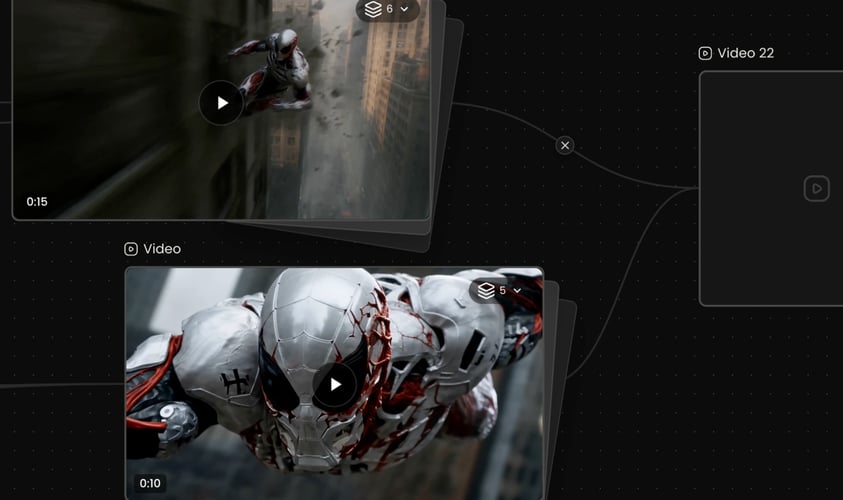 STEP 03
Check the action, framing, and final beat, then revise the one decision that matters most.
Keep each scene readable, connected, and easy to refine.
Give every clip one narrative purpose.
Change one creative decision at a time.
Start from text, images, video, audio, or music.
Carry visual and narrative cues across scenes.
Evaluate each clip within the full story.
Choose a visual workflow that fits the scene, source material, and story direction.
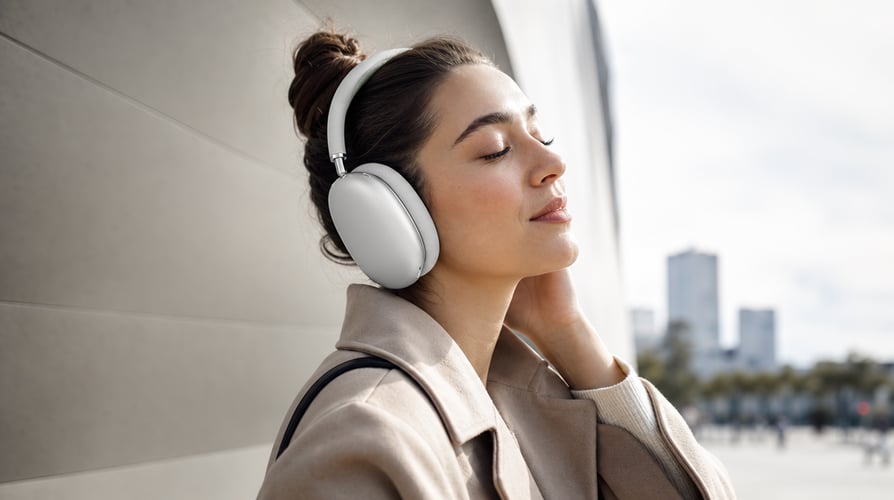
Build a clear opening, action, transition, and closing beat for narrative video.
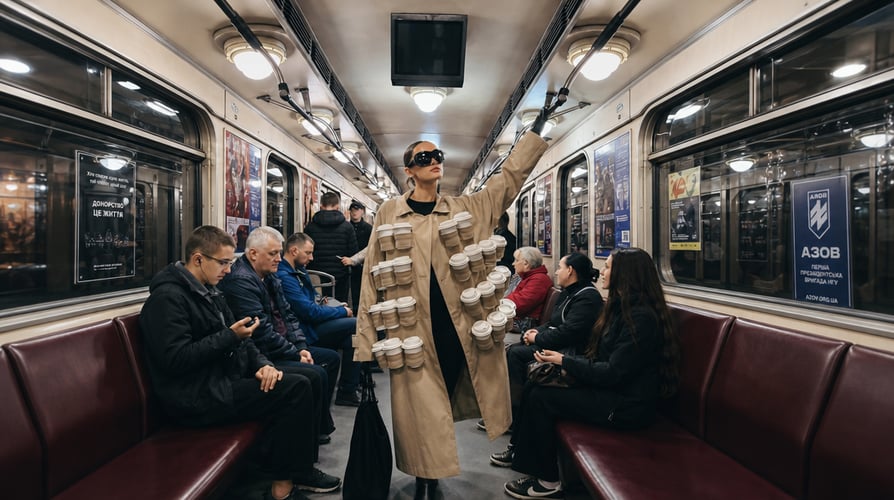
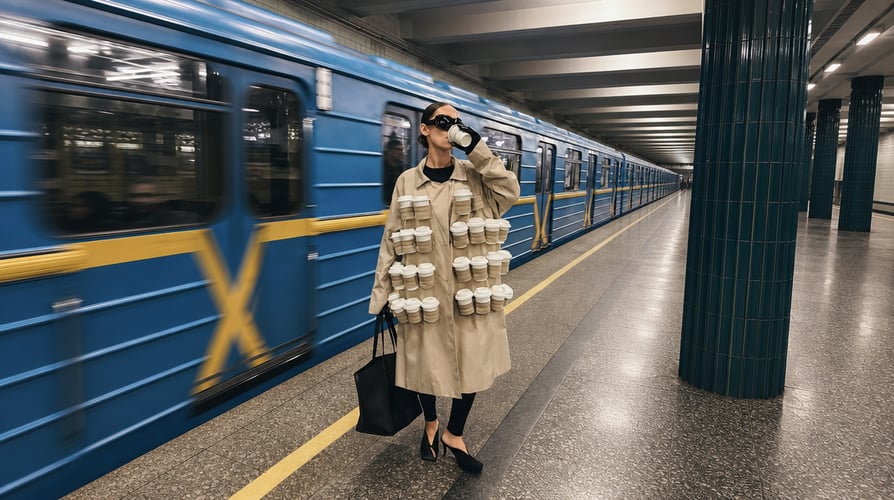
Use focused visual references to guide recurring subjects, settings, and tone.


Let the track guide pacing, scene changes, and the emotional arc.
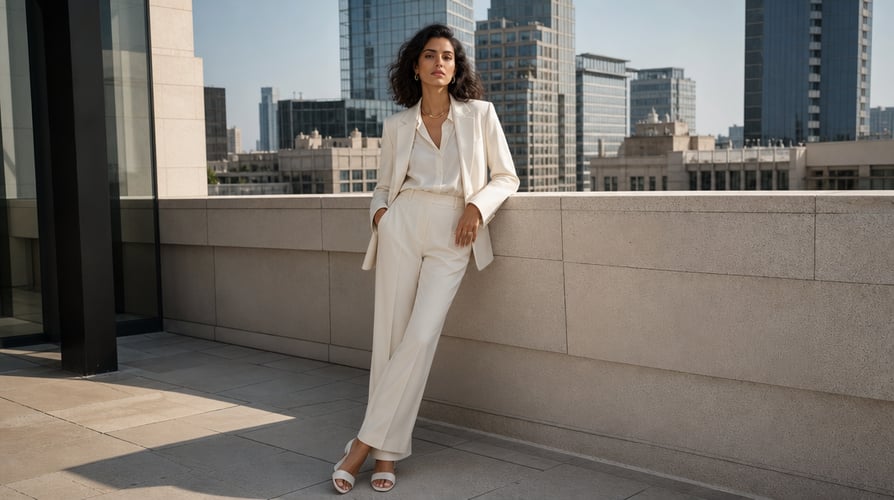
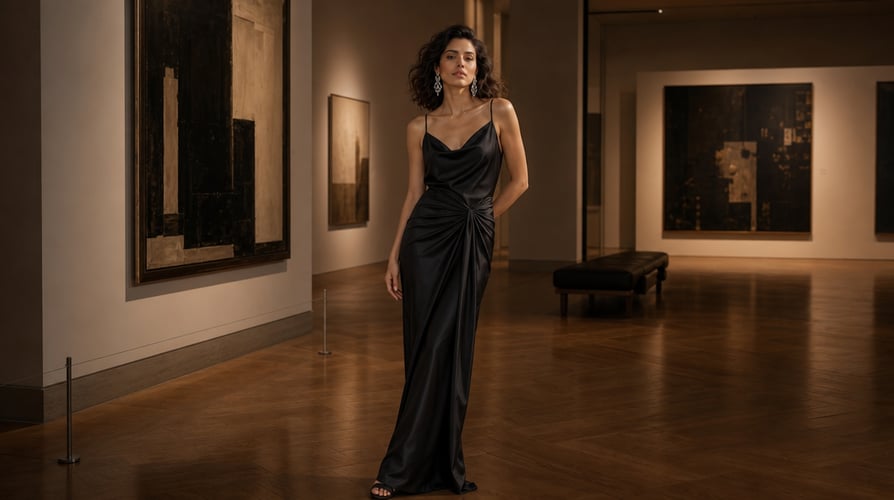
Turn a product moment or campaign idea into a concise, connected sequence.
Compare Buzzy workflows for film, animation, music video, and editing.
Quick answers about planning and refining story-driven video in Buzzy.
It helps you define each scene, choose the right inputs, and review the result against a clear narrative goal.
Yes. Use a reference when it clarifies the subject, movement, mood, or sound cue you want to carry into the scene.
Start with the material that organizes the project: a prompt for a new scene, a reference for consistency, or a track for music-led pacing.
Prepare the scene purpose, subject, action, setting, mood, and any essential camera or reference direction.
Yes. A music-led workflow can use the track to guide pacing, scene changes, lyrics, and the visual arc.
No. It creates a starting sequence, but you still review the story, continuity, timing, and final creative choices.
A useful story-video workflow starts with a clear narrative job for every scene. Decide what the viewer should understand, feel, or see change before choosing a model, reference, or visual style.
A strong story video does not need a long explanation to have a clear purpose. It needs a decision about the audience experience. Do you want to establish a place, reveal an object, follow a character, or create a transition between two narrative beats? Describe that purpose in plain language before you generate. The AI Story Video Generator workflow is more useful when the first prompt carries a specific visual job.
For example, a scene brief can identify a character or subject, name what changes on screen, place the action in an environment, and specify a visual direction. You may also add the intended framing or movement if that decision matters to the scene. This is not about making a prompt longer for its own sake. It is about giving the generation a coherent instruction that you can evaluate: did the scene show the action, establish the atmosphere, and lead naturally into the next beat? In that moment, the AI Story Video Generator serves a defined creative purpose.
Define the narrative job.
Start by writing one sentence about the scene's role. An opening scene can establish place and tone. A middle scene can introduce an action, reaction, or reveal. A closing scene can resolve the moment or leave a deliberate question. When each clip has a job, you avoid collecting attractive but disconnected videos.
The same discipline helps with a product story, a short drama, an animation, a faceless POV concept, or a music-led piece. In each case, the viewer needs a readable sequence. State what changes from the beginning to the end of the scene, then decide what visual evidence will make that change clear. For a recurring sequence, an AI Story Video Generator can support the same discipline scene after scene.
Give the model usable creative direction.
Use concrete details that matter to the result: who or what appears, what they do, where the action happens, and what feeling or visual treatment supports the story. If camera direction, lighting, color, or pacing is important, include it as part of the creative brief rather than as a list of unrelated style words.
Buzzy's current creation areas make it possible to choose a route before you create. That choice matters. A project centered on a directed narrative can begin in AI Film or Story Director; a motion-led idea may fit Animation; existing material may call for Video Edit. The AI Story Video Generator is not a promise that one input should solve every task. It is a way to begin with the workflow that matches the scene you are trying to make.
Before generation, sketch the story as a sequence of small visual commitments. You do not need a formal screenplay to do this. A simple scene map gives each moment a function and makes revision more deliberate. Keep the first pass compact enough to scan while you work.
Story decision — What to write in your brief — What to review afterward Opening beat — Subject, place, mood, and first action — Does the video establish the intended setting? Change or reveal — The action, movement, or new information — Is the change clear without extra explanation? Character or subject detail — The visual traits that should remain recognizable — Does the scene preserve the important visual cues? Transition — What connects this scene to the next one — Does the ending leave a useful handoff? Final beat — The image, action, or feeling that closes the idea — Does the scene land on the intended moment?
This small planning step helps you use an AI Story Video Generator as a storytelling workspace rather than a prompt lottery. It also helps you separate the decisions that belong in the initial brief from the decisions that can wait until review. Begin with the most important visual information; refine only when you can name what needs to change.
Choose a starting point that matches your material.
Buzzy presents several creative starting areas, including AI Film, Animation, Story Director, Video Gen, Image Gen, Music Video, and Video Edit. Treat them as routes into a project, not as labels to collect. If you already have a visual reference, use a workflow that accepts it. If you have a song and want the visuals to respond to it, begin with the music-video route. If you have a scene idea, start where you can focus on the visual action and direction.
For an input-led scene, FLUX 3 provides a Buzzy workflow where you can add image, video, and audio references alongside a prompt. Its page also describes native audio-video generation and multi-shot video generation. Use only the references you have the right to use, and make each one earn its place in the brief: an image can anchor a visual direction, a clip can communicate movement, and audio can establish a cue for the generation.
Review with a scene question.
After creating a result, ask a narrow question rather than a vague one. Is the subject readable? Is the action happening at the right moment? Does the environment support the mood? Does the final frame create a natural next step? A focused question turns feedback into an edit decision.
If a result misses the intended scene, revise the brief with the missing information. You might clarify the action, simplify competing visual details, change the setting, or state the desired framing more directly. Keep a short record of the prompt decisions that work for your project so the next scene can begin from a tested direction. That record makes the AI Story Video Generator process more intentional over time.
Storytelling involves more than pressing generate. You choose the initial material, define the direction, inspect the result, and decide whether the next version should extend the same idea or take another route. The AI Story Video Generator page on Buzzy is designed around creation areas and inspiration categories that help you select a starting direction, including Short Drama, Faceless POV, AI ASMR, and Music Video.
Those categories are useful as creative cues, not as preset promises. A short drama may need an emotional change between scenes. A faceless POV piece may need a clear viewpoint and object action. An animation may need a readable silhouette and a focused movement. A music-driven video may need visual pacing that respects a track's structure. Use the category to identify the job, then write your own scene-specific direction. The AI Story Video Generator remains focused on your narrative, not the category label.
Explore examples without copying the story.
The Buzzy AI Video Generator page displays AI Film and Animation examples and an inspirations area. Browse those materials to decide what kind of visual language you want to pursue, then return to your own narrative purpose. An example can help you recognize a pacing pattern, a camera idea, or a visual mood; it should not replace the subject and action that make your video yours.
When you work through an AI Story Video Generator brief, make the creative intent easy to recognize in the first scene. A viewer should understand where to look, what is happening, and why the image changes. That is as relevant for a dramatic sequence as it is for an explainer visual, product moment, or short social video.
Build a sequence one decision at a time.
For a multi-scene idea, repeat a stable planning pattern. First, state the scene's job. Next, choose the route and input that support it. Then generate, assess the result against the job, and revise the next scene with what you learned. This creates a chain of related decisions instead of a folder of unrelated outputs.
If you want to develop a music-led narrative, Buzzy's AI music video workflow begins with a track and supports a reference, visual direction, and aspect-ratio selection. Its creation flow describes reviewing a storyboard, updating individual scenes, editing lyrics or captions, and exporting a final cut. That makes it a natural route when the music is the organizing element of the story.
The best starting point depends on the material you have and the decision you need to make first. An AI video generator workflow can begin from an idea, a reference, existing media, or a music track. Do not force every project into the same path. Choose the one that gives the scene the clearest direction before you create.
If your first decision is about... — Start by preparing... — Buzzy creation area to consider A new visual moment — A prompt describing subject, action, setting, and mood — AI Film, Story Director, or Video Gen Motion or visual treatment — The subject, movement, and visual style — Animation A still, clip, or audio cue — A relevant reference and a prompt explaining its role — FLUX 3 A song-led sequence — A track, creative direction, and optional reference — Music Video Existing footage — The edit goal and source material — Video Edit
This guide is about creative fit, not a hierarchy of tools. A concise scene can begin with a prompt. A project with a recognizable object or character may benefit from a reference. A music piece may make more sense when you begin from the track. The AI Story Video Generator workflow gives you room to make that first choice intentionally.
Keep the brief accessible to collaborators.
Write prompts and scene notes in direct language that another person can understand. Describe visual events in an order that reflects the scene: subject, action, environment, visual treatment, and any essential camera direction. Avoid relying on unexplained abbreviations or private shorthand. Clear notes make it easier to review a result, share creative intent, and return to a project later.
When you include text in a video, plan for readability as part of the story. Keep essential words legible against the background, do not depend on color alone to communicate a distinction, and give viewers enough time to read key information. Captions, titles, and visual action should support one another rather than compete for attention. This makes an AI Story Video Generator project easier for more viewers to follow.
Good creative control starts with knowing what you are asking the scene to do. Buzzy's FLUX 3 page describes a prompt-and-reference workflow with image, video, and audio inputs, as well as a model selection, resolution, aspect ratio, and duration controls. Its visible generation panel lists 720p, 16:9, and 5-second or 20-second duration choices for that workflow. Check the live interface when you create, because available choices can depend on the workflow you select.
For narrative work, use controls to serve the visual decision rather than to decorate a prompt. Choose an aspect ratio with the destination in mind, select duration that gives the action time to read, and use references only when they clarify the result you want. The AI Story Video Generator process remains clearer when every setting has a narrative reason.
Use references responsibly.
A reference is a direction, not an automatic permission. Before uploading an image, video, audio file, or music track, confirm that you have the necessary rights and permissions. Avoid using a person's likeness, a protected work, a logo, or a recording unless you are authorized to use it. Your creative brief should be specific about the result you want without asking the generation to imitate a protected work or identifiable person.
Make iteration part of the craft.
Iteration is most productive when you change one meaningful decision at a time. If the subject is correct but the action is wrong, clarify the action. If the mood is right but the framing is not, revise the camera direction or scene description. Compare each version to the scene question you wrote earlier. That approach keeps an AI Story Video Generator project grounded in the story rather than in random variation. It also gives the AI Story Video Generator a clear next instruction.
Use this checklist before you start a new scene. It works for a short video, an animation, a music sequence, or a longer narrative assembled from connected moments.
Purpose: What should the viewer understand, feel, or notice in this scene?
Subject: Who or what is on screen, and what details are essential?
Action: What happens during the clip?
Setting: Where does the moment take place, and what visual details establish it?
Direction: What mood, color, lighting, composition, or camera treatment supports the scene?
Input: Are you beginning with a prompt, a reference, existing media, or a track?
Review question: What single question will tell you whether this version works?
Next beat: What should this scene hand off to the one that follows?
This preparation helps you use an AI Story Video Generator intentionally; it does not limit imagination. It gives you a way to test it. Create the first scene, review it against the brief, and carry the decisions that matter into the next one. With an AI Story Video Generator, the goal is not simply to make more videos. It is to make each video contribute to a story you can direct.
Start by writing one sentence about the scene's role. An opening scene can establish place and tone. A middle scene can introduce an action, reaction, or reveal. A closing scene can resolve the moment or leave a deliberate question. When each clip has a job, you avoid collecting attractive but disconnected videos.
The same discipline helps with a product story, a short drama, an animation, a faceless POV concept, or a music-led piece. In each case, the viewer needs a readable sequence. State what changes from the beginning to the end of the scene, then decide what visual evidence will make that change clear. For a recurring sequence, an AI Story Video Generator can support the same discipline scene after scene.
Buzzy presents several creative starting areas, including AI Film, Animation, Story Director, Video Gen, Image Gen, Music Video, and Video Edit. Treat them as routes into a project, not as labels to collect. If you already have a visual reference, use a workflow that accepts it. If you have a song and want the visuals to respond to it, begin with the music-video route. If you have a scene idea, start where you can focus on the visual action and direction.
For an input-led scene, FLUX 3 provides a Buzzy workflow where you can add image, video, and audio references alongside a prompt. Its page also describes native audio-video generation and multi-shot video generation. Use only the references you have the right to use, and make each one earn its place in the brief: an image can anchor a visual direction, a clip can communicate movement, and audio can establish a cue for the generation.
After creating a result, ask a narrow question rather than a vague one. Is the subject readable? Is the action happening at the right moment? Does the environment support the mood? Does the final frame create a natural next step? A focused question turns feedback into an edit decision.
If a result misses the intended scene, revise the brief with the missing information. You might clarify the action, simplify competing visual details, change the setting, or state the desired framing more directly. Keep a short record of the prompt decisions that work for your project so the next scene can begin from a tested direction. That record makes the AI Story Video Generator process more intentional over time.
An AI Story Video Generator helps you begin with the creative decisions that make a scene understandable: subject, action, setting, visual direction, and the role of the moment in a sequence. On Buzzy, you can select a creation area such as AI Film, Animation, Story Director, Video Gen, Image Gen, Music Video, or Video Edit before you create. Start with a concise scene brief, then assess whether the result performs the job you assigned to it.
Yes. Buzzy's FLUX 3 page states that you can upload image, video, and audio references alongside a prompt to guide generation. Give the reference a clear role in the brief, such as a visual subject, a motion cue, or an audio cue. Only upload material you are authorized to use, and check the live workflow for the available input options.
Select an AI video generator workflow according to the first asset or decision that organizes your scene. Use a scene idea for an AI Film, Story Director, or Video Gen direction; use Animation for motion-led work; use FLUX 3 for a prompt with multi-input references; use Music Video when a track leads the concept; and use Video Edit when existing footage is central. The right route is the one that makes the visual purpose clear before generation.
Prepare one or two sentences that identify the scene purpose, the subject, the action, the environment, and the intended visual direction. If a reference or track matters, prepare that material and explain why it belongs in the scene. An AI Story Video Generator brief is easier to review when it also includes a simple success question, such as whether the action reads clearly or whether the ending leads into the next scene.
Yes. Buzzy's AI music video workflow invites you to upload a song or add a supported music link, describe the idea, add a reference if needed, and select an aspect ratio. Its page describes generating a storyboard and video, reviewing individual scenes, and editing lyrics or captions before export. Use music only when you have the required rights and permissions.
No. An AI Story Video Generator gives you a way to create and refine visual material, but creative review remains essential. Compare each result with the role you set for the scene, check that the visual action is readable, and decide what the next version should change. This process keeps your story decisions visible from the opening brief through the final sequence.
Start with one clear scene, then build and refine the sequence in Buzzy.