Understand Every Input Together
Combine text, images, video, and audio so every input supports the same creative goal.
Create and edit video with text, images, audio, video, and references in one brief.
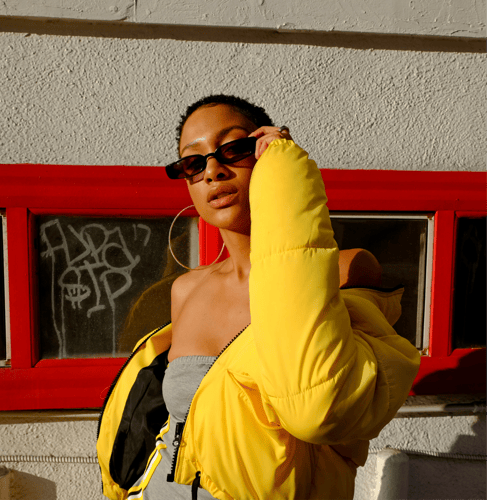

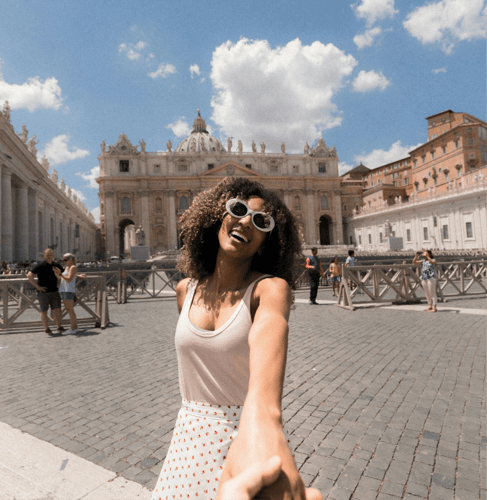
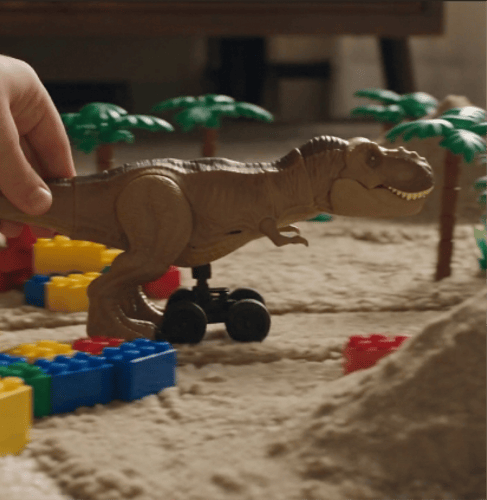
Bring multiple media inputs into one responsive creative workflow.
Combine text, images, video, and audio so every input supports the same creative goal.
Start from text, a still image, or references based on the scene you need.
Describe the change in plain language and state what should remain untouched.
Continue existing footage while preserving its subject, setting, and visual direction.
Build a multimodal request in three practical steps.
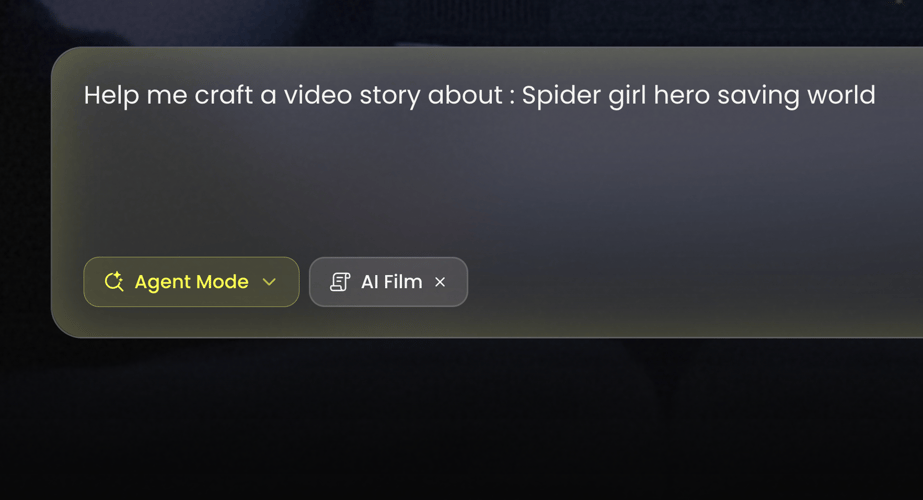 STEP 01
Select Gemini Omni Flash in the Buzzy workspace when available.
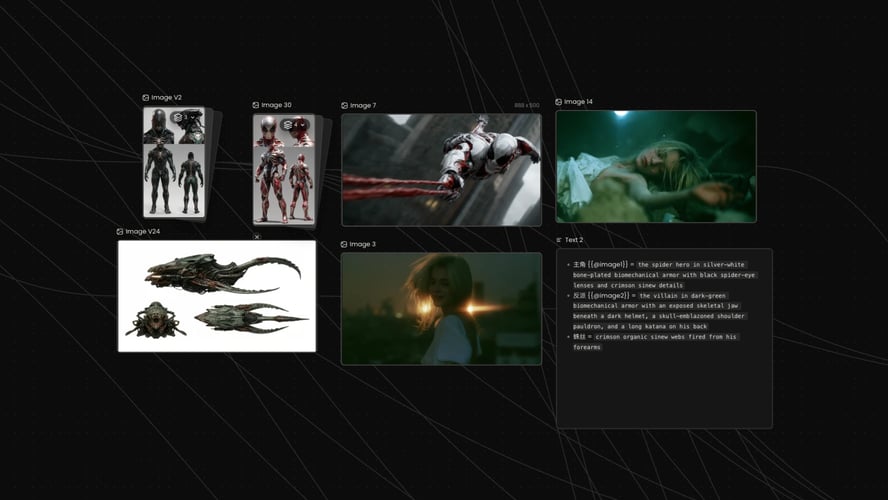 STEP 02
Write the instruction in direct language. Name the current material, the desired change, and the intended result.
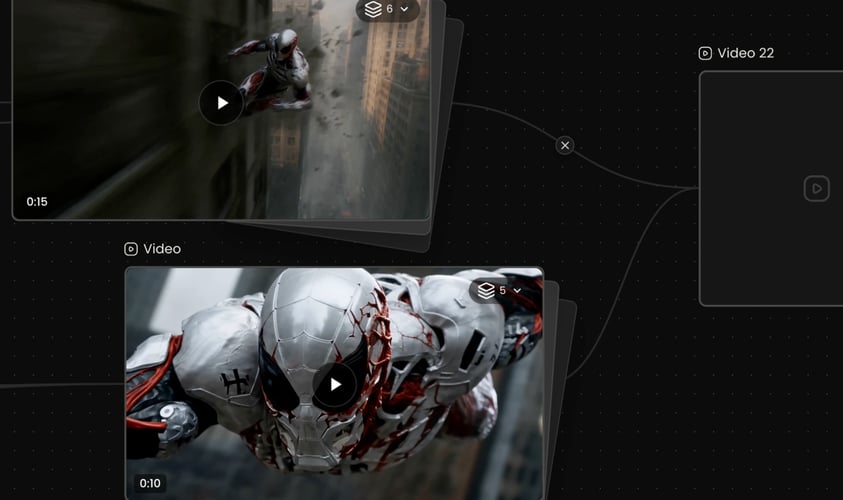 STEP 03
Choose the active settings shown in Buzzy, create the result, and review the complete sequence.
Buzzy
Tell the model why each asset is present.
State what must not drift. For a product, preserve shape, material, label placement, and color.
Describe what happens over time. Explain the opening state, the action, the camera response, and the final state.
Define the smallest change that accomplishes the objective.
Gemini Omni is designed to combine creative generation with Gemini’s knowledge and reasoning.
Use each result as context for the next instruction.
Choose aspect ratio and output settings according to the options shown in the Buzzy workspace.
Watch the full result with sound.
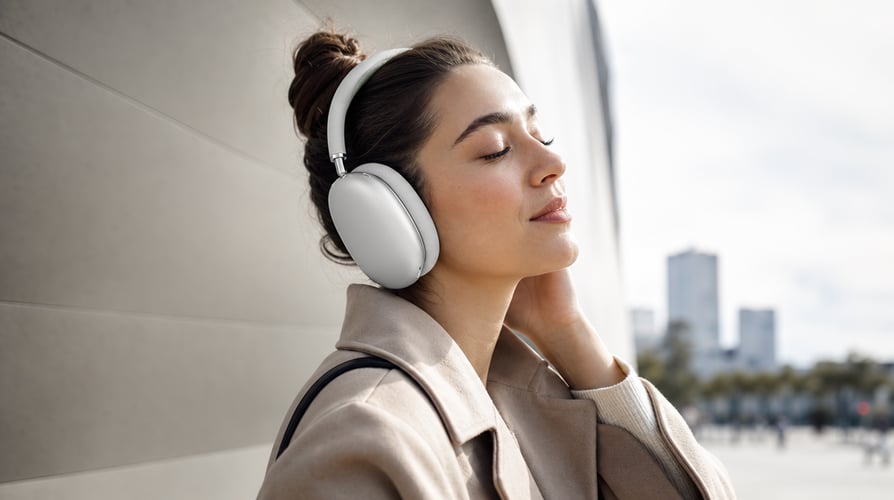
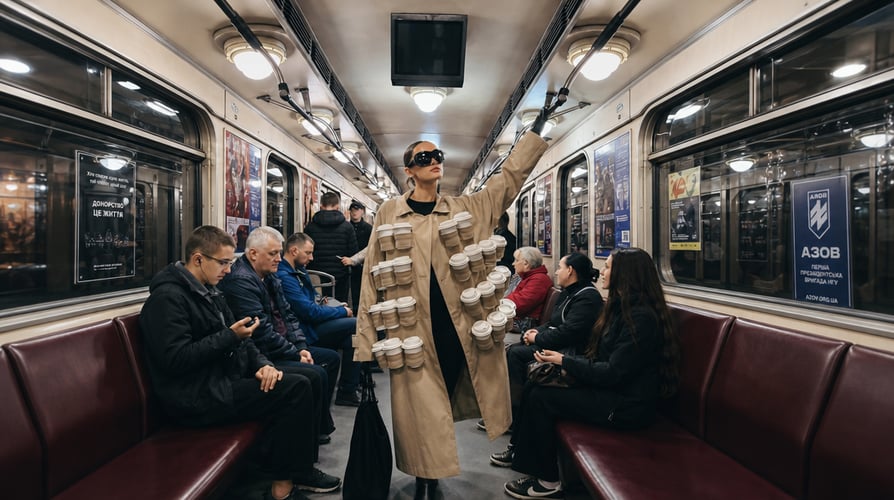
Begin with the source clip and a precise change request.
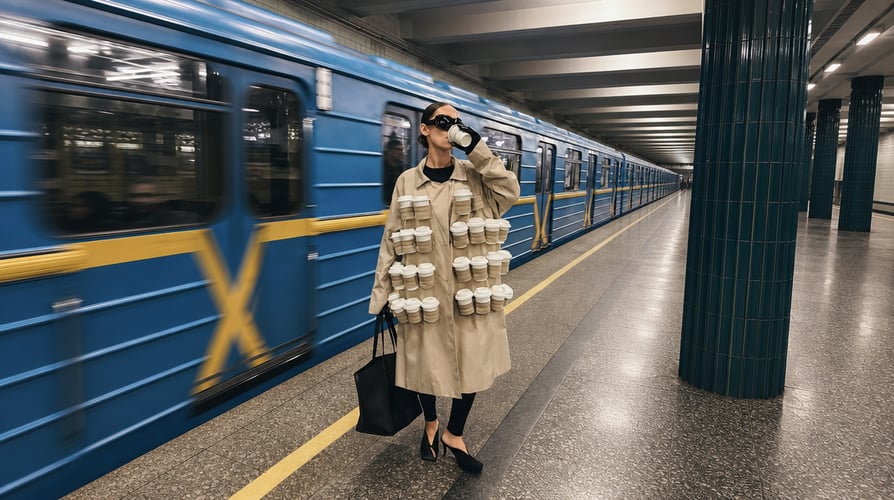
Use product imagery, brand references, or an existing campaign clip to define the visual anchor.


Use an image when the first frame, subject, or art direction already exists.

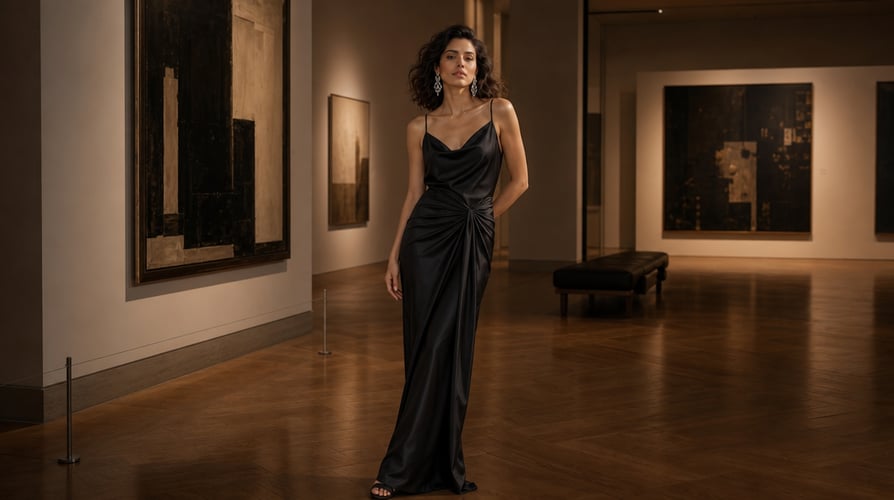
Continue a clip beyond its current ending, create another beat in the same world, or test a new visual explanation using the existing material as.
Buzzy brings image, video, and creative agent workflows together.
Answers to common Gemini Omni Flash questions.
Gemini Omni Flash is a model in Google’s Gemini Omni family, which combines multimodal reasoning, generation, and video editing.
Choose the model when it is available in the Buzzy workspace, select the task, add the relevant media, and describe what should remain and what should change.
Yes. Gemini Omni is designed for natural, step-by-step video editing. Provide the source material and describe a visible change in plain language.
The model family can work across text, images, video, and audio. It can also use references to guide video creation.
The Gemini Omni system supports image-to-video generation. Use the image to establish the first composition or subject, then describe motion, camera behavior, scene development, and the final state.
Yes, reference-to-video is among the supported Gemini Omni creation modes. References can guide subject identity, setting, or visual direction.
Identify the source, preservation requirements, requested change, and intended result.
Buzzy shows the current access, credit requirements, and model availability in the active workspace. These conditions can change, so the interface is the source of truth.
Bring text, images, video, audio, and references into one creative conversation. Gemini Omni Flash is designed around native multimodal understanding, so a video task can begin with more than a prompt. You can describe a new scene, provide visual context, continue existing footage, or request a specific edit while keeping the creative objective clear. On Buzzy, the workflow begins with the job you need to complete. Choose the relevant inputs, explain what should remain and what should change, then review the generated result as a connected visual sequence. Gemini Omni Flash is useful when the brief crosses media types or requires knowledge, reasoning, and editing to work together.
A multimodal brief can include the existing material and the requested outcome in one place. Use text to explain the task, images to establish subjects or style, video to provide motion and scene context, and audio when sound influences the edit or generation. Gemini Omni Flash can reason across these inputs rather than treating each medium as an unrelated step.
Start from text when the scene does not exist yet. Begin with an image when the composition or subject should guide the result. Use references when identity, environment, or visual language needs stronger continuity. Gemini Omni Flash supports text-to-video, image-to-video, and reference-to-video tasks within the broader Gemini Omni system.
Describe the visible change instead of learning a complex timeline tool. You can ask to alter a scene, update an element, change the visual treatment, or reshape the sequence in a step-by-step conversation. Gemini Omni Flash is designed for natural video editing, allowing the request to focus on the creative decision rather than manual masking or frame-by-frame operations.
Use an existing video or visual context to explore what happens next. Scene extension is useful when the original clip ends before the action resolves, the environment needs more room, or a sequence needs a connected continuation. State which elements should remain stable and explain the new progression so the extension belongs to the same visual world.
Select Gemini Omni Flash in the Buzzy workspace when available. Decide whether you are generating a new video, animating an image, using references, editing footage, or extending a scene. Add only the media that supports that job. Before prompting, identify the non-negotiable elements: subject identity, product appearance, environment, timing, audio, or final composition.
Write the instruction in direct language. Name the current material, the desired change, and the intended result. For editing, separate preservation requirements from modifications: keep the character and camera angle, replace the background, soften the lighting, and extend the final action. Gemini Omni Flash benefits from a visible hierarchy of decisions.
Choose the active settings shown in Buzzy, create the result, and review the complete sequence. Check whether the output respected the source material, performed the requested change, and maintained coherent motion and sound. Continue with a focused next instruction instead of rewriting the entire project. A conversational workflow is most useful when each turn has one clear purpose.
Tell the model why each asset is present. An image may define a character, a clip may provide the scene to edit, an audio file may establish rhythm, and text may describe the new action. Gemini Omni Flash can process multiple modalities, but the prompt should still identify the relationship between them.
State what must not drift. For a product, preserve shape, material, label placement, and color. For a character, preserve face, clothing, and defining features. For an edit, preserve camera perspective or timing when those elements already work. Clear preservation instructions make the requested change easier to assess.
Describe what happens over time. Explain the opening state, the action, the camera response, and the final state. Avoid treating a video request like a still-image prompt. Gemini Omni Flash needs temporal direction when the subject, environment, or edit develops across the clip.
Define the smallest change that accomplishes the objective. Replacing one object, extending one beat, or changing one visual treatment is easier to review than a request that rewrites every element at once. Complete major transformations in deliberate passes so each result remains connected to the source.
Gemini Omni is designed to combine creative generation with Gemini’s knowledge and reasoning. That can help the model interpret objects, places, actions, and relationships in a brief. Generated content still requires human review, especially when accuracy, safety, brand representation, or factual detail matters.
Use each result as context for the next instruction. Point to the part that worked, name the remaining issue, and request a visible correction. Gemini Omni Flash is built for step-by-step editing, so a controlled sequence of prompts can be more effective than one oversized instruction.
Choose aspect ratio and output settings according to the options shown in the Buzzy workspace. Plan the subject’s position for the final destination. A vertical social clip needs tighter mobile-safe framing, while a landscape sequence can reveal more environment and camera movement.
Watch the full result with sound. Check for continuity, unintended object changes, identity drift, transition quality, edit boundaries, and whether the final frame supports the intended use. A technically successful generation is not automatically a finished creative asset.
Begin with the source clip and a precise change request. Remove or replace a visible element, adjust the mood, revise the scene treatment, or restructure a specific moment. Keep the instruction tied to what can be seen and reviewed. Natural editing is most effective when the desired difference is concrete.
Use product imagery, brand references, or an existing campaign clip to define the visual anchor. Then describe the setting, action, camera, and transformation needed for a new concept. Gemini Omni Flash can reason across the reference material and written direction, giving the brief a consistent starting point.
Use an image when the first frame, subject, or art direction already exists. Explain how the scene should move, what the camera should reveal, and where the action should end. Add references only when they clarify identity or style. Image-to-video works best when the prompt describes progression rather than repeating what is already visible.
Continue a clip beyond its current ending, create another beat in the same world, or test a new visual explanation using the existing material as context. Gemini Omni Flash can support scene extension and multimodal reasoning, helping creators explore variations without abandoning the original concept.
Gemini Omni Flash is a model in Google’s Gemini Omni family, which combines multimodal reasoning, generation, and video editing. It can work with text, images, video, audio, and references, supporting tasks such as new video generation, image-to-video, reference-to-video, editing, and scene extension.
Choose the model when it is available in the Buzzy workspace, select the task, add the relevant media, and describe what should remain and what should change. Generate the result, review it against the source and brief, then continue with a focused next instruction.
Yes. Gemini Omni is designed for natural, step-by-step video editing. Provide the source material and describe a visible change in plain language. Keep the scope clear, review the result, and handle additional changes in separate passes when that makes the outcome easier to control.
The model family can work across text, images, video, and audio. It can also use references to guide video creation. In a Buzzy workflow, use only the input options currently shown for the active model and explain the role of every uploaded asset.
The Gemini Omni system supports image-to-video generation. Use the image to establish the first composition or subject, then describe motion, camera behavior, scene development, and the final state. Do not assume the model can infer the intended action from the image alone.
Yes, reference-to-video is among the supported Gemini Omni creation modes. References can guide subject identity, setting, or visual direction. Use a coherent set of assets and make the priority of each reference explicit in the prompt.
Identify the source, preservation requirements, requested change, and intended result. For example: preserve the character and camera path, replace the background with a rainy night street, and extend the final walk by several beats. Concrete instructions are easier to evaluate than broad requests such as “make it better.”
Buzzy shows the current access, credit requirements, and model availability in the active workspace. These conditions can change, so the interface is the source of truth. Avoid assuming a permanent free tier or fixed allowance based on a landing-page phrase.
Choose one multimodal task, add only the inputs that support it, and explain the relationship between the source material and the requested output.