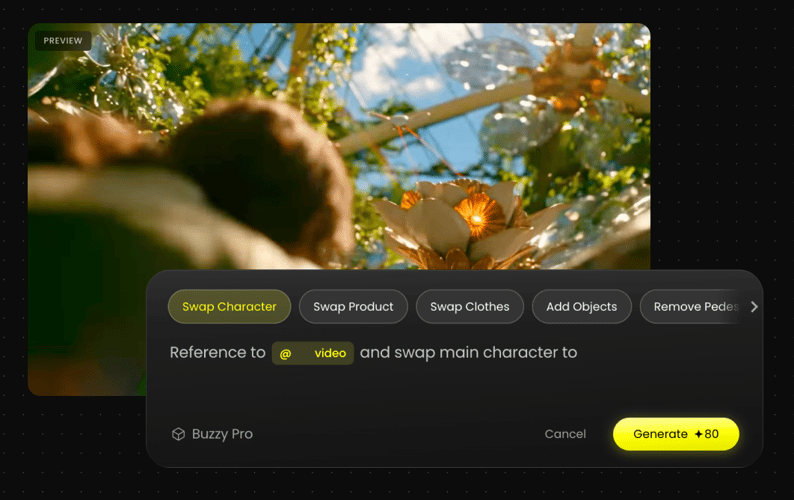
Kling 4.0 AI Video Generator for Directed Scenes

Plan a longer scene from a clear prompt. Add references and keyframes when available, then review motion, continuity, and sound before your next take.

Add a supported reference asset
Prompt
Describe subject action, scene changes, camera movement, and sound
Model
Resolution
Aspect Ratio
Duration4s
4s30s
Scene Preview

Kling 4.0 Video Planning Features

Build a scene around its action, reference materials, key visual beats, and sound. Available controls may differ by rollout and mode.

Write a Shot Brief First

Start with one action that viewers can follow. Name the subject, setting, camera position, and what changes before the last frame. If the idea needs several beats, put them in sequence instead of stacking visual adjectives. This gives a Kling 4.0 text-to-video request a clear beginning, middle, and end. Review the model selector before submitting: announced capabilities are not a guarantee that every mode is currently available on Buzzy.
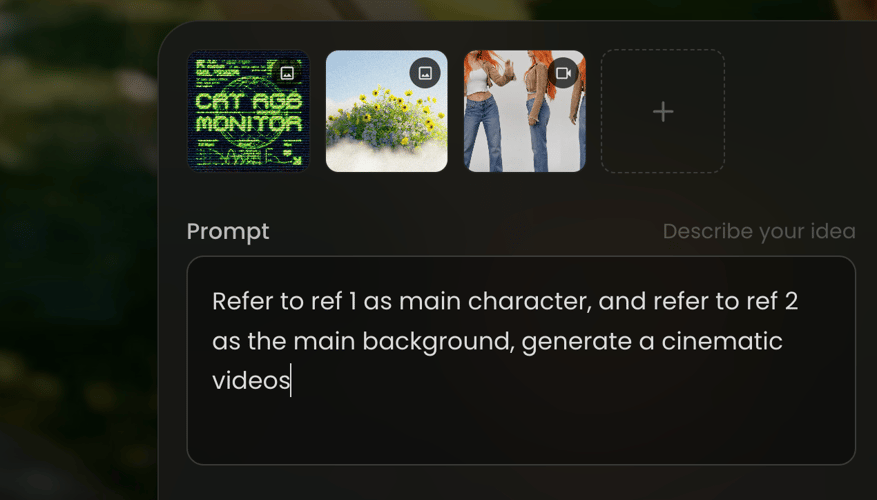
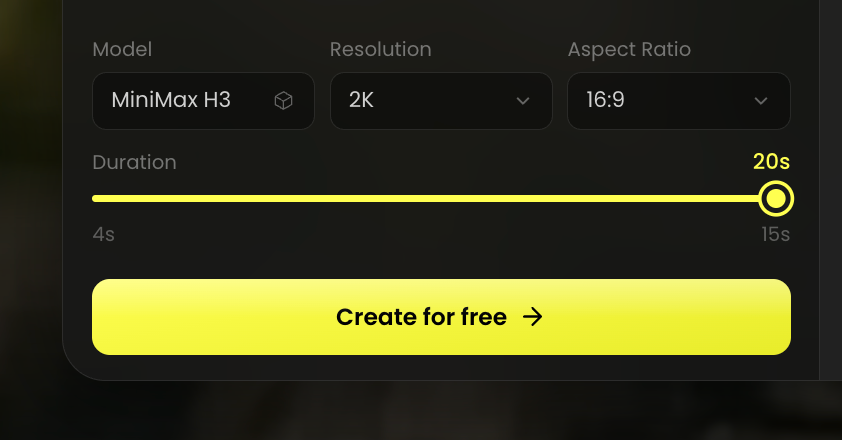
Reference-led Kling 4.0 video planning

Use References for Continuity

Choose an image or other supported asset because it solves a specific problem: preserving a character, showing a product, or establishing a setting. Identify which details matter in the prompt and remove conflicting cues before you generate. Kling 4.0 has been announced with multimodal reference guidance, but the accepted file types and counts depend on the live mode. Do not assume that a reference automatically controls every frame.

Kling 4.0 keyframe scene planning

Place Key Visual Beats

If keyframe guidance is available, decide which moments require a fixed composition: an opening pose, a transition, or a closing reveal. Describe the motion that connects them. A keyframe is a guide for the scene, not proof that all intermediate frames will match a storyboard exactly. Check continuity around faces, hands, props, and background geometry after generation.

Kling 4.0 video and audio review

Review Picture and Sound Separately

Watch the first pass without audio to judge motion, framing, and visual continuity. Then listen for intelligible speech, appropriate ambience, and timing. The Kling 4.0 preview discusses stereo sound and lip-sync, but every take still needs human review. Change one creative instruction at a time when revising so you can identify what improved the result.

How to Plan a Kling 4.0 Video on Buzzy

Check model access, write the shot, add supported guidance, and review the generated take.

Check Kling 4.0 availability in BuzzySTEP 01

CHECK MODEL ACCESS

Open the Buzzy model selector and confirm whether Kling 4.0 is available for your account. Review the inputs, durations, output settings, and terms shown there before planning production around a particular configuration.

Write a Kling 4.0 prompt and prepare referencesSTEP 02

WRITE AND GUIDE THE SCENE

State the subject, action, location, camera movement, and ending. Add only supported references or keyframes that clarify appearance or timing. Give each asset a role instead of uploading a collection of conflicting directions.

Review a Kling 4.0 video testSTEP 03

GENERATE AND REVIEW

When the model is available, generate a test. Watch for visual continuity and camera behavior, then review speech and sound. Revise the most important missed instruction first rather than changing the entire brief at once.

Get Inspirations

Why Plan with Kling 4.0 on Buzzy?

Start with a Defined Shot

A one-sentence scene brief makes subject action, camera direction, and the ending easier to assess than a broad style prompt.

Assign Each Reference a Role

Use an asset for a specific continuity need such as character identity, product appearance, or location; resolve conflicting visual cues first.

Plan Movement Between Beats

Describe how the subject and camera move between visual anchors. Check keyframe controls in your available mode.

Review Sound on Its Own

Listen for dialogue clarity, ambience, and synchronization separately from the image before approving a take.

Verify Live Access and Limits

Use the Buzzy selector for current model availability, accepted inputs, duration, resolution, and account terms; announced limits may differ.

Explore More Buzzy Video Models

Compare available video workflows before choosing a model for a reference-led scene, short test, or longer take.

Seedance 2.5
Cinematic 4K, consistent shots
Try it
Agentic Canvas
Agent-driven node canvas
Try it
Kling 4.0
3 to 30 seconds long at up to 4K quality
Try it
Nano Banana 2.1
Fast and brand level image generation
Try it
Seedance 2.0
Motion-driven video creation
Try it
Google Omni
Cinematic video generation
Try it
Kling
High-fidelity physics simulation
Try it
Runway
Next-gen creative video tools
Try it
Nano Banana 2
Lightweight video synthesis
Try it
Veo 3.1
Google's advanced video generation
Try it
GPT Image 2
Photorealistic image generation
Try it
Hailuo
Fast and expressive video drafting
Try it
Pixverse
Stylized and dynamic video generation
Try it

Kling 4.0 Frequently Asked Questions

Practical answers about availability, prompts, references, keyframes, duration, and sound.

Kling 4.0 is the announced video model in the Kling AI line. Its preview describes longer single generations, multimodal references, keyframe guidance, and upgraded audio and visuals. On Buzzy, use the model selector to check which of those inputs and controls are actually available before starting a project. For a useful first test, separate the appearance brief from the motion brief: the first explains what should remain recognizable, while the second describes how the subject and camera change over time. That distinction helps you identify whether a miss came from the reference, the prompt, or the movement plan.

Kling 4.0 is currently marked as presale on Buzzy. Availability can change during rollout. Check the live model selector, account terms, and generation controls before planning around a particular mode. If the model is not selectable yet, use the page to prepare a shot list and organize permitted assets. Avoid promising a client a resolution, duration, turnaround time, or input mode until those settings appear in the workspace used for the actual job.

Begin with the subject and action. Add the setting, camera position or movement, a clear sequence of events, and the intended final frame. If speech or ambience matters, describe it separately. A prompt that explains what changes during the scene is easier to review and refine than a list of style words. A short scene can still contain multiple events. Put them in chronological order and state the visual consequence of each event. For example, a person enters a room, turns toward a product, and pauses for a final close-up. Read the prompt once without adjectives to check that the action remains understandable.

Kling 4.0 has been announced with multimodal reference and keyframe guidance. The accepted asset types, quantity, and controls depend on the version and mode exposed in Buzzy. Use a reference to define a specific character, product, or place, and use keyframes for important visual beats when the controls are present. Keep references consistent with each other. If one image shows a different costume or product color, decide which source should control that detail before generating. A small, purposeful set of assets is often easier to direct than a larger collection without assigned roles.

The model preview describes up to 30 seconds in one generation. Your available duration may be shorter or depend on the selected mode, account, and settings. Confirm the range in the Buzzy workspace instead of building a delivery plan around the announced maximum. Plan what the viewer should learn during the selected duration. A product reveal may need a recognizable opening, a visible change, and a clean ending; a shorter test may cover only one of those beats. Do not stretch a weak action simply because a longer setting exists.

The Kling 4.0 preview discusses stereo audio and multilingual lip-sync. These are model-level descriptions, not a guarantee that every Buzzy mode exposes the same options or that a specific line of dialogue will render perfectly. Review voice clarity, speaker continuity, lip-sync, and audio balance in each generated take. If speech matters, identify the speaker and line clearly in the scene brief, then listen to the output before reviewing the visuals again. For campaigns, check pronunciation of names and whether the intended voice matches the character across cuts.

Plan Your Next Kling 4.0 Scene

Write the subject, action, camera move, and ending before you select a model. Check current Buzzy access and controls for your project.

25M
Customers
190 countries
#1
Product of the month
Product Hunt
4.8
G2
Buzzy