
Create from Flexible Inputs
Begin with text, a starting image, or references that anchor the visual direction.
Turn text, images, or references into directed video with coordinated sound.
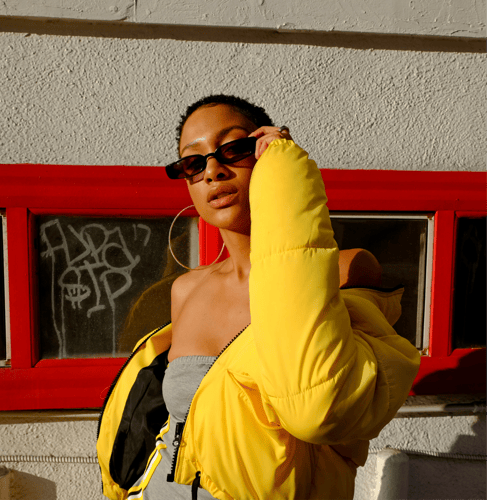
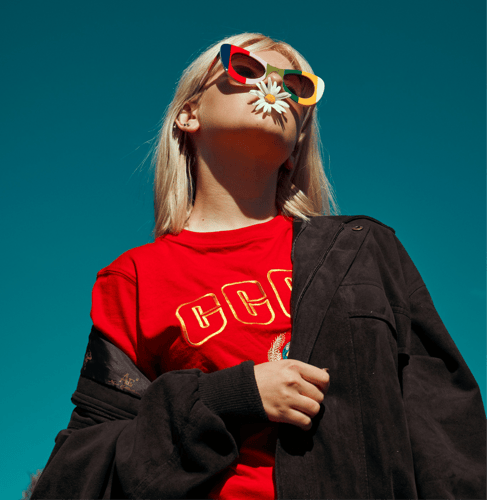

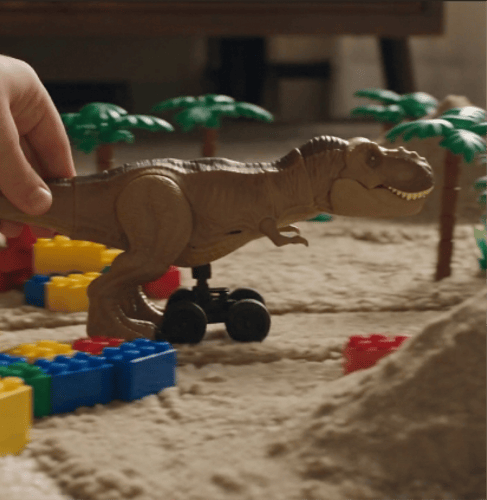
Choose the right input, plan the shot, and refine the sequence.
Begin with text, a starting image, or references that anchor the visual direction.
Define the opening, action, camera response, and final beat.
Add ambience, rhythm, or sound cues as part of the scene brief.
Break the concept into purposeful beats that share one visual language.
Move from a clear input to a reviewable video in three steps. The strongest results come from making one meaningful decision at each stage.
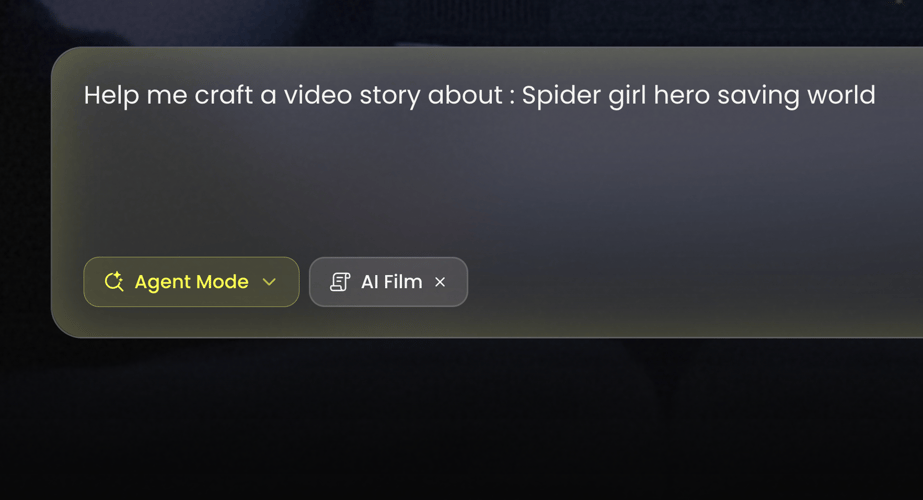 STEP 01
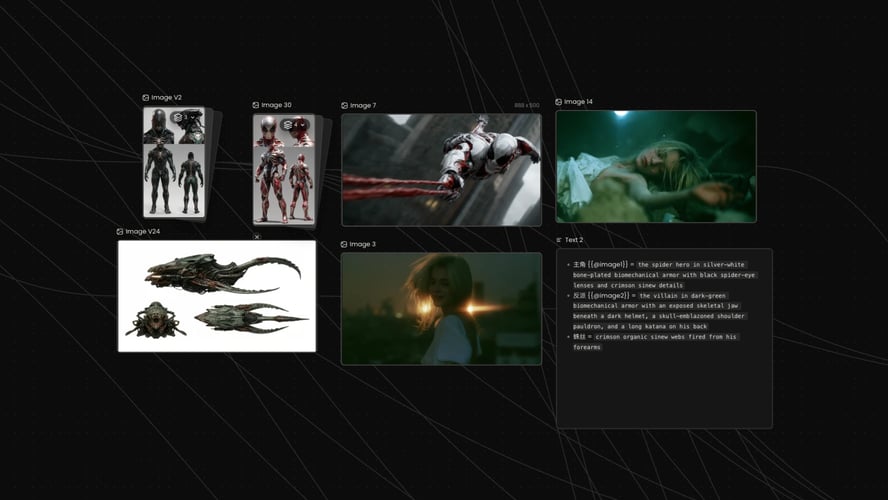
Select Wan 3. 0 in the Buzzy video workspace.
 STEP 02
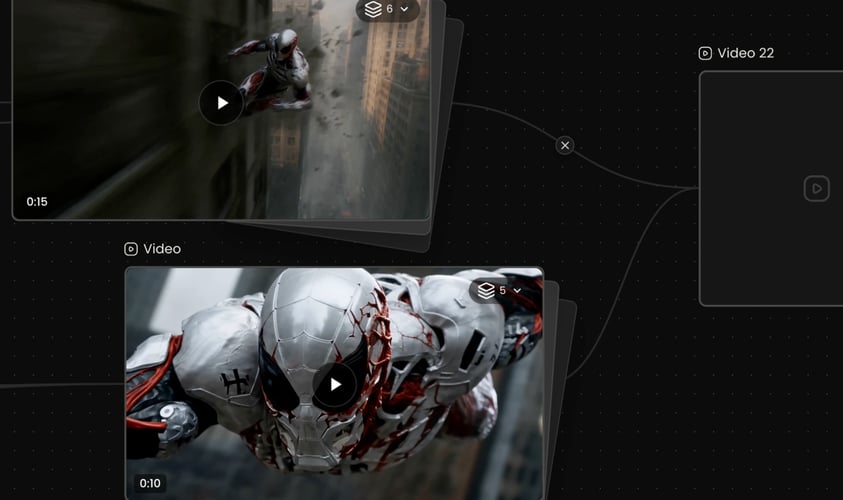
Write the subject and action first. Then add the environment, camera behavior, visual style, pacing, and sound context.
 STEP 03
Choose the available resolution, ratio, and duration that fit the destination, then generate.
Buzzy
Text-to-video is useful when the scene does not need to preserve an existing visual.
The model supports clips across a flexible duration range, with available settings depending on the active Buzzy.
Wan 3.
Name the camera move only when it contributes to the moment.
Describe the sound that belongs naturally in the environment: rain against glass, a distant crowd, a machine starting,.
Compare the generated clip with the original objective.
Begin with a text prompt when you are creating a scene from scratch.
A useful video prompt explains what changes over time.
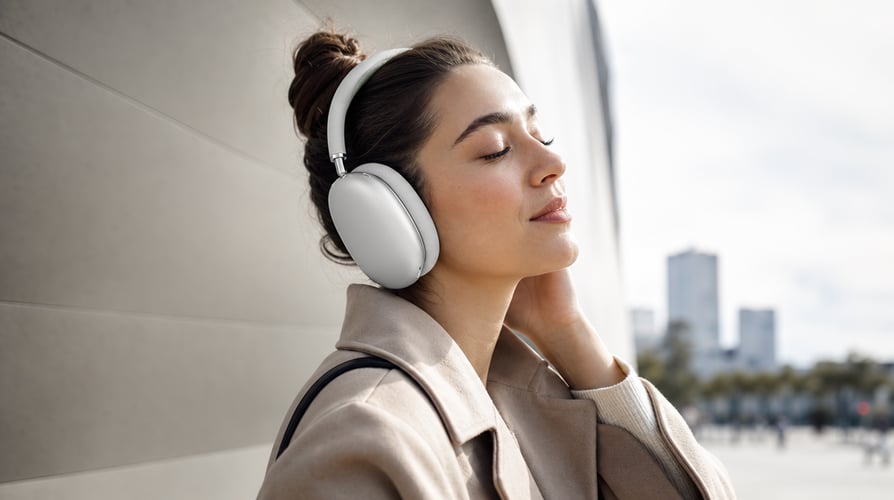
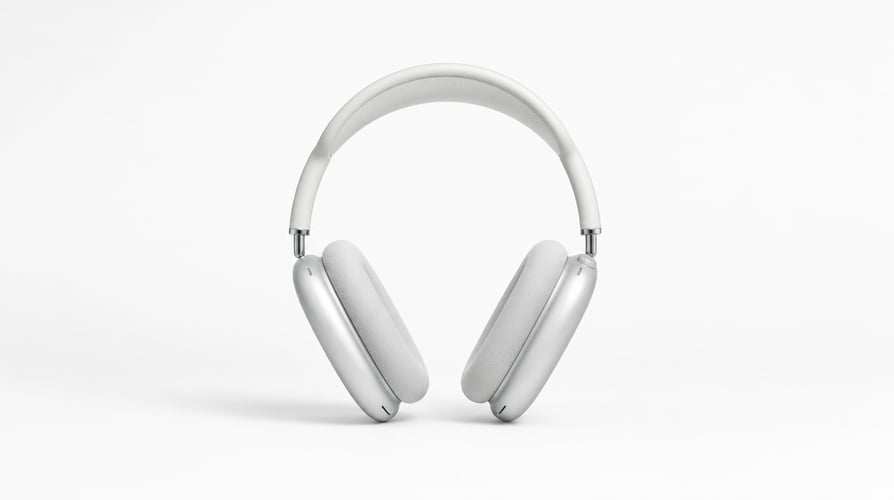
Build a short reveal, demonstration, environmental product shot, or branded visual sequence.
Create a compact story beat with a clear emotional change. Define the character, immediate goal, environment, action, and reaction. Wan 3.


Design vertical hooks, short campaign concepts, and visually direct social clips.
Explore movement, environment, and rhythm together.
Buzzy brings multiple video models and creative workflows into one workspace.
Answers to common Wan 3. 0 questions.
Wan 3. 0 is Alibaba’s AI video model for text-to-video, image-to-video, and reference-led creation.
Select the model, choose text, image, or reference inputs, write the subject and action, add camera and sound direction, and select the available output settings.
Yes. The model supports joint audio-video generation. Include concise sound context such as ambience, environmental effects, or musical direction when it helps the scene.
Yes. Use a starting image when the opening composition, subject, product, or environment should guide the video. Pair the image with a prompt that explains the motion and camera behavior.
Wan 3. 0 supports reference-led video creation. References can help establish identity, appearance, motion, style, or setting.
Choose the aspect ratio for the final destination: landscape for widescreen placements, vertical for mobile-first video, square for balanced social layouts, or another supported ratio shown in the workspace.
Name the subject, action, setting, and sequence first. Add only the camera, style, lighting, pacing, and sound details that affect the result. Use time-based language when the scene changes.
You can develop product moments, narrative scenes, social clips, branded concepts, transitions, atmospheric videos, and music-led ideas.
Turn a written idea, a starting image, or a set of visual references into a video brief you can actually direct. Wan 3.0 brings video and audio generation into the same creative process, while Buzzy gives you a focused place to describe the subject, action, camera, atmosphere, and sound. Start with the outcome you need rather than a technical prompt formula. Define the moment, choose the strongest available input, and use the settings shown in the Buzzy workspace to shape the output. Wan 3.0 is suited to creators who want more than a single moving image: it can support short narrative beats, product moments, character-driven scenes, transitions, and sequences with coordinated visual and audio direction.
Begin with a text prompt when you are creating a scene from scratch. Use an image when a subject, composition, product, or environment should anchor the opening. Add references when identity, appearance, motion language, or visual continuity matters across the result. Wan 3.0 can work across text-to-video, image-to-video, and reference-led generation, so the input can match the job instead of forcing every concept into the same method.
A useful video prompt explains what changes over time. State where the subject begins, what action follows, how the camera responds, and where the shot should resolve. Wan 3.0 is designed for coherent video generation rather than an isolated frame. On Buzzy, you can write the prompt like a compact shot brief, making the action and progression easier to review.
Sound is part of the scene, not an afterthought. Describe ambience, environmental sound, rhythm, or a simple audio cue alongside the visual direction. Wan 3.0 supports joint audio-video generation, which helps creators plan the mood and action as one connected moment. Keep requests clear and avoid treating generative audio as a guarantee of exact dialogue or perfect synchronization.
Not every concept belongs in one locked camera angle. Wan 3.0 supports video creation over a broader duration range and can be used for multi-shot sequences. Break the idea into a small number of beats, give each beat a purpose, and preserve the same subject and visual language across the progression. The result is easier to assess when every shot advances the concept.
Select Wan 3.0 in the Buzzy video workspace. Start with text for a new concept, an image for a defined opening frame, or references when the subject or visual direction should remain recognizable. Choose only assets that contribute to the same idea. A smaller set of relevant references is more useful than a mixed collection with conflicting styles, lighting, and subjects.
Write the subject and action first. Then add the environment, camera behavior, visual style, pacing, and sound context. For example, describe whether the camera tracks beside the subject, pushes slowly toward a product, or remains fixed while the environment changes. Wan 3.0 prompts are easier to refine when each phrase controls a visible or audible part of the result.
Choose the available resolution, ratio, and duration that fit the destination, then generate. Review subject consistency, motion, framing, scene progression, and audio together. If the result misses the brief, revise the most important decision first. Shortening an overloaded prompt or clarifying the timing of one action often gives Wan 3.0 a cleaner next take than adding more adjectives.
Text-to-video is useful when the scene does not need to preserve an existing visual. Image-to-video is better when the first composition already matters. Reference-led generation is appropriate when a particular character, object, style, motion cue, or setting needs stronger guidance. Match the input type to the creative risk you want to reduce.
The model supports clips across a flexible duration range, with available settings depending on the active Buzzy configuration. More seconds do not automatically produce a stronger result. Use the shortest duration that can express the action clearly. Reserve longer sequences for ideas with a beginning, development, and resolution.
Wan 3.0 supports common landscape, square, and vertical formats, with output options that can include 480p, 720p, and 1080p in supported configurations. Choose the ratio for the final placement before generating. A vertical social clip, widescreen cinematic shot, and square product post need different framing from the first prompt.
Name the camera move only when it contributes to the moment. A slow push-in can increase focus, a tracking shot can follow movement, and a static frame can make transformation easier to read. Avoid stacking several incompatible camera instructions. Wan 3.0 needs a clear progression more than a list of film terms.
Describe the sound that belongs naturally in the environment: rain against glass, a distant crowd, a machine starting, footsteps on a surface, or a musical pulse. Keep the audio brief aligned with the visual timeline. If sound is not essential, a simpler request gives the visual action more room.
Compare the generated clip with the original objective. Check whether the subject remains recognizable, the action reads in the intended order, and the camera supports rather than obscures the scene. Refine one category at a time. Wan 3.0 becomes easier to control when every new take has a specific reason.
Begin with a text prompt when you are creating a scene from scratch. Use an image when a subject, composition, product, or environment should anchor the opening. Add references when identity, appearance, motion language, or visual continuity matters across the result. Wan 3.0 can work across text-to-video, image-to-video, and reference-led generation, so the input can match the job instead of forcing every concept into the same method.
A useful video prompt explains what changes over time. State where the subject begins, what action follows, how the camera responds, and where the shot should resolve. Wan 3.0 is designed for coherent video generation rather than an isolated frame. On Buzzy, you can write the prompt like a compact shot brief, making the action and progression easier to review.
Build a short reveal, demonstration, environmental product shot, or branded visual sequence. Start with the product’s role in the scene, then specify the surface, setting, lighting, camera path, and final composition. A reference image can help preserve recognizable visual details while the prompt directs motion and context.
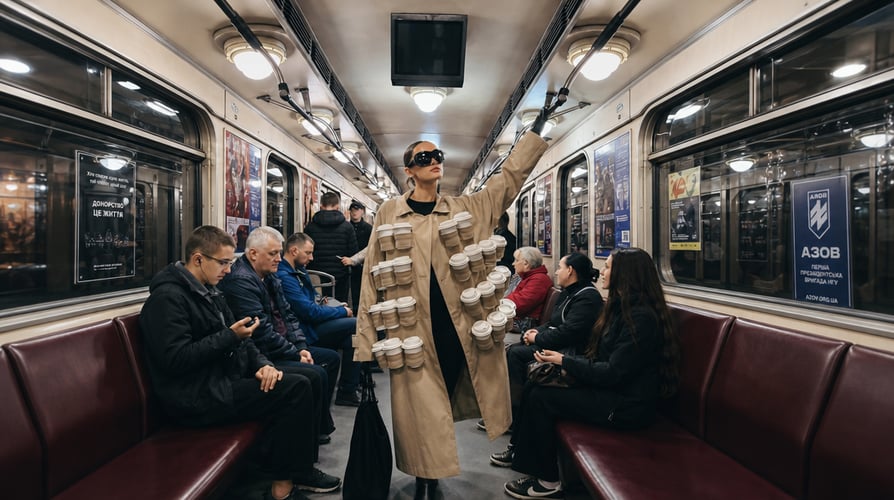
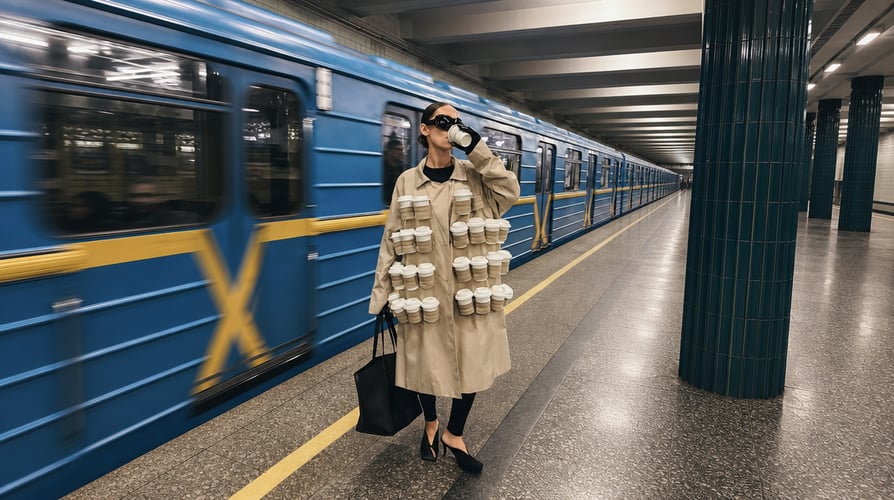
Create a compact story beat with a clear emotional change. Define the character, immediate goal, environment, action, and reaction. Wan 3.0 can support multi-shot storytelling, but the sequence still needs a readable structure. Treat every shot as part of the same moment rather than a separate prompt idea.
Design vertical hooks, short campaign concepts, and visually direct social clips. Put the important action early, keep the subject legible on a small screen, and choose a ratio before composing the prompt. Use sound direction when it strengthens the hook, not simply because audio is available.
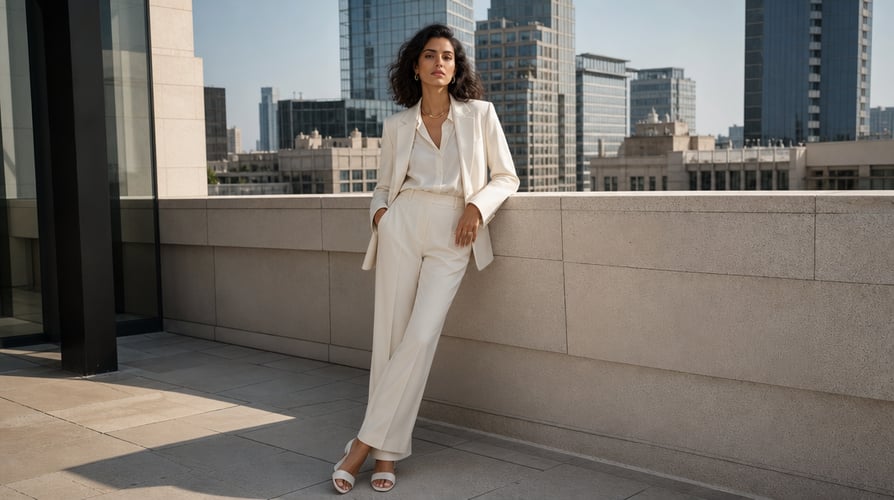
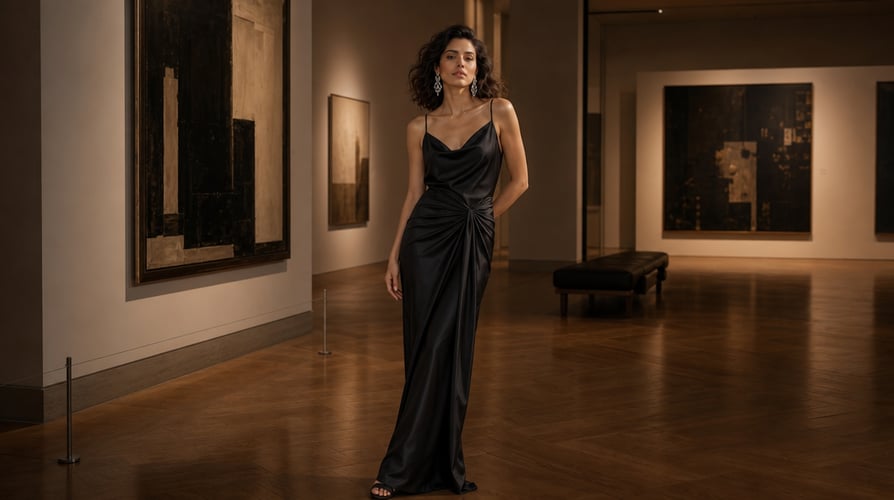
Explore movement, environment, and rhythm together. Describe how the visual changes with the beat or atmosphere, whether that means a performance moment, a slow cinematic landscape, or an abstract transition. Wan 3.0 can connect audio and video generation, giving the brief a unified creative center.
Wan 3.0 is Alibaba’s AI video model for text-to-video, image-to-video, and reference-led creation. It supports coordinated visual and audio generation, multiple common aspect ratios, and a flexible clip-duration range in supported configurations. On Buzzy, creators can turn those capabilities into a directed generation workflow.
Select the model, choose text, image, or reference inputs, write the subject and action, add camera and sound direction, and select the available output settings. Generate the clip, review it against the brief, and revise the most important creative decision for the next take.
Yes. The model supports joint audio-video generation. Include concise sound context such as ambience, environmental effects, or musical direction when it helps the scene. Generated results can vary, so exact dialogue, vocals, or synchronization should be reviewed rather than assumed.
Yes. Use a starting image when the opening composition, subject, product, or environment should guide the video. Pair the image with a prompt that explains the motion and camera behavior. Do not rely on the image alone to communicate the intended change.
Wan 3.0 supports reference-led video creation. References can help establish identity, appearance, motion, style, or setting. Use cohesive assets and explain their role in the prompt so the model receives a clear hierarchy instead of conflicting signals.
Choose the aspect ratio for the final destination: landscape for widescreen placements, vertical for mobile-first video, square for balanced social layouts, or another supported ratio shown in the workspace. Select resolution and duration based on the available Buzzy settings and the complexity of the action.
Name the subject, action, setting, and sequence first. Add only the camera, style, lighting, pacing, and sound details that affect the result. Use time-based language when the scene changes. A readable shot brief is usually easier to refine than a dense paragraph of unrelated visual adjectives.
You can develop product moments, narrative scenes, social clips, branded concepts, transitions, atmospheric videos, and music-led ideas. The best use case has a clear visual objective, an appropriate input type, and an action that can be expressed within the chosen duration.
Bring one focused video idea to Buzzy.