By Buzzy AI Editorial Team · Updated 2026-07-23
Image-to-video control in Seedance 2.5 starts by uploading a reference image on Buzzy AI's generator page, then adding a text prompt describing motion, camera movement, and pacing. Creators join up to 50 reference assets for stronger visual consistency, producing native 30-second single-segment videos with smoother continuation and far less post-production stitching.
What Do You Need Before Starting with Seedance 2.5 Image to Video?
Preparation determines whether aSeedance 2.5clip looks polished or falls apart mid-generation. Creators who skip planning waste render credits on mismatched references and inconsistent motion. A short checklist before opening theAI video generatorsaves time and avoids costly re-runs.
Marketers and hobbyists preparing animage to videoproject should complete these steps in order:
Select a video style first.Buzzy AI lets creators move between community pro videos, branding ads, and animations before committing to a direction, so the style choice should happen before any image gets uploaded.
Outline the concept with planning tools.Buzzy AI's Creative Agent and AI Storyboard tools help map out shots and pacing, giving a clearer target for the reference images that follow.
Confirm the use case.Buzzy AI simplifies production for ads, films, and explainer videos, so matching the source material to the intended application avoids mismatched pacing or tone later.
Prepare compatible image files.Source images need to be ready in an accepted format before upload.
Which File Formats Work for Seedance 2.5 Image to Video?
Seedance 2.5 image to videoprojects accept jpeg, jpg, png, webp, bmp, tiff, tif, and gif files. Uploading files outside these formats causes upload errors, so converting images beforehand prevents delays during the planning stage.
Is Seedance 2.5 Available on Every Platform Right Now?
Seedance 2.5 launch is expected in early July, meaning availability may vary by platform during the initial rollout. Creators should confirm access on their chosen tool before finalizing a production timeline, especially for time-sensitive ad or campaign deadlines.
How Do You Upload Your Reference Image?
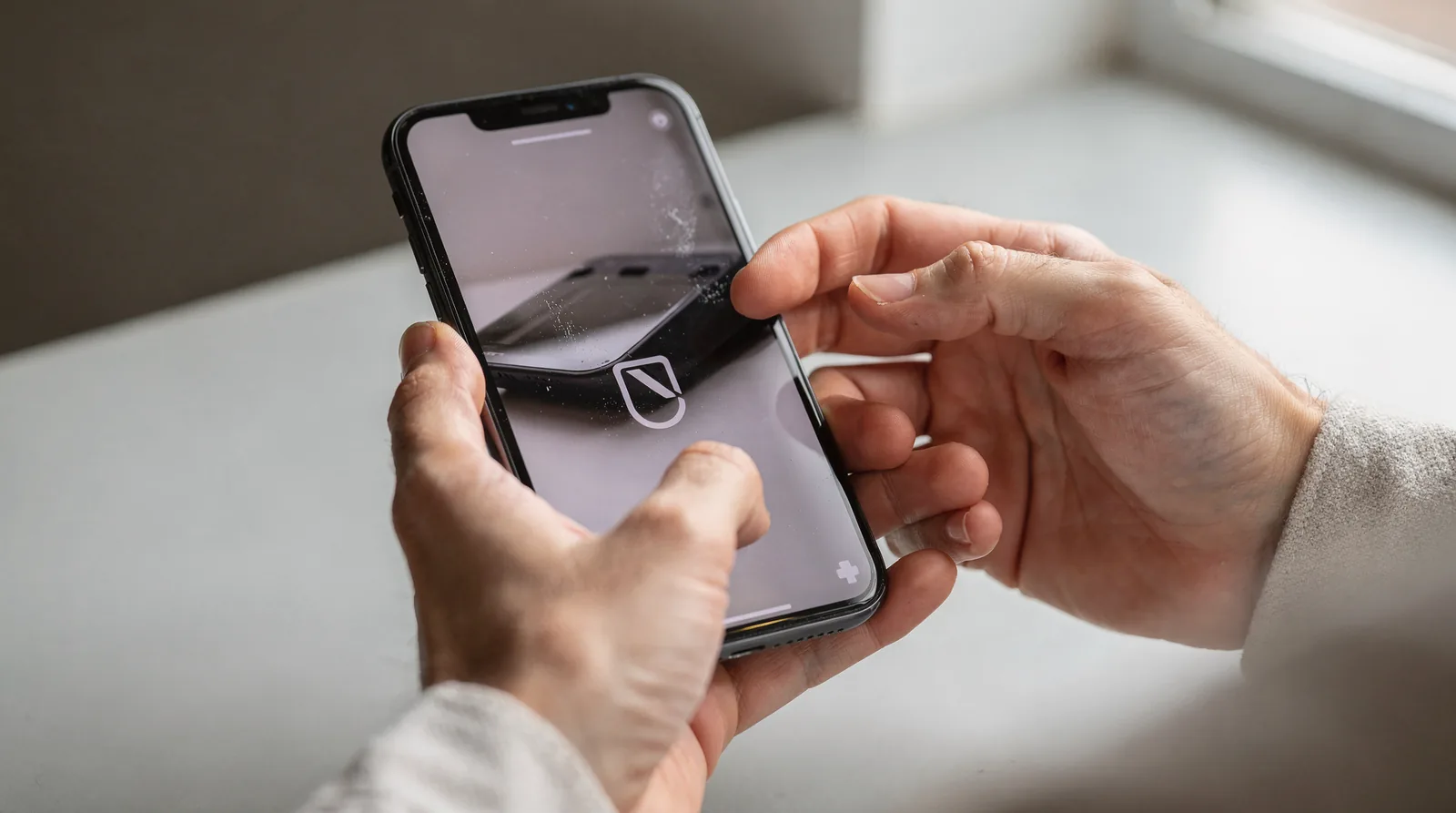
Uploading a reference image starts inside the platform's project workspace, where the file is attached before any prompt is written.Seedance 2.5treats that image as the anchor for motion, style, and composition, so the order of steps matters.
Before uploading, a creator should pick a project style. Buzzy AI's platform lets users move between community pro videos, branding ads, and animations, and that choice shapes which settings appear during theimage to videostep. Selecting the right style first avoids restarting the upload later.
Choose a video style - community pro, branding ad, or animation - inside Buzzy AI's platform.
Open the Creative Agent tool, which streamlines theSeedance 2.5 image to videoworkflow and keeps setup accessible for varied creative needs.
Attach the primary reference image or clip, then add supporting assets; the model accepts up to 50 joined reference assets for richer multimodal guidance.
For scenes with complex staging, apply the R2V reference option using a green screen film or a white model reference to steer motion and framing.
Confirm the upload queue, then move to prompt writing.
Can More Than One Reference Image Be Uploaded?
Multiple references can be uploaded in a single project. Because Seedance 2.5 supports up to 50 joined reference assets, a creator can combine style boards, motion clips, and product shots in one generation instead of running separate passes.
Does the Upload Process Require Technical Skill?
No specialized skill is required. Buzzy AI's intuitive and comprehensive platform, paired with theAI video generatorinterface, keeps professional-quality output accessible to creators without production backgrounds, letting reference uploads stay a simple drag-and-drop action rather than a technical hurdle.
How Do You Write Prompts For Motion?
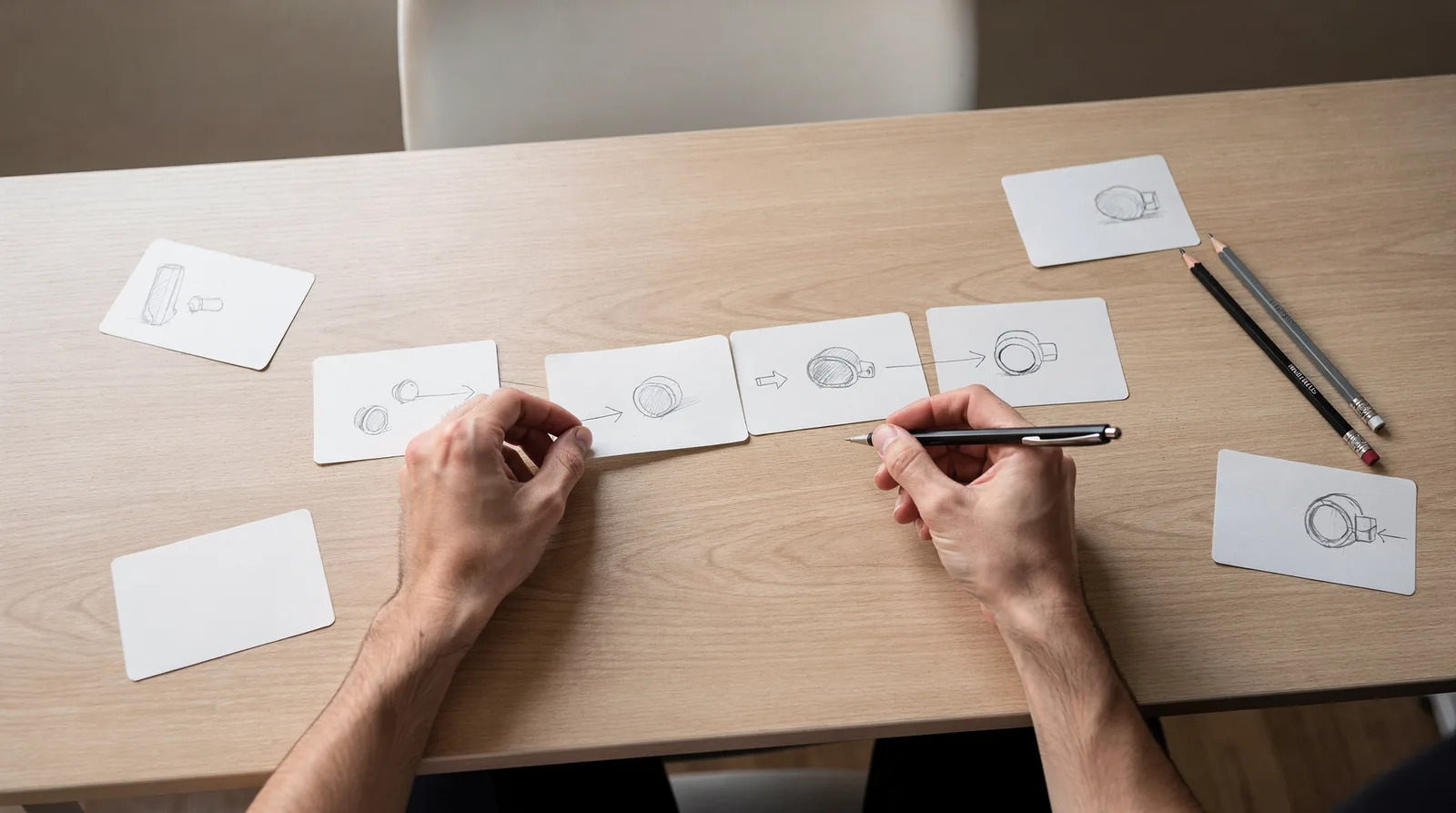
Motion prompts succeed when they describe action, camera movement, and narrative purpose in the same sentence rather than listing static adjectives.AI video prompt tipsfor Seedance 2.5 center on treating each prompt as a short film direction, not a caption. Buzzy AI's approach to simplifying professional video creation for adverts. Films informs this method: a strong prompt names the goal of the shot before describing its look.
Writers who planSeedance 2.5 image to videosequences get the clearest results by following a fixed sequence rather than improvising line by line.
State the subject and its motion first ("a runner sprints left to right").
Add camera behavior second (pan, push-in, static hold).
Note pacing or rhythm, since Seedance 2.5 supports native 30-second single-segment output with fuller story rhythm than short clips allow.
Layer mood or lighting last, after motion and camera are locked.
Should prompts be written as a shot list?
Structuring prompts as a shot list changes how the model reads intent across a longer sequence. Breaking a 30-second concept into three or four labeled beats gives each segment a clear motion cue instead of one crowded paragraph.
Does image to video need different prompt language than text to video?
Image to videoprompts describe change from a fixed starting frame, while text-only prompts must build the scene from nothing. Comparingtext to video vs image to videoapproaches, image-based prompts should focus almost entirely on movement instructions, since composition is already set by the reference.
Buzzy AI's AI Storyboard tool supports this shot-list method directly, letting creators sequence direction before generation begins. That structure keeps the platform's promise of accessible, professional-quality output intact even for motion-heavy, multi-beat scenes.
How Do You Refine And Extend Your Clip?
Refining a clip inSeedance 2.5starts with frame-level editing rather than a full regeneration. Creators tighten motion, adjust continuity, and extend duration without restarting the entire sequence. This approach cuts down on wasted renders and keeps the originalimage to videocomposition intact.
The refinement workflow follows a clear sequence:
Select the segment of the clip that needs adjustment rather than the whole 30-second file.
Apply frame-level edits to correct motion, framing, or pacing issues.
Use the controllable refinement settings to lock in visual consistency before extending further.
Extend the shot only after the base sequence looks stable, since Seedance 2.5 favors smoother continuation over stitched-together clips.
Seedance 2.5 reduces split generations and post-production stitching by design, which means fewer disjointed cuts during the refinement stage. Visual consistency stays stronger when creators refine a shot instead of generating a replacement from scratch. That consistency matters most for marketers producing branded sequences where color, lighting, and subject continuity carry brand identity across frames.
Which Tools Help Manage The Editing Stage?
Buzzy AI's Creative Agent and AI Storyboard tools support the editing stage by organizing shot sequences before and after refinement. Both tools make the editing process accessible for creators without a technical production background. Storyboard planning helps map extensions ahead of time, reducing guesswork once a clip enters refinement.
Does Refinement Work Differently For Branding Projects?
Refinement adapts to the intended output format, whether the goal is a branding ad, an animation, or a community-style clip. Buzzy AI's platform navigation covers these varied video styles, so refinement choices shift depending on the final destination. Professional-quality results stay accessible across all of these formats, not reserved for specialists alone.
What Mistakes Should You Watch For?
Three errors cause most failedSeedance 2.5projects: mismatched reference resolution, poor batch testing, and skipping platform tools built to catch style errors early. Creators who understand basictext to video vs image to videoworkflows still trip on these details.Seedance 2.5 image to videoprojects demand tighter reference discipline than pure text prompts.
Buzzy AI simplifies professional video creation for adverts, films, and explainer videos, which helps creators avoid mismatched style choices before they compound into wasted renders. The platform's Creative Agent and AI Storyboard reduce the learning curve that typically causes these mistakes, making theAI video generatoraccessible for varied creative needs rather than reserved for specialists.
Why does resolution mismatch ruin a render?
Seedance 2.5 targets cinematic4K AI video generatoroutput. A low-resolution reference image dragged into a 4K project produces blurred or inconsistent frames. Always check that source assets meet the resolution the final render demands before submitting a job.
Should creators test one prompt or several?
Testing one prompt in isolation wastes render budget. Batch generation lets creators run up to 10 videos in one batch with identical settings, which turns prompt variation into a controlled experiment rather than guesswork.
Common mistakes checklist:
Uploading low-resolution stills into a30 second AI videomeant for 4K output.
Submitting a single prompt instead of batching variations.
IgnoringAI video prompt tipsaround describing motion, not just appearance.
Skipping Buzzy AI's intuitive platform tools that flag inconsistencies before rendering, since professional-quality results should stay accessible to everyone, not just experts.
For creators who want the shortest path from a still image to a polished clip, Buzzy keeps the workflow focused: choose the style, upload the reference, write motion-first direction, then refine only the frames that need work. The dedicated Seedance 2.5 video generator page is the best place to start when the project needs longer motion, stronger reference control, and less manual stitching.
Build the workflow around the model hub.
Use the Buzzy Seedance 2.5 hub as the central internal link target for tutorials, pricing explainers, and workflow pages.