Seedance 2.5 requires uploading a source image or video clip into the platform's input panel, entering a text prompt describing desired motion, and selecting a resolution up to 1080p before rendering. Users adjust duration settings, typically between 5 and 10 seconds, then click generate to produce the final AI video output.
Prompts entered into Dreamina's generator, paired with up to 50 joined reference assets, drive Seedance 2.5 to output a native 30-second single-segment 4K video with minimal post-production stitching. Refine camera control and shot continuity directly on the page before finalizing the clip for ads, ecommerce, or storytelling.
Seedance 2.5, launching early July on Dreamina, works through prompts and reference assets: writers add a text prompt, upload up to 50 joined reference assets, then generate a native 30-second single-segment video. Buzzy AI's Creative Agent and AI Storyboard tools help refine shots, maintain visual consistency, and cut post-production stitching before exporting the finished cinematic 4K clip.
What Do You Need Before Starting Seedance 2.5?
Preparation matters more than prompt-writing skill. Seedance 2.5 works best when creators arrive with a clear concept, reference material, and a platform that organizes both before generation begins. ByteDance positions the model as its next-generation video system, extending the Seedance 2.0 line with longer native takes and a much larger reference library. Because launch is expected in early July, some features and interface details may shift before wide availability arrives.
Three prerequisites separate a smooth session from a wasted one:
Define the video style first. Buzzy AI's platform lets creators move between community pro videos, branding ads, and animation styles before touching a generation tool, which narrows the creative direction early.
Gather reference assets. Since Seedance 2.5 supports far more joined references than earlier versions, collecting images or clips ahead of time speeds up the entire how to use Seedance 2.5 process.
Build a rough storyboard. The Creative Agent and AI Storyboard tools on Buzzy AI turn a loose idea into a structured sequence, making the eventual AI video generator session faster and more accurate.
Does Seedance 2.5 require special software to prepare assets?
No specialized software is required. Standard image or clip files organized through a storyboard tool cover most preparation needs. The heavier lifting happens inside the model itself once generation starts.
Skipping preparation risks vague output and repeated regenerations. A short Seedance 2.5 guide built around style selection, references, and storyboarding avoids that friction before the first prompt is even typed.
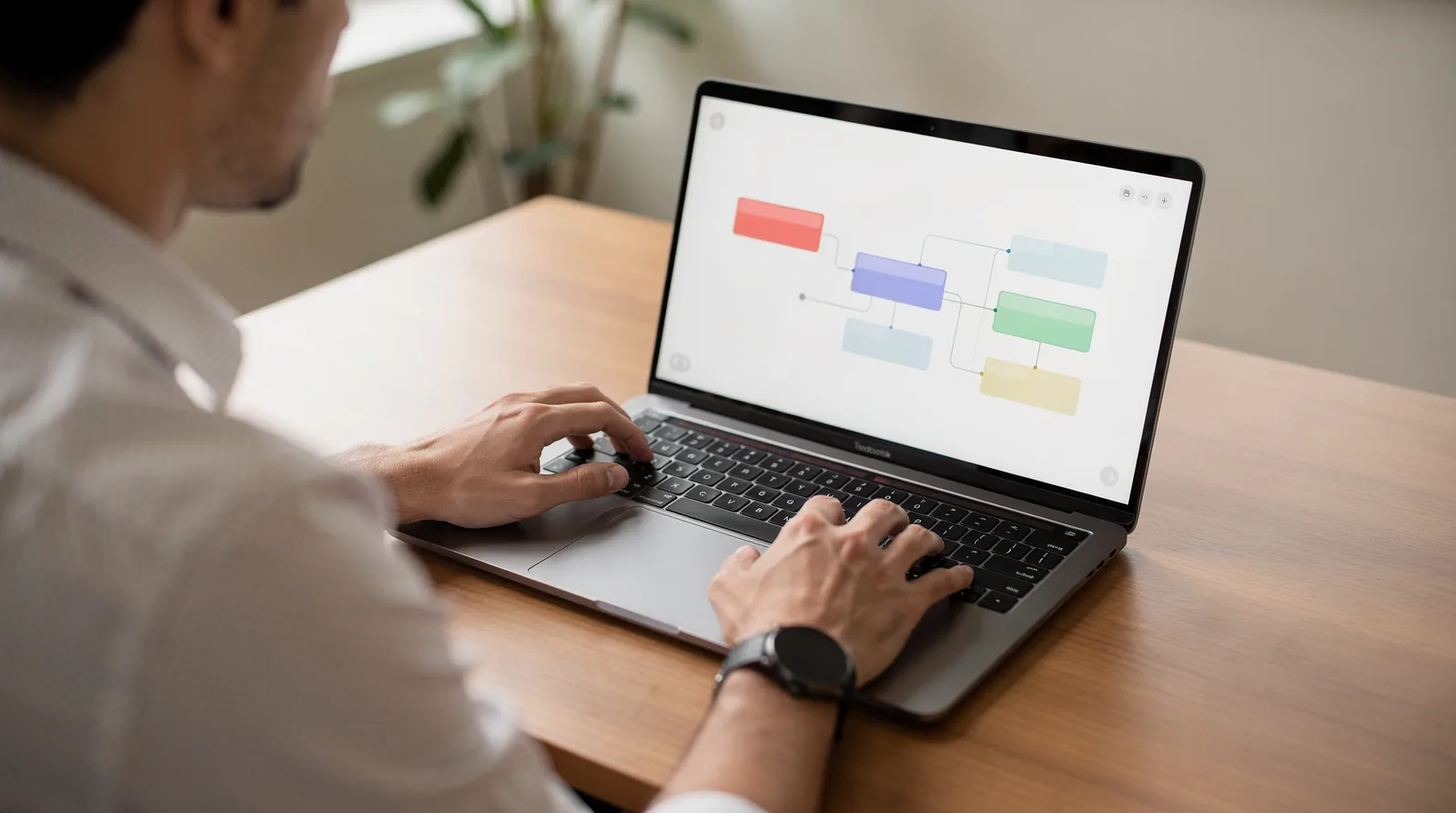
How Do You Set Up Your First Seedance 2.5 Prompt?
A first prompt for Seedance 2.5 starts with three concrete actions: open the generator, load a prompt with reference assets, then shape the direction on the page itself. This short Seedance 2.5 guide walks through the setup. A rough concept becomes a workable draft before generation even begins.
How to use Seedance 2.5 for a first attempt comes down to sequence. Skipping a step often produces a video that drifts from the original idea, so the order matters.
Open the generator interface and locate the prompt field.
Add a written prompt describing the scene, subject, and mood.
Upload reference assets that anchor style, character, or setting.
Adjust the direction controls on the page until pacing and framing match the intended story.
What should a Seedance 2.5 prompt include before generation?
A strong prompt names the application first — an advert, a short film, or an explainer video. Since Buzzy AI's platform is built around simplifying professional video creation for exactly those formats. Specifying the format early helps shape tone, pacing, and visual references before any Seedance 2.5 prompts get submitted to the generator.
Can a rough idea become a usable prompt automatically?
Yes. Buzzy AI's Creative Agent takes an unstructured idea. Organizes it into a clearer prompt structure before it reaches the video model. This step matters most for editors who know the story they want. Struggle translating it into prompt language an AI video generator can act on.
Reference assets deserve extra attention during setup. Seedance 2.5 references carry the visual consistency across the full 30-second AI video. Loading multiple assets — a character shot, a location still, a color palette — gives the model more to anchor against. Buzzy AI's broader goal stays consistent throughout this process: professional-grade 4K AI video generation should be reachable for creators at any skill level, not reserved for trained editors with years of production experience.

How Do You Add References And Control The Scene?
Reference control in Seedance 2.5 works through joined assets that anchor characters, settings, and objects across a single continuous take. Up to 50 reference files combine into one 30-second segment, giving creators richer story rhythm without cutting between separate clips. The process follows a clear sequence, best handled in order:
Gather reference assets first — images, character sheets, or style boards that represent the scene's core elements.
Upload each asset to the joined-reference slot before writing the prompt, since Seedance 2.5 references feed directly into generation logic.
Write a scene description that names each reference explicitly, so the model knows which asset governs which subject.
Set scene pacing and camera intent within the prompt to shape story rhythm across the full 30-second span.
Review the single-segment output and refine reference placement if consistency drifts mid-scene.
Planning tools make this reference-heavy workflow manageable. Buzzy AI's Creative Agent and AI Storyboard help map how fifty separate assets fit into one continuous narrative before generation even starts. Storyboarding first prevents wasted generations, since misaligned references often surface only after rendering.
What Reference Types Work Best For Scene Consistency?
Character portraits, product shots, and environment stills each serve a distinct anchoring role inside a joined-reference set. Mixing types lets one scene hold a consistent character while swapping backgrounds or props without breaking visual continuity.
Can Reference Control Handle Different Video Styles?
Community pro videos, branding ads, and animated shorts all draw on the same reference-joining mechanics, just with different asset mixes. Buzzy AI's platform organizes these varied styles in one workspace, which matters when a single project moves from ad concept to animated sequence. That accessibility keeps reference-heavy projects from fragmenting across separate tools, a real risk for teams juggling fifty-asset scenes without a centralized planning layer.
How Do You Generate And Refine The Final Video?
Final output takes shape through a short sequence: submit a prompt with references, review the draft, then refine specific shots before export. Seedance 2.5 cuts down on the manual work that usually follows generation. The model targets fewer split generations and less post-production stitching. Refining a shot within the same take keeps visual consistency stronger than starting over.
The process breaks down into four steps:
Load prompt and references. Upload the reference assets and write the scene description that will guide the 30-second AI video.
Generate a batch. Producers can generate multiple videos in one batch using identical settings, with up to 10 videos processed at once for quick comparison.
Select and refine. Pick the strongest draft, then adjust individual shots without restarting the entire sequence.
Finish with editing tools. Route the selected clip into Buzzy AI's Creative Agent and AI Storyboard to polish pacing, structure, and continuity before export.
Can Non-Editors Finish A Professional-Looking Clip?
Yes. Buzzy AI's platform removes the technical barrier that once required a trained editor for a polished result. Professional-quality output becomes accessible to anyone assembling a project, not just specialists with editing software experience.
Does The Finished Format Depend On How The Video Will Be Used?
It does. A clip built for an advert needs tighter pacing than one built for an explainer video or short film. Buzzy AI's tools are built around simplifying that finishing stage across formats. The refinement choices should match the intended use before final export.
What Mistakes Should You Avoid With Seedance 2.5?
Generation failures often trace back to a handful of avoidable errors. Uploading real human faces — selfies, portraits, or celebrity images — triggers an automatic rejection. Seedance 2.5 does not support them alongside copyrighted material. Violent or NSFW prompts meet the same fate. Treating the model as fully finalized causes confusion, too: because the system is newly announced, its capabilities remain expected features that may shift before public release.
Which reference images cause a generation to fail?
Real faces and copyrighted characters top the list of rejected inputs. Illustrated figures, anime-style characters, or fully AI-generated faces pass review without issue, so swapping reference assets before submission avoids wasted attempts.
How can creators avoid wasting generation attempts?
Skipping the planning stage leads to repeated trial-and-error, burning through generation credits on mismatched shots. A structured approach limits that risk:
Draft the concept using Creative Agent and AI Storyboard before touching the generator.
Swap any real-person or branded reference for an illustrated or AI-generated substitute.
Confirm the shot sequence matches the intended 30-second AI video flow.
Treat any published Seedance 2.5 guide as provisional, since features may change at launch.
Creators seeking dependable 4K AI video generation now, rather than waiting on a rollout timeline, find Buzzy AI's platform ready with professional-grade tools already in place.
Create with Buzzy
Turn your next idea into a planned, consistent AI video workflow.