
 BeforeAfter
Edit Images with Plain-Language Instructions
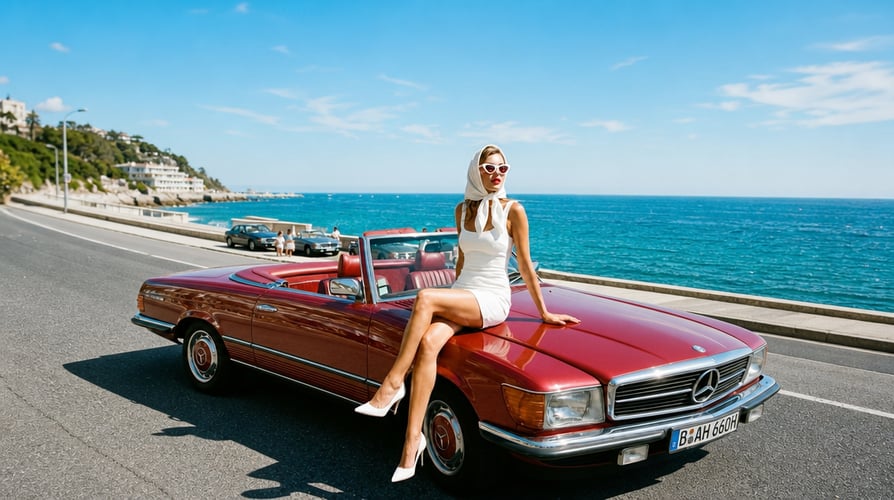
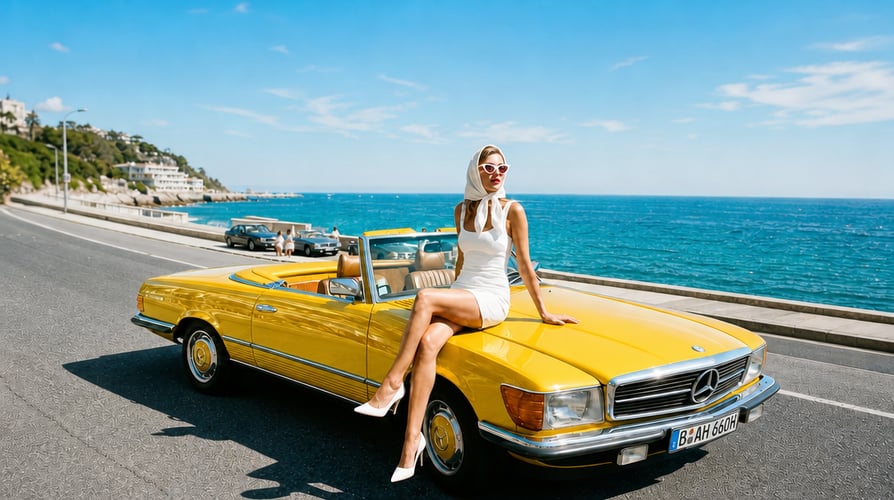
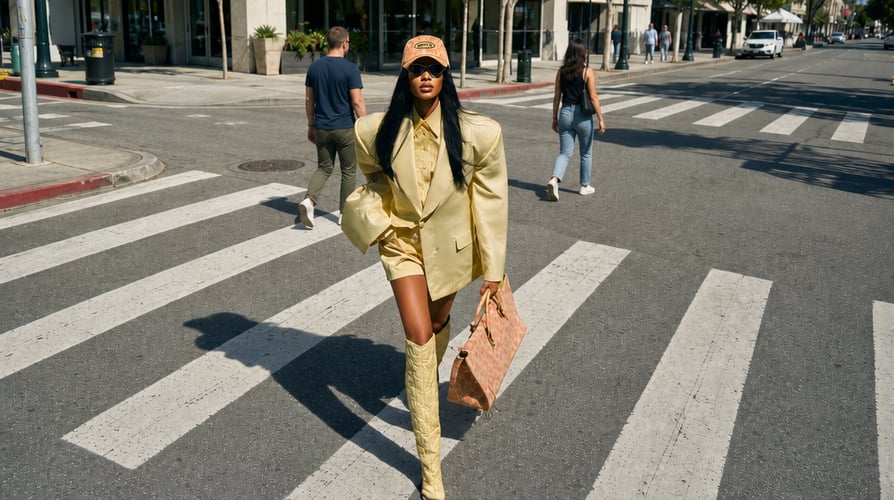
Replace a background, remove an object, adjust lighting, or refine a specific detail while keeping the rest of the composition recognizable.
Create and edit images from prompts or references, then continue selected visuals into video.
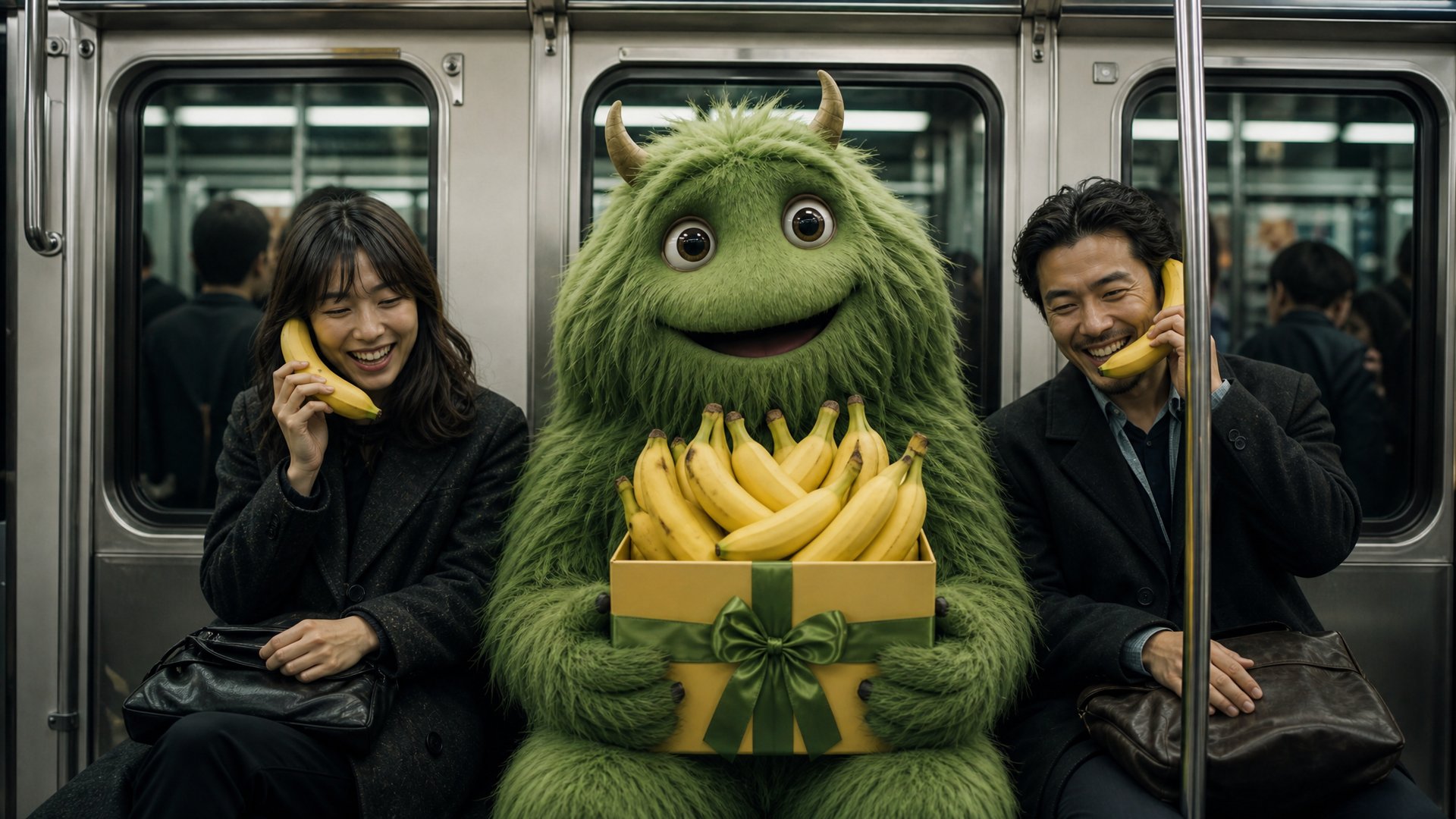
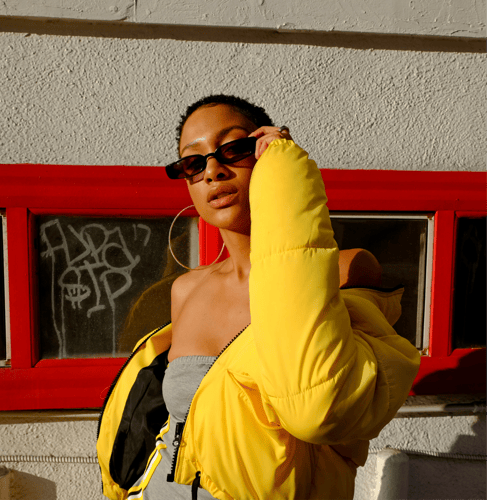
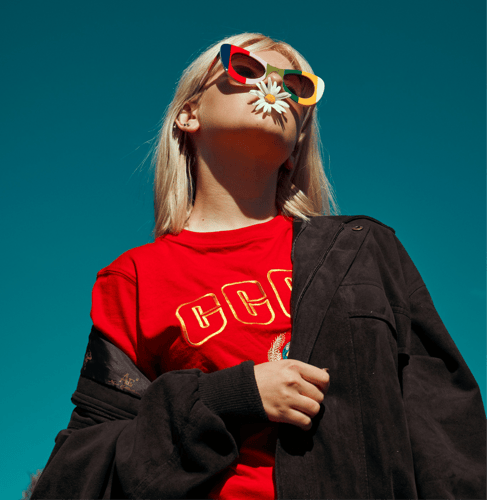
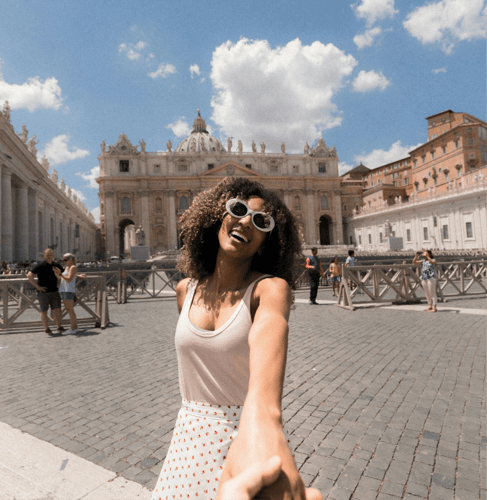
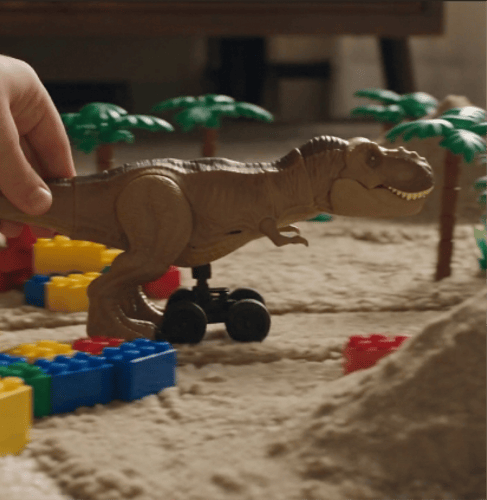
Create the image, edit the details, and keep the visual direction connected.
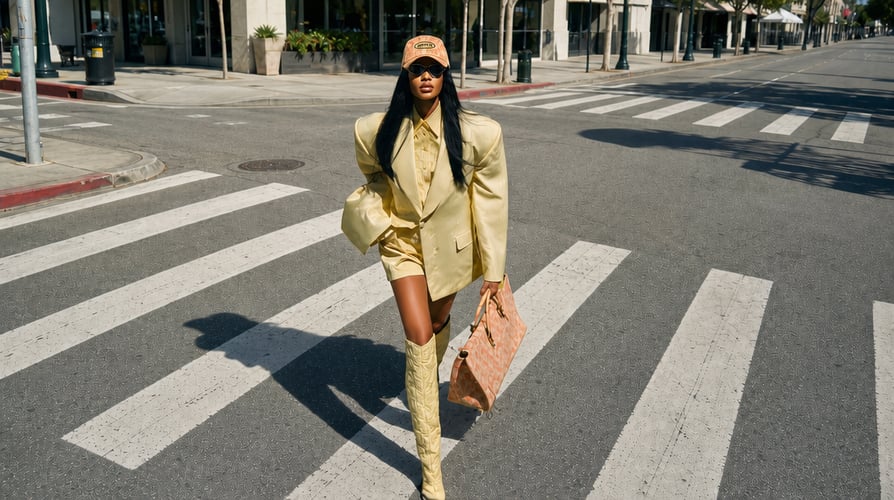
BeforeAfterReplace a background, remove an object, adjust lighting, or refine a specific detail while keeping the rest of the composition recognizable.
 BeforeAfter
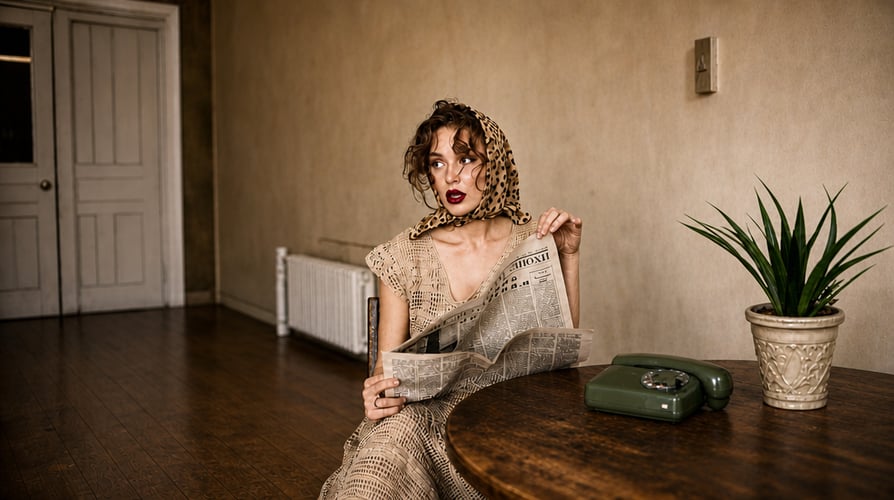
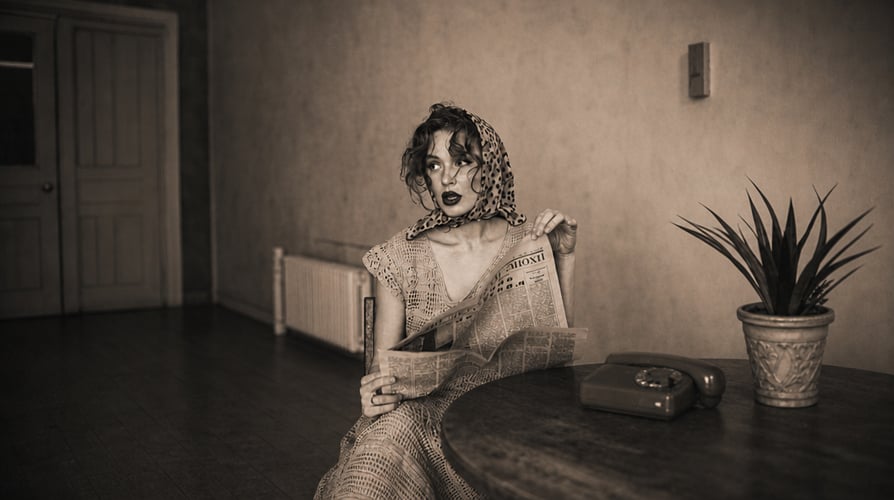
Build posters, packaging, labels, ads, and interface concepts with readable headlines, captions, buttons, and multilingual text.
 BeforeAfter
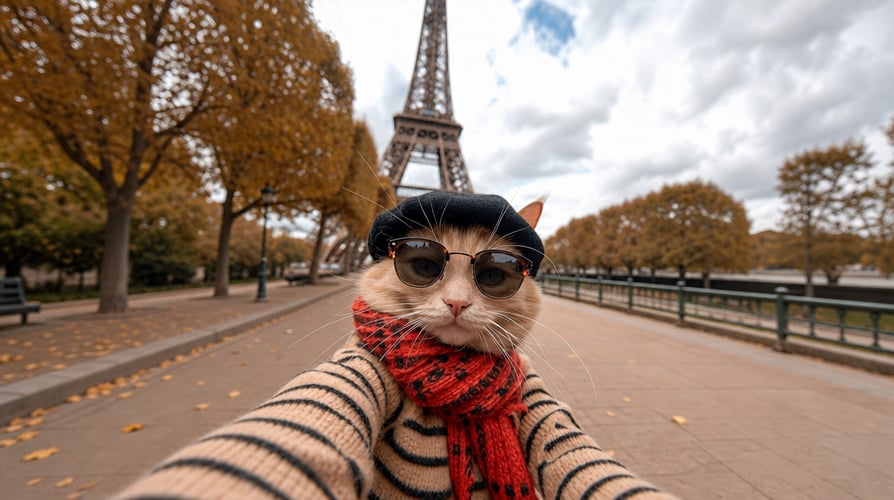
Use references and stable descriptions to maintain recognizable people, products, objects, and visual details across a related image series.
 BeforeAfter
Direct lighting, materials, textures, setting, and composition for product imagery, portraits, diagrams, storyboards, and campaign concepts.
Move from an idea or reference to a refined visual in three focused steps.
 01
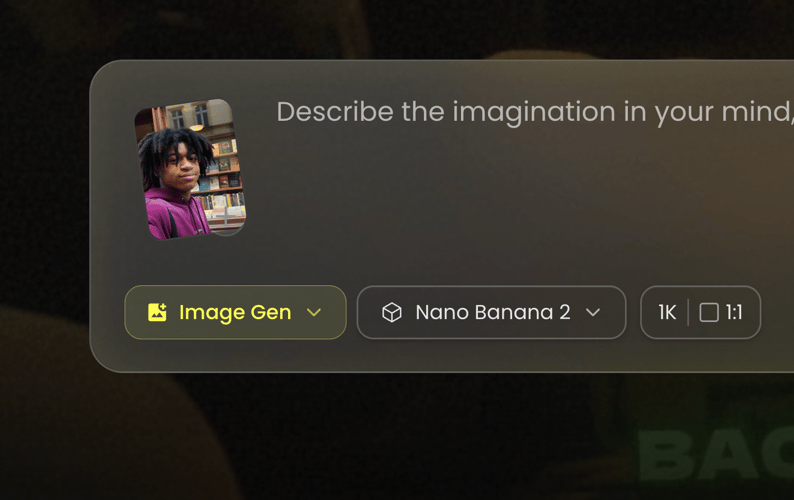
01Choose the model, describe the image you need, or upload a relevant reference that should guide the result.
 02
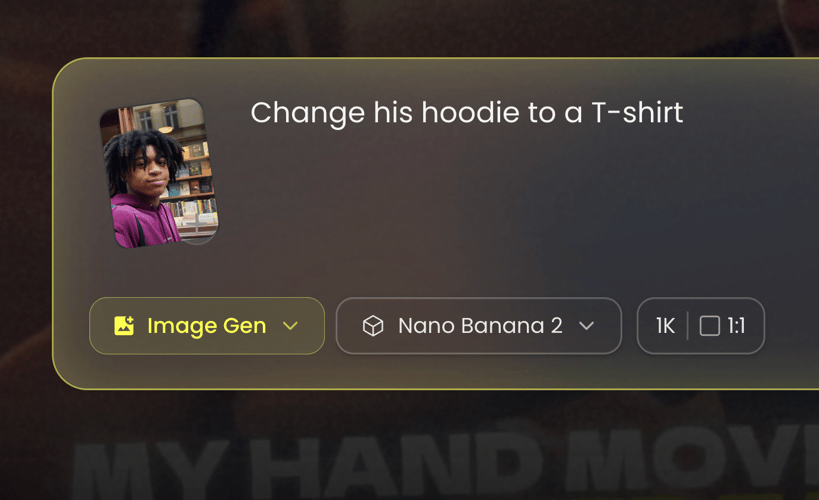
02Refine the composition, style, lighting, colors, text, subject details, or background with a clear follow-up instruction.
 03
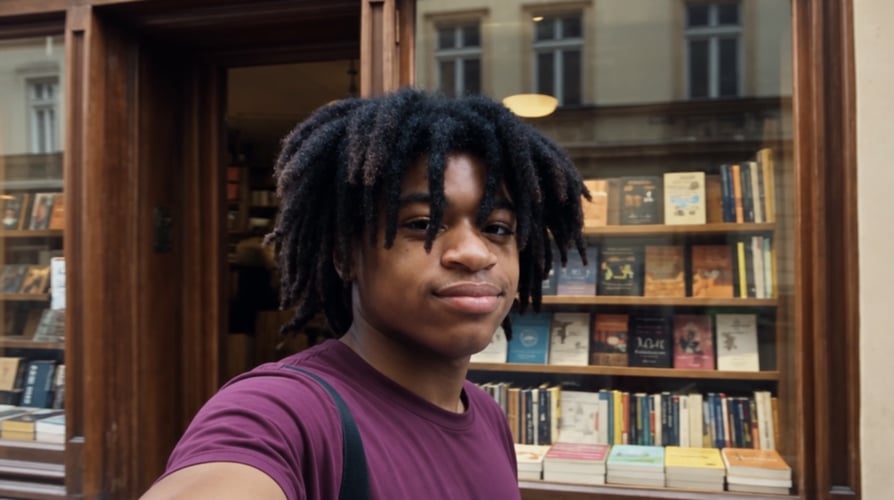
03Download the finished image or use it as a visual starting point for a compatible Buzzy video workflow.
Use the model for image creation, editing, and connected visual development.
Describe the subject, setting, composition, lighting, and intended visual purpose in a readable prompt.
Upload a person, product, sketch, or visual reference and explain which details should guide the new image.
Change selected visual elements through natural-language instructions without rebuilding the entire concept from the beginning.
Specify the words, hierarchy, placement, and visual role of text for posters, packaging, labels, and marketing graphics.
Reuse consistent descriptors and references when a visual series needs the same identity across several images.
Describe color, atmosphere, materials, lens language, lighting, and finish instead of relying on an unexplained list of style terms.
Choose the resolution and aspect-ratio options shown in the live Buzzy workspace for the intended placement and composition.
Take a selected still into Buzzy’s video tools when the next step is camera movement, subject motion, or a longer visual sequence.
Choose a use case based on the asset you need to make, not simply the visual style you like.
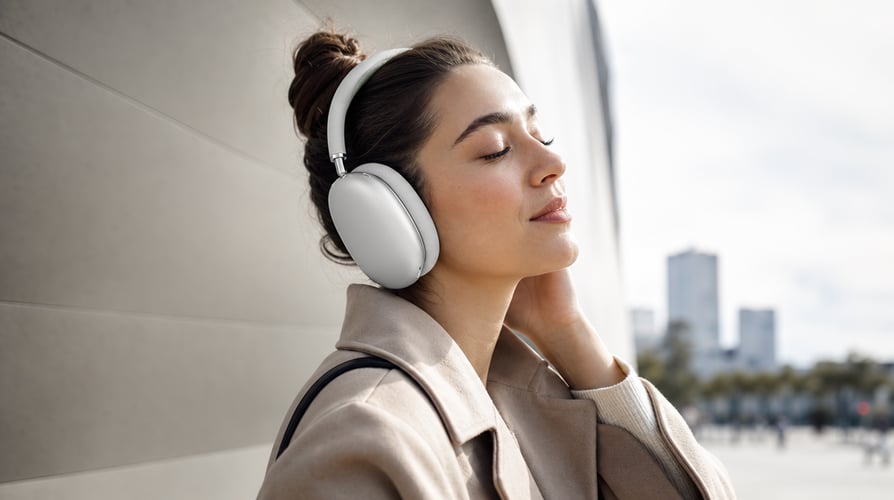
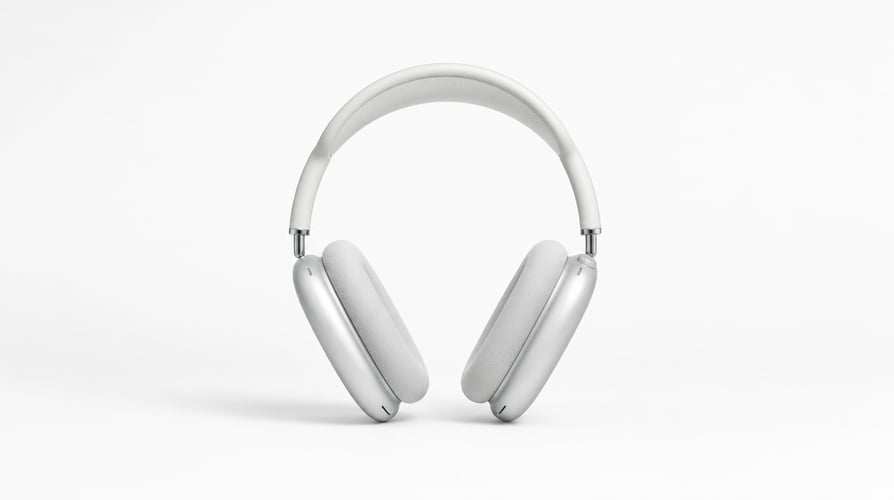
Develop scenes, shot concepts, character references, and composition studies before committing to a longer production sequence.
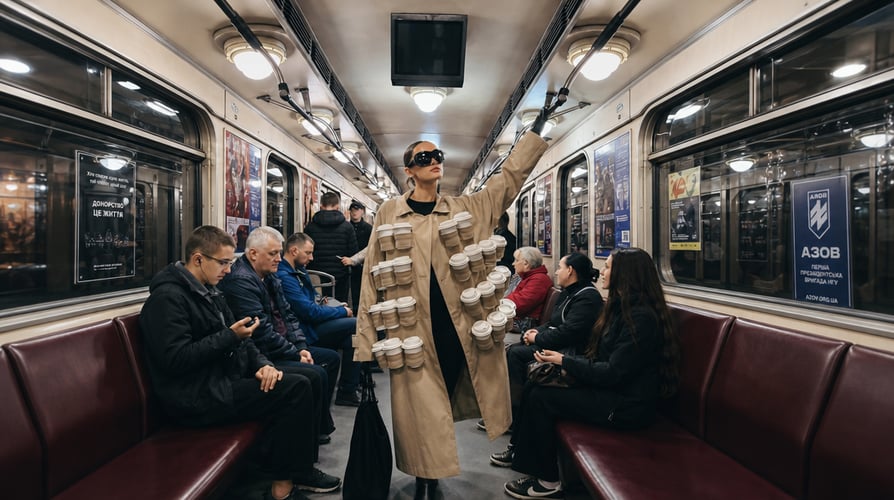
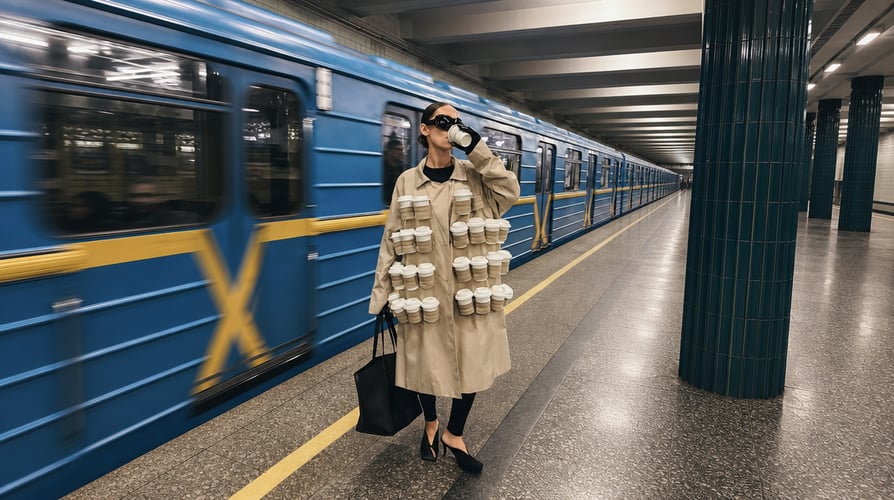
Combine imagery and readable text for campaign posters, event concepts, social graphics, announcements, and launch materials.


Create product scenes, packaging concepts, catalog imagery, and branded compositions with consistent visual details.
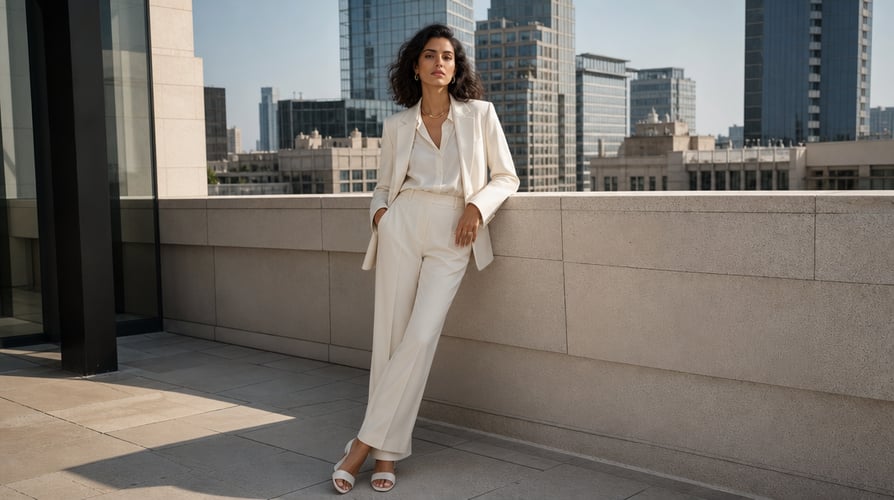
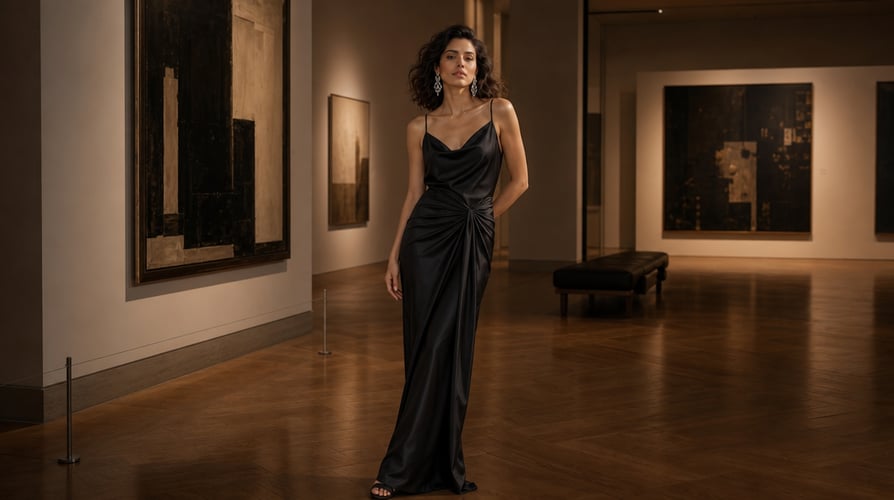
Replace backgrounds, remove distractions, adjust lighting, refine colors, or revise specific elements in an existing image.
Compare image workflows and continue approved visuals with Buzzy video models.
It is Google’s image generation and editing model. On Buzzy, you can create from a prompt or reference image and refine the result through follow-up instructions.
Yes. Use a person, product, sketch, or other relevant visual reference, then explain the subject, composition, style, or details it should guide.
The Buzzy workflow supports image concepts that include headlines, labels, packaging text, captions, and other designed copy. Review every word before publishing.
Yes. You can request background changes, object removal, lighting adjustments, color changes, or other focused edits in natural language.
The model is designed to preserve recognizable visual details across related generations. Cohesive references and stable descriptions still improve continuity.
The current Buzzy page shows multiple resolution and aspect-ratio choices. Check the live workspace because available settings can change by configuration.
Yes. After refining the still image, you can continue the concept through compatible Buzzy video workflows and direct how the scene should move.
No specialist masking workflow is required for basic prompt-led creation and editing. A clear brief and careful review remain important.
Create a new visual from a prompt or use a reference image to guide the subject, composition, text, and style. Refine the result in Buzzy, then carry a selected image into a video workflow when the concept needs motion.
Compare this workflow with GPT Image 2, GPT Image 2.5, and Midjourney, or browse the current Buzzy models.
The fastest way to improve an AI image brief is to decide what the image must do before deciding how it should look. A product hero image needs a recognizable product, a controlled environment, and room for layout. A storyboard frame needs readable action and continuity with the next scene. A poster needs visual hierarchy and enough contrast for its text. When the task is clear, the prompt becomes a practical set of decisions instead of a pile of adjectives.
Nano Banana 2 can begin from text, a reference image, or a combination of both in Buzzy. Text is useful for describing the objective and the change you want. A reference can anchor identity, composition, color, product details, or an existing design language. The strongest brief explains the role of each input rather than assuming the model will infer it.
Use a text-only prompt when you are exploring a new visual direction and do not need to preserve an existing subject. State the subject first, then the action or pose, environment, composition, lighting, and intended use. This order helps separate the essential request from optional styling.
Use a reference image when visual continuity matters. A reference can show a person, product, sketch, packaging concept, room, or composition. Tell the model what to preserve and what to change. For example, keep the product shape and label placement, replace the background with a bright kitchen, and leave clean space on the right for campaign copy. That instruction provides a clearer hierarchy than “make this better.”
When several references are available, include only the ones that serve the same objective. Conflicting subjects, lighting, perspectives, or visual styles can make the request harder to interpret. A smaller, coherent reference set is usually easier to review and refine.
A useful image prompt gives you something specific to inspect. Begin with the primary subject and the visual task. Add the setting and composition. Then add lighting, palette, material, style, or camera language only where those details affect the result.
For a product visual, name the product details that must remain accurate. For a character sheet, repeat the defining appearance, clothing, and proportions. For a poster, provide the exact text and describe its hierarchy. For a diagram or infographic, define the information order and confirm that labels remain legible.
Avoid combining several incompatible requests in one pass. A photorealistic catalog image, hand-drawn storyboard, and dense infographic each require different visual priorities. Create the version that serves the immediate task, then develop related assets in separate prompts while preserving the important references.
Prompt-based editing works best when each follow-up identifies the part that needs attention. If the subject is correct but the background is distracting, revise the background. If the composition is useful but the lighting feels flat, change the lighting. If the poster layout works but a line of text is wrong, correct the text and keep the rest stable.
This controlled approach makes comparison easier. You can see which instruction improved the result and keep the decisions that already work. Replacing the entire prompt after every generation makes it harder to preserve a successful subject, composition, or design direction.
Text inside an image needs more than correct spelling. Decide what the viewer should read first, how much copy the design can support, and where the text must sit relative to the subject. Short headlines are easier to inspect than dense paragraphs. Labels, prices, or calls to action should have enough contrast and clear spacing.
Enter critical copy exactly as it should appear and review it character by character. Multilingual text, product names, dates, measurements, and legal copy deserve an additional check. Even when the visual looks polished, generated text should not bypass normal proofreading and brand review.
Consistency comes from stable inputs and repeatable descriptions. Keep the same reference image when the same character or product should return. Reuse defining traits rather than rewriting them differently in every prompt. Preserve core lighting, palette, lens language, and composition rules when the assets belong to one campaign.
Not every image needs to be identical. A series can include a wide establishing image, a product close-up, a detail shot, and a social crop. The connection should come from shared identity and visual rules, while each image has a distinct job.
Judge a generated image in the format where it will appear. A vertical social asset needs a mobile-safe subject position. A landscape hero needs room for navigation and copy. A square product post needs a clear focal point at a smaller size. Choose the aspect ratio before finalizing the composition rather than relying on a later crop that removes important details.
Check subject accuracy, edges, hands, repeated details, product markings, text, lighting direction, and background logic. For commercial or public use, confirm that you have permission to use uploaded images, likenesses, logos, and protected materials. Buzzy provides the creative workflow; final factual, legal, and brand approval remains part of the publishing process.
An approved image can become the key visual for a video concept. Before moving it into video, decide what should move and what should remain stable. Describe subject movement separately from camera movement. A slow push-in, a turn toward the camera, fabric moving in wind, or a product reveal each creates a different shot.
Use the still image to preserve the character, product, environment, or composition, then add only the motion needed for the scene. This gives the video workflow a clear visual starting point and keeps the next creative decision connected to the image you already approved.
Start with a prompt or reference, refine the details that matter, and continue the selected image into the next stage of your Buzzy project.