Free AI Hairstyle Changer for Photo-Based Look Concepts

Visualize a different cut or color before deciding what to discuss at the salon. Keep the face and lighting stable, change one hair detail, and check upload access before starting.

Ref
Image
Chin-length blunt bob preview afterChin-length blunt bob preview beforeBeforeAfter
Warm soft highlights preview afterWarm soft highlights preview beforeBeforeAfter
Soft curtain bangs preview afterSoft curtain bangs preview beforeBeforeAfter
Shorter fringe refinement preview afterShorter fringe refinement preview beforeBeforeAfter

Compare the Hair Decision, Not a Different Face

Buzzy describes hairstyle edits through its prompt-led image editor.

Describe a Cut in Visible Terms afterDescribe a Cut in Visible Terms beforeBeforeAfter

Describe a Cut in Visible Terms

A haircut name can mean different things in different references. State the desired length, where the hair falls, whether the ends are blunt or layered, and whether bangs are included. Pair that description with a clear photo. Treat the generated image as a visual concept for comparison, not a prediction of how a stylist will cut the hair.

Explore Color without Changing Everything Else afterExplore Color without Changing Everything Else beforeBeforeAfter

Explore Color without Changing Everything Else

If color is the question, request a change to the hair color while keeping the cut, face, background, and light stable. Name a base tone or highlight direction in plain language. Compare the versions in the same viewing context. The image can help communicate a color preference, but it does not establish the dye process needed to achieve it.

Use the Photo as a Stable Reference afterUse the Photo as a Stable Reference beforeBeforeAfter

Use the Photo as a Stable Reference

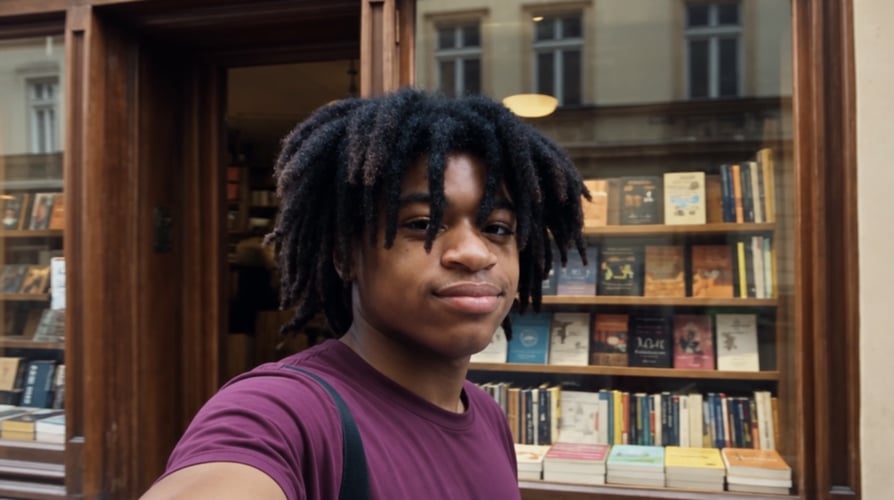
Buzzy’s image editor describes changing hairstyles in portraits. Start with a photo where the hairline, face, and relevant hair length can be seen. Request preservation of identifying facial details and the existing pose. After generation, inspect ears, glasses, hair edges, and shoulders; a new hairstyle is not useful if the surrounding face has also changed.

Refine One Choice at a Time afterRefine One Choice at a Time beforeBeforeAfter

Refine One Choice at a Time

Separate length, fringe, texture, and color into individual comparisons when practical. A request that changes all four at once makes it hard to identify which choice you actually prefer. Review the first version and write a focused follow-up, such as shortening the bangs while keeping the rest of the concept unchanged.

How to Plan a Hairstyle Preview from a Photo

Prepare the starting material, describe the intended change, and compare the result with the brief.

General Buzzy image-workflow illustration: pick a photo with readable hair and face01

Pick a Photo with Readable Hair and Face

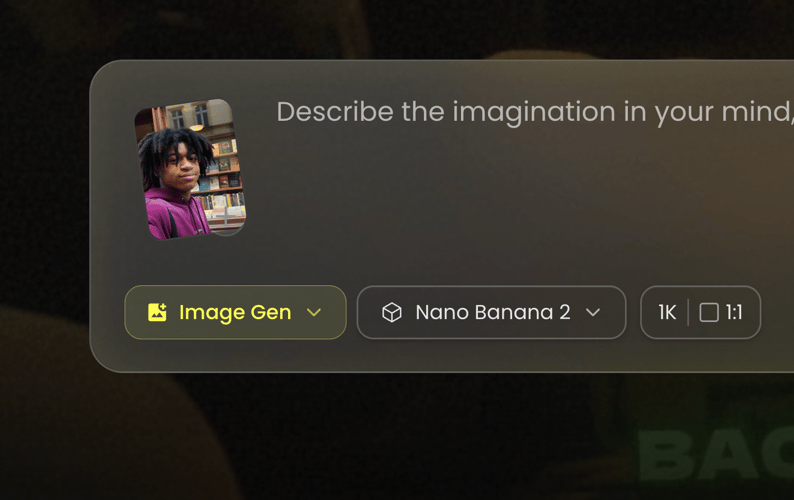
Choose a reference that shows the face and the hair area you want to change. Avoid a hat or an angle that hides the relevant length. Check account eligibility for real-person uploads before adding the photo; Buzzy lists this access among paid-plan features. Use the limits displayed by the selected image entry.

General Buzzy image-workflow illustration: request one cut or color direction02

Request One Cut or Color Direction

Write a specific instruction: “Preview a chin-length bob with a blunt edge, keep the current color, and preserve the face, expression, and lighting.” Choose the available output settings. This workflow uses a reference and prompt; do not assume a dedicated catalog of salon styles or a face-shape recommendation engine.

General Buzzy image-workflow illustration: compare the concept and prepare your next question03

Compare the Concept and Prepare Your Next Question

Review the face first, then the hairline, silhouette, texture, and color. Compare the result with the source at the same scale. If the concept helps explain your preference, use it as a discussion reference. A stylist can advise whether the look suits the actual hair, maintenance routine, and cutting or coloring process.

Put the Hair Change into Specific Words

These are prompt directions to explore, not verified one-click style presets.

  • Hair Length

    Name the point where the ends should fall, such as chin, shoulder, or collarbone. Keep the reference pose fixed for a useful length comparison.

  • Bangs and Fringe

    Describe straight, curtain, side-swept, or short bangs as the requested concept. Inspect their relationship to the forehead, eyebrows, and face.

  • Layers and Shape

    Specify a blunt outline or layered volume. Review the silhouette rather than relying on a haircut name to define the entire look.

  • Texture Direction

    Describe straight, wavy, or curly texture as an image request. A visual preview does not determine a styling method or long-term hair behavior.

  • Color and Highlights

    Request a base tone or highlight placement while keeping the haircut stable. Compare color in the same light and viewing conditions.

  • Parting and Volume

    Name a center or side part and where volume should appear. Check whether the image changed the hairline or facial proportions.

  • Reference Preservation

    Ask to keep the original face, expression, and surroundings recognizable. Inspect these details before judging whether the hairstyle itself is appealing.

  • Focused Refinement

    Revise the specific detail that missed the brief. Shortening the fringe is a clearer next request than generating an entirely different portrait.

Use the Preview to Clarify a Hair Decision

An image concept is most useful when it answers one question.

Before a Shorter Haircut afterBefore a Shorter Haircut before

Before a Shorter Haircut

Compare the existing length with a bob, pixie, or another clearly described short-cut concept. Keep color and facial features stable so the change in silhouette remains easy to see. Use the image to explain what you mean by shorter rather than treating it as a guarantee of the finished haircut.

Bangs without a Full Makeover afterBangs without a Full Makeover before

Bangs without a Full Makeover

A fringe changes the area around the eyes and forehead. Request only the bangs you want to explore and leave the rest of the hairstyle alone. Compare the concept with the source to decide whether the idea is worth discussing, then ask a stylist about growth, styling, and maintenance.

A Different Color Direction afterA Different Color Direction before

A Different Color Direction

Preview a warm, cool, dark, or highlighted direction while retaining the original length and texture. This can make a color preference easier to describe. The generated appearance is not a formula for dye, bleach, or salon treatment, and the real result depends on the source hair and process.

Salon Consultation References afterSalon Consultation References before

Salon Consultation References

Use a small set of clearly differentiated concepts to explain your preferences. Note what you like in each: length, fringe shape, volume, or color placement. Keep the original photo with the concepts so the stylist can discuss practical differences. Avoid presenting a generated preview as an exact achievable result.

Get Inspirations

Explore Other Buzzy Image Workflows

Browse reference-led image creation and editing when the next task calls for a different visual change.

Seedance 2.5
Cinematic 4K, consistent shots
Try it
Agentic Canvas
Agent-driven node canvas
Try it
Kling 4.0
3 to 30 seconds long at up to 4K quality
Try it
Nano Banana 2.1
Fast and brand level image generation
Try it
Seedance 2.0
Motion-driven video creation
Try it
Google Omni
Cinematic video generation
Try it
Kling
High-fidelity physics simulation
Try it
Runway
Next-gen creative video tools
Try it
Nano Banana 2
Lightweight video synthesis
Try it
Veo 3.1
Google's advanced video generation
Try it
GPT Image 2
Photorealistic image generation
Try it
Hailuo
Fast and expressive video drafting
Try it
Pixverse
Stylized and dynamic video generation
Try it

Free AI Hairstyle Changer FAQ

Answers about the intended task, reference inputs, review decisions, and access conditions.

It uses a portrait reference and a written request to explore a hairstyle concept through Buzzy’s image tools. Buzzy’s image-editor page describes hairstyle changes. The verified workflow does not establish a separate salon preset catalog or automatic haircut recommendation service.

No unconditional free-upload promise is established. Buzzy has a “Start for free” entry, but its pricing page lists real-human-face upload among paid-plan features. Check your account’s upload eligibility, available credits, and selected generation action before adding a personal photo.

Those are relevant prompt directions for a hairstyle concept. Describe the length, fringe, texture, or color you want to explore, and review the generated image. They are not verified one-click presets or guarantees of a particular salon result.

No face-shape analysis or personalized best-haircut recommendation was verified for this image workflow. Choose the concept you want to visualize and compare it yourself. A stylist can discuss suitability for actual hair texture, growth, maintenance, and personal preferences.

Use a clear portrait with a visible face and the relevant hair area in frame. Avoid hats, heavy obstruction, and extreme angles when they hide the feature you want to change. Follow the file limits and access conditions shown in the selected workspace.

Treat it as an illustrative concept, not a prediction. Generated hair shape, volume, and color may not match actual hair behavior or salon work. Keep the source photo and discuss the concept with a stylist before deciding on a real change.

Request preservation of the face, expression, pose, and lighting, then change only the hair detail under consideration. Compare the output with the original. Identity preservation is not guaranteed; reject versions that change the person rather than merely changing the hairstyle.

For a clearer comparison, start with one variable. Compare a new cut in the current color or a new color with the current cut. Combining several changes can be useful later, but it makes the first preference harder to identify.

Decide Which Hair Change You Want to Compare

A Free AI Hairstyle Changer search often comes from uncertainty about a specific decision: shorter hair, a fringe, more visible texture, or a different color. Begin with that question instead of asking for a completely different look. Holding other details stable makes the preview easier to interpret and gives a salon discussion a clearer starting point.

Length and Silhouette

Explain where the hair should end and how the outline should look. “A shoulder-length cut with soft layers” carries more visual direction than “a nice new haircut.” For short concepts, inspect the relationship between the hair, ears, jawline, and neck. Those details determine the visual impression and can also reveal where the generated image has altered the reference.

Color and Texture

When color is the main choice, preserve the original cut. When texture is the main choice, preserve the color. This separation helps identify what you prefer without confusing several variables. A preview can communicate warm highlights or a wavy treatment, but it does not measure hair condition, predict dye uptake, or recommend a chemical process.

Use a Prompt That Leaves the Person Recognizable

An example is: “Use this portrait to preview shoulder-length hair with a center part and soft waves. Keep the existing hair color, face, expression, clothing, and lighting recognizable. Change only the hairstyle.” This is creative direction, not a guarantee of exact preservation. Review the result against the reference, especially the face and areas where the hair overlaps glasses, ears, or clothing.

Check the Hairline and Edges

Generated bangs can cover an eyebrow, blend into glasses, or change the forehead shape. Longer hair may redraw shoulders or introduce strands that look detached from the head. Inspect those areas before judging the style. A clean-looking overall preview can still contain details that make it unsuitable as a faithful personal-photo comparison.

Give the Revision One Job

If the cut is useful but the fringe is too long, request a shorter fringe while preserving the rest of the concept. If the color is too saturated, revise the color rather than changing the pose and background as well. Keeping a revision narrow makes it easier to see whether the image addressed the original decision.

Turn the Concept into a Better Salon Conversation

Keep a short note about the feature you like in each version: the outline, the part, the fringe length, or the highlight placement. A stylist can discuss how those preferences relate to real hair and upkeep. Explore other reference-led image edits when the next change involves clothing or background instead. Review account access and current credits before uploading a real-person reference or making additional previews.

Compare One Hair Idea Before the Next Decision

Choose the cut or color question, keep the reference stable, and review the concept. Confirm real-person upload eligibility before starting.

25M
Customers
190 countries
#1
Product of the month
Product Hunt
4.8
G2
Buzzy