 BeforeAfter
Make Focused Edits with a Prompt
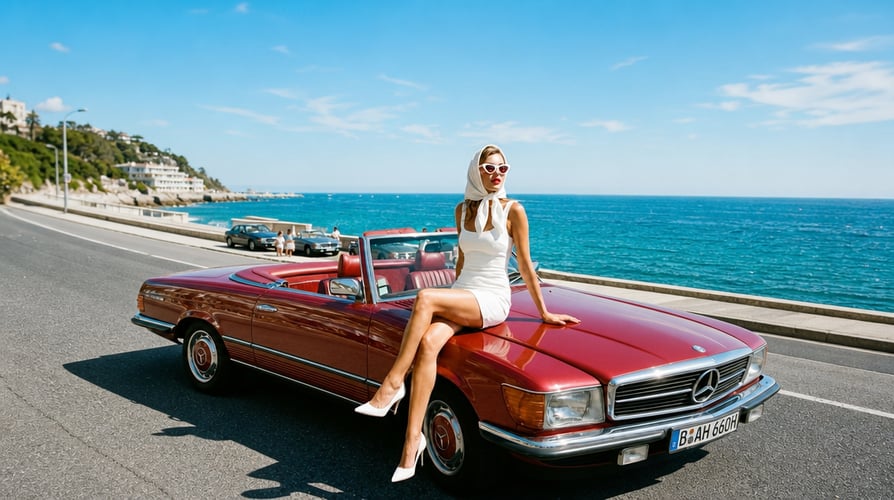
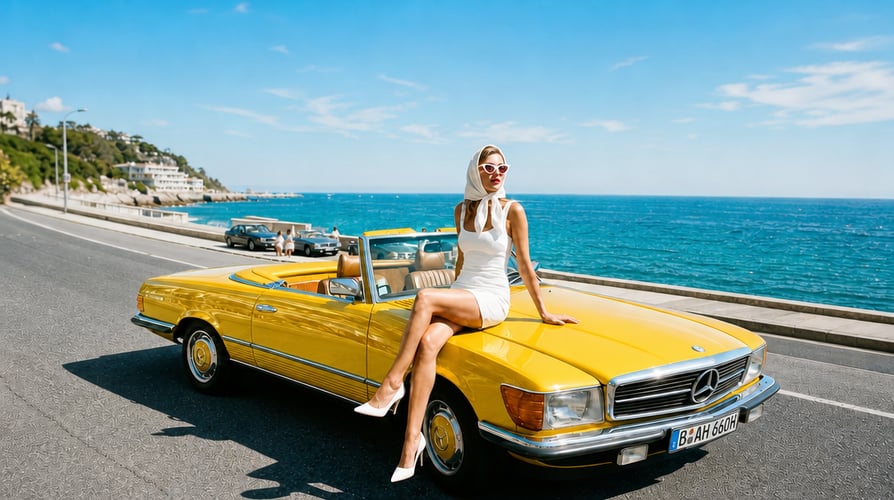
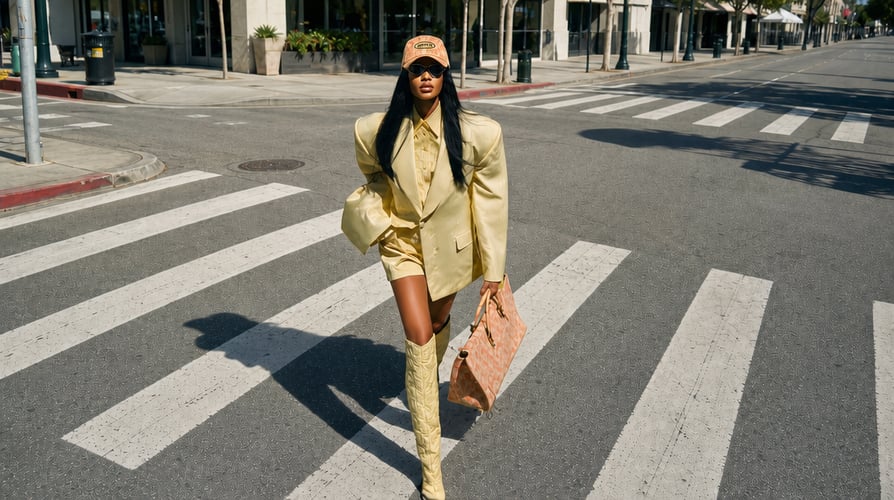
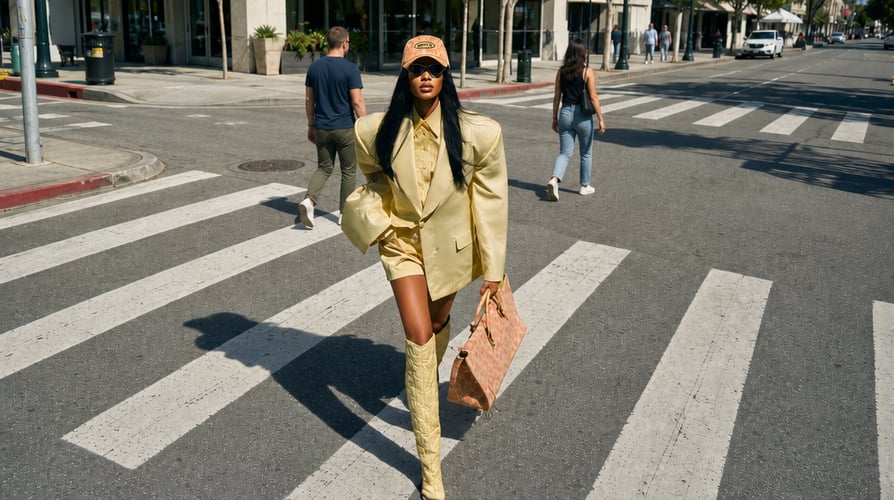
Replace a background, remove an object, adjust lighting, change color, or revise a selected detail while preserving the useful parts of the image.
Generate and edit images from prompts or references with precise control over text and visual details.
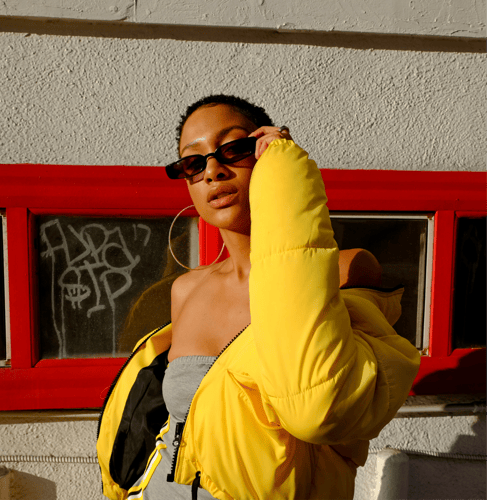
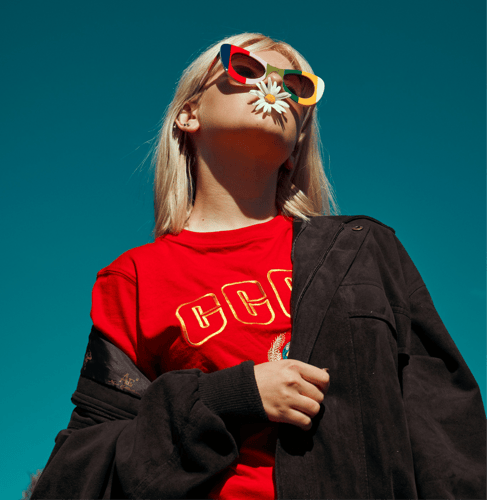
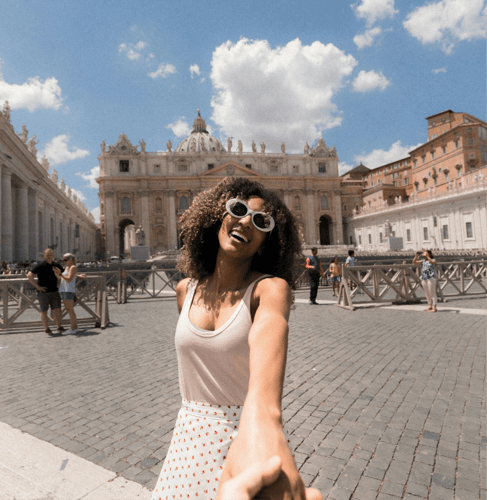
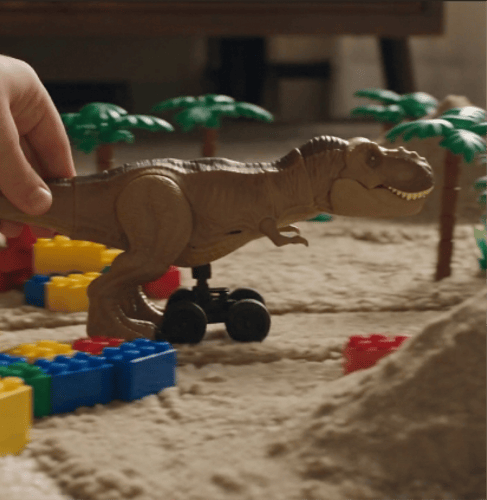
Create the image, edit the details, and keep the visual direction connected.
BeforeAfterReplace a background, remove an object, adjust lighting, change color, or revise a selected detail while preserving the useful parts of the image.
 BeforeAfter
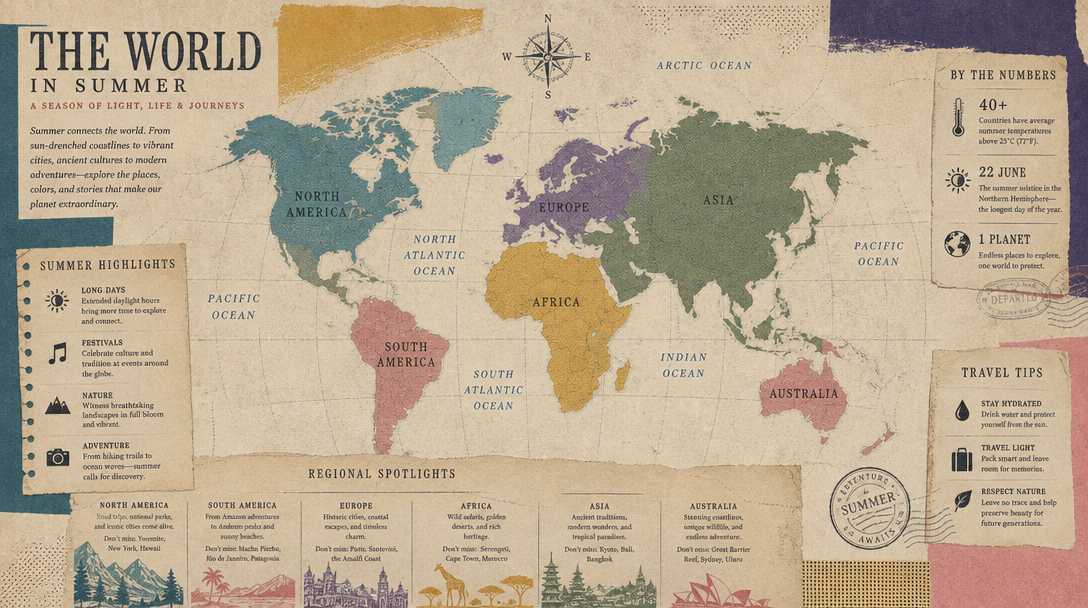
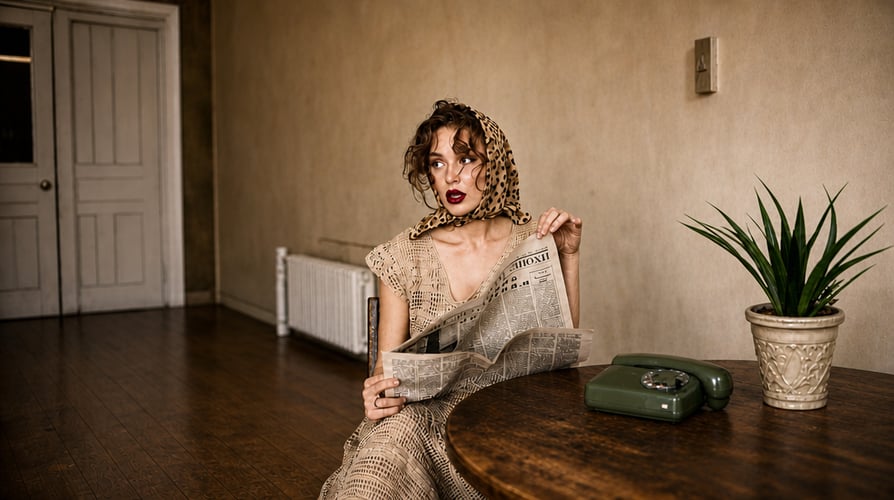
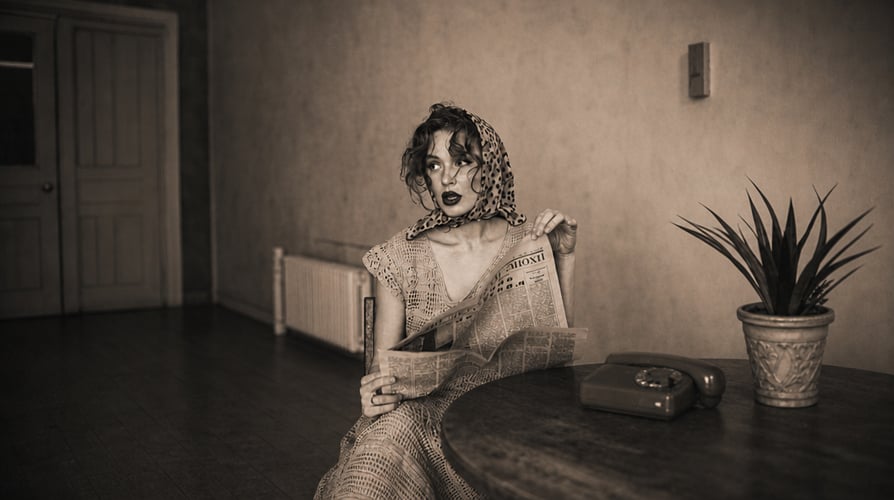
Develop posters, ads, labels, packaging, interface concepts, and infographics with headlines, captions, buttons, and multilingual copy.
 BeforeAfter
Use reference images and stable descriptions when characters, products, objects, or design elements need to remain recognizable across several assets.
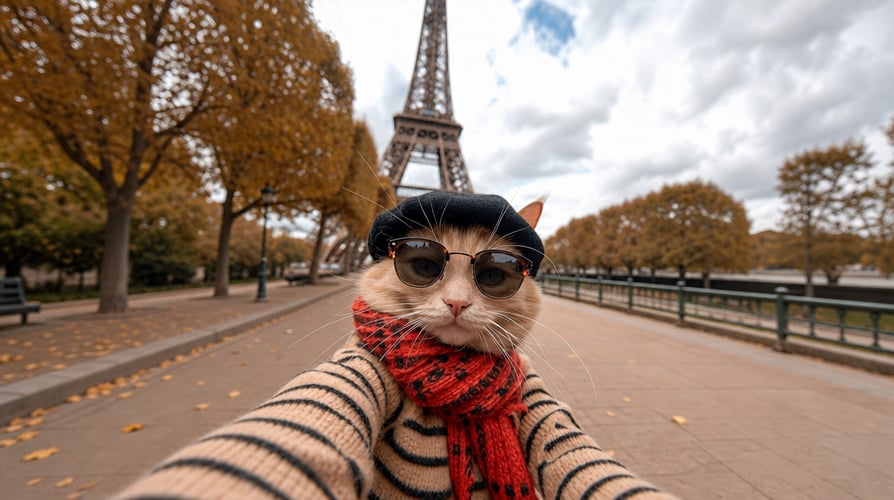
 BeforeAfter
Direct materials, natural lighting, color, texture, composition, and style for product images, portraits, scenes, storyboards, and campaign graphics.
Move from a simple brief to a refined image in three focused steps.
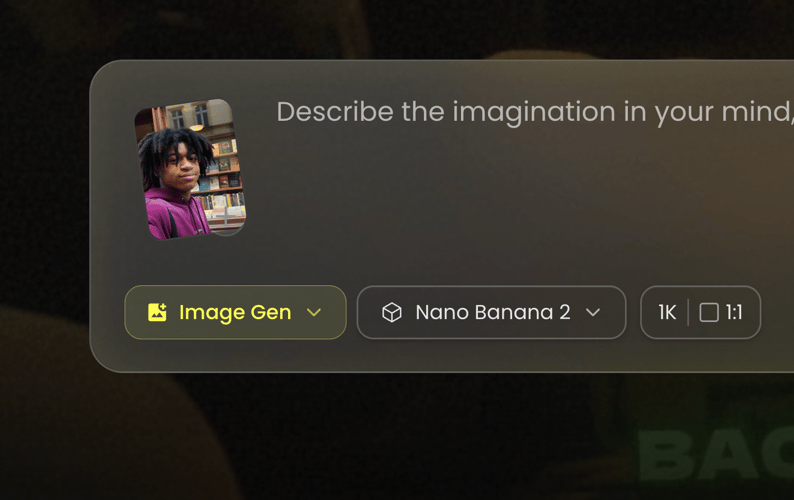 01
01Choose the model, describe the image you need, or upload a relevant reference that should guide the result.
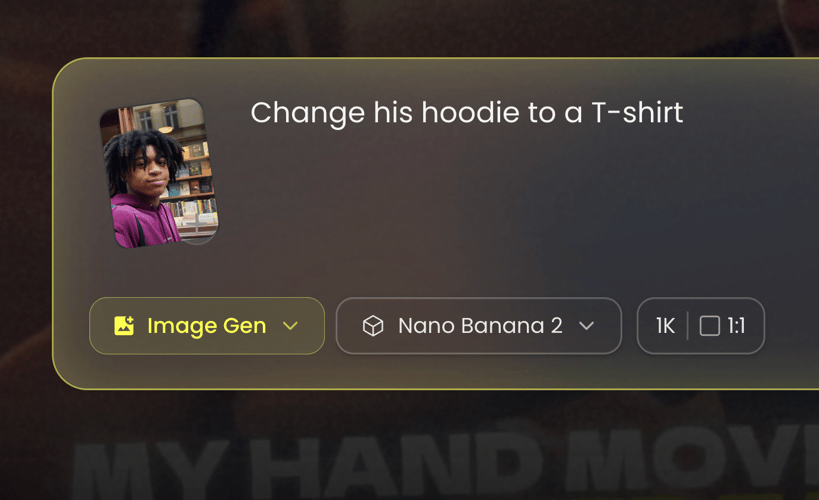 02
02Refine the composition, style, lighting, colors, text, subject details, or background through a clear follow-up instruction.
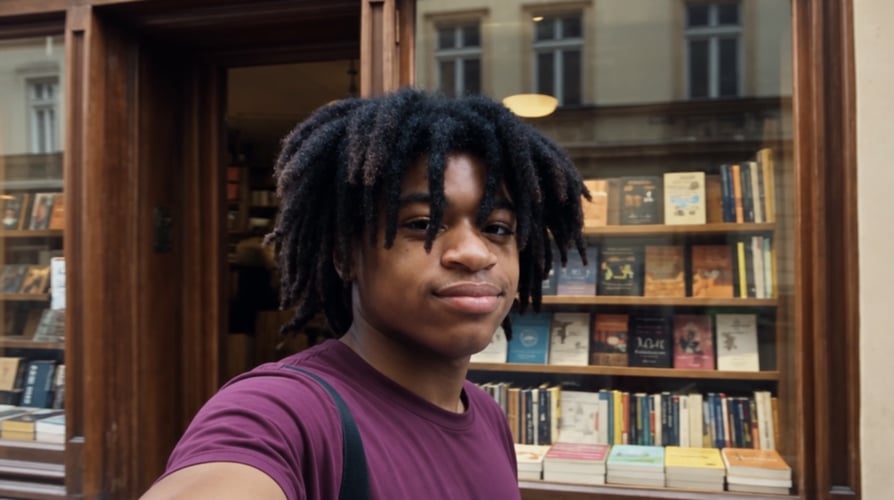 03
03Download the image or use it as a visual starting point for a compatible Buzzy video workflow.
Use the workflow for image generation, editing, and connected asset development.
Describe the subject, setting, composition, lighting, and intended use in a direct prompt that can be reviewed.
Upload a photo, product, sketch, or visual reference and explain which details should remain and what should change.
Revise a specific area or visual element through focused instructions instead of rebuilding the complete image from the beginning.
Provide exact copy and explain its hierarchy, placement, and role in posters, labels, packaging, and branded graphics.
Reuse stable descriptors and references when related images need to preserve the same character, object, or product identity.
Guide mood, palette, materials, texture, atmosphere, and finish according to the purpose of the final asset.
Choose the size, aspect ratio, quality, and other options available in the live Buzzy workspace for the intended placement.
Take an approved still into Buzzy’s video tools when the next creative decision involves movement, camera direction, or a sequence.
Choose the workflow based on the asset’s job and the information the image must communicate.
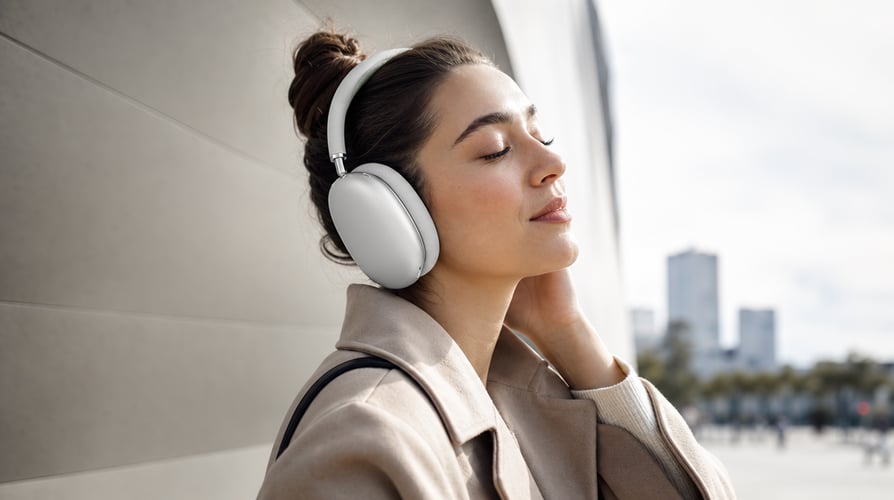
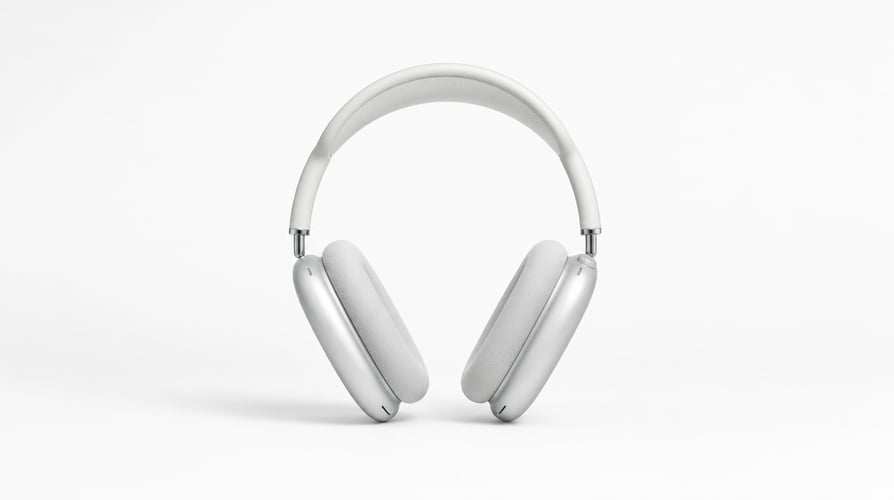
Create product scenes, launch concepts, campaign images, and social assets with controlled composition, lighting, and brand details.
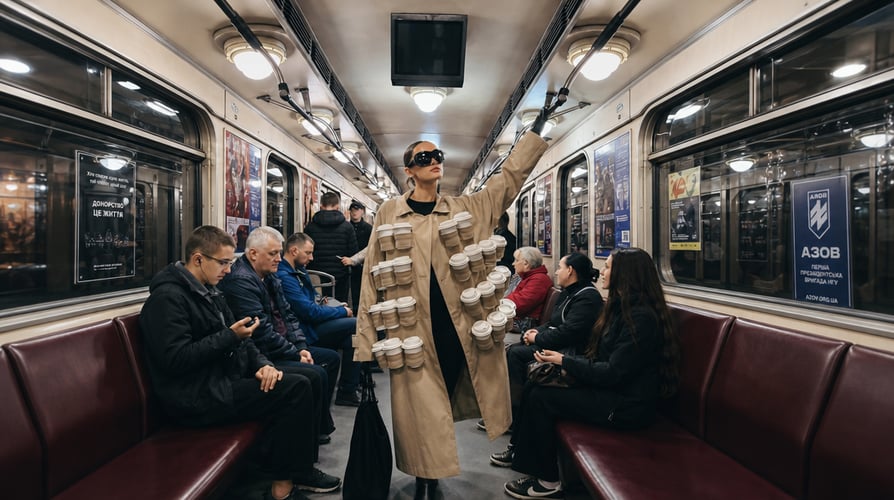
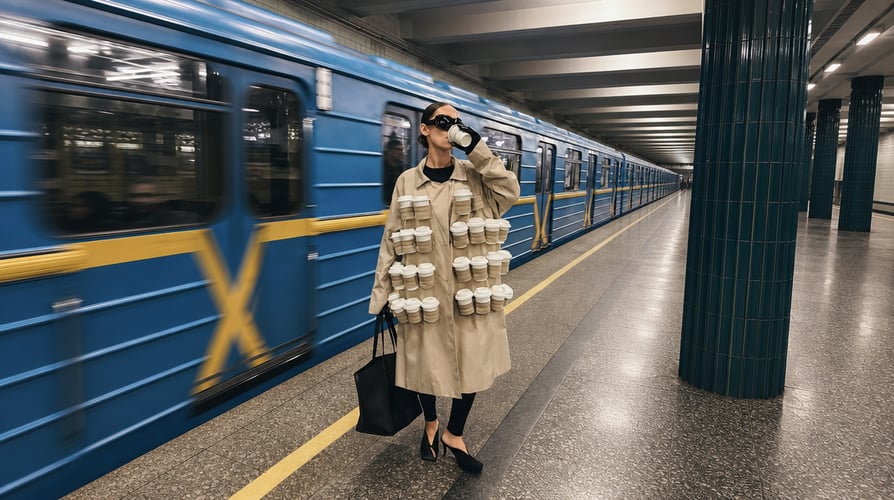
Combine images and readable text for posters, labels, packaging studies, explanatory graphics, and promotional materials.


Develop shot ideas, character sheets, environment studies, and connected visual references before moving into video production.
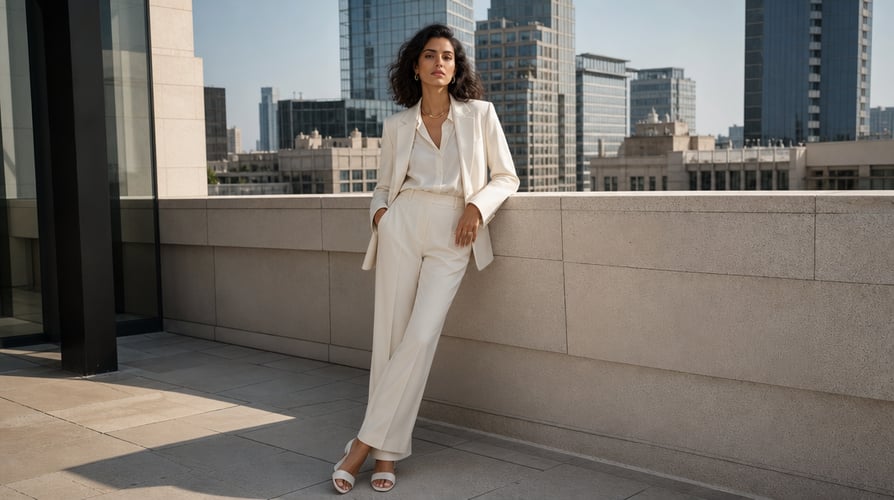
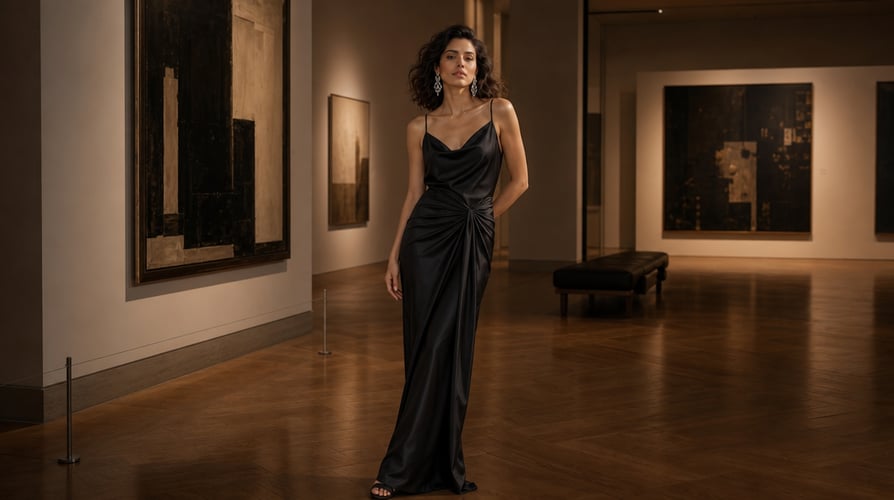
Replace backgrounds, remove distractions, adjust color or lighting, revise text, and refine selected parts of an existing image.
Compare image workflows and continue approved visuals with Buzzy video models.
It is OpenAI’s image generation and editing model. On Buzzy, you can create from a prompt or edit an image with reference-led instructions.
Yes. Use a person, product, sketch, photo, or other relevant visual reference and explain the details it should preserve or guide.
The workflow supports images containing headlines, labels, packaging copy, captions, and other designed text. Review all generated wording before publishing.
Yes. You can request background replacement, object removal, lighting or color changes, text revisions, or other focused edits.
It can use references and stable descriptions to support continuity. Review each asset carefully because generative consistency can still vary.
The live Buzzy workspace shows the output controls available for the current model configuration. Check those settings before finalizing the composition.
Yes. Use an approved still as the starting frame or visual reference for a compatible Buzzy video workflow.
No specialist masking process is required for basic prompt-led creation and editing, although careful art direction and final review remain important.
Create an image from a prompt or edit a reference through clear natural-language instructions. Refine composition, text, lighting, color, and visual details, then continue an approved image into video with Buzzy.
Compare this workflow with GPT Image 2.5, Nano Banana 2, and Midjourney, or browse the current Buzzy models.
An effective AI image workflow begins with a clear task. A product hero needs accurate product details and room for layout. A poster needs readable text and a strong hierarchy. A storyboard frame needs a visible action and continuity with the next scene. A reference-led edit needs a precise distinction between the parts that should remain and the parts that should change.
GPT Image 2 supports image generation and editing. In Buzzy, you can begin from text, add a relevant reference, and continue refining the same creative direction through follow-up instructions. The result is easier to control when the first brief identifies the asset’s purpose and every later instruction addresses a specific decision.
Start with text-to-image generation when the concept does not need to preserve an existing subject or composition. Describe the subject, action or pose, environment, viewing distance, lighting, and intended use. Keep the first prompt focused enough that you can tell whether it succeeded.
Start with a reference image when identity, product detail, layout, or an existing visual direction matters. Explain what the model should retain. For example, preserve the product shape and label, change the surface and background, use softer window light, and leave space for a headline. This creates a measurable editing task rather than a vague request for improvement.
Place the main subject and action first. Follow with the setting and composition. Add lighting, color, material, lens language, and style only where they change the result. End with practical layout constraints such as negative space, aspect ratio, or text placement.
This structure helps distinguish the required content from optional visual treatment. It also makes revision easier. If the subject and composition are correct, you can keep them stable and adjust only the lighting or background in the next prompt.
Avoid long lists of unrelated aesthetics. “Cinematic,” “editorial,” “photorealistic,” “minimal,” and “illustrated” can point in different directions when they appear together without context. Describe the visual choice that serves the project instead of collecting popular terms.
A reference can define a person, product, sketch, environment, composition, or design system. State the role of the asset. If several references are used, explain which one controls identity, which one controls the setting, and which one provides style or layout guidance.
Keep the reference set coherent. Conflicting perspectives, lighting conditions, or visual identities can produce an image that is difficult to judge. When a reference is included only for one element, say so clearly and avoid asking the model to copy unrelated details.
For posters, packaging, labels, interfaces, or infographics, enter the exact wording and describe the hierarchy. Identify the headline, supporting line, label, button, or caption. Explain where each element should appear and which words require the strongest emphasis.
Short, structured copy is easier to inspect than a dense block of generated text. Review spelling, punctuation, capitalization, numbers, dates, and multilingual characters before publishing. A visually polished design can still contain a copy error, so typography needs both visual and editorial approval.
When most of the image already works, isolate the next change. Replace only the background. Remove one distracting object. Correct a color. Adjust the direction of light. Rewrite a label. Preserve the subject and composition unless they are also part of the problem.
Focused edits make comparison easier and reduce the risk of losing a useful result. They also create a clearer record of the decisions that shaped the final image. If several major changes are required, make them in a logical order: composition first, subject accuracy second, lighting and color third, then fine detail and text.
Consistency across a series depends on repeated visual rules. Keep the same reference for a recurring character or product. Reuse the defining description, palette, lighting, camera distance, and material language. Change only the scene, pose, or layout required for the next asset.
A connected series can still include different formats. A campaign may need a landscape hero, vertical social asset, square product post, detail image, and poster. The identity and style connect them, while each composition is built for its placement.
Use the size, ratio, quality, and format controls shown in Buzzy according to where the image will appear. A website hero needs room for interface and copy. A vertical post needs a mobile-safe focal point. A product listing needs a clear silhouette and consistent scale. An infographic needs enough resolution for labels to remain readable.
Set the ratio before the final refinement. Cropping a finished image can remove essential context, cut off a subject, or eliminate the negative space reserved for text. The prompt should describe the composition inside the intended frame.
Inspect hands, faces, small objects, repeated patterns, reflections, product markings, logos, text, background geometry, and lighting direction. If the image communicates factual information, verify every label and visual claim. If it represents a product, check recognizable details against an approved source.
Use only references you have permission to upload. Review likenesses, trademarks, protected designs, and third-party material before commercial publication. Buzzy provides the generation and editing workflow; the person publishing the image remains responsible for factual, legal, and brand approval.
When the still image is ready, define the motion before opening the video workflow. Decide what remains stable, what moves, how the camera behaves, and how the shot ends. Subject motion and camera motion should be described separately.
The approved image acts as the visual anchor. A controlled motion brief can turn it into a product reveal, character moment, atmospheric scene, campaign clip, or storyboard beat without abandoning the composition and identity already established in the still.
Start from a prompt or reference, refine the visual decisions that matter, and continue the approved image into the next stage of your Buzzy project.