Free AI Headshot Generator for Profile Portrait Concepts

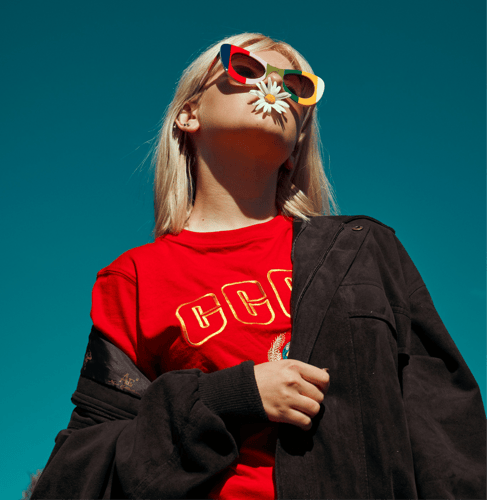
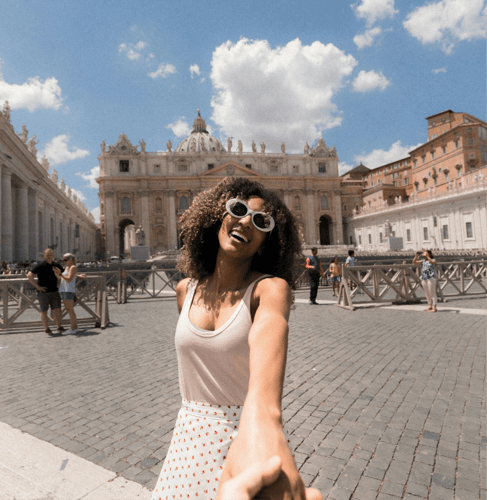
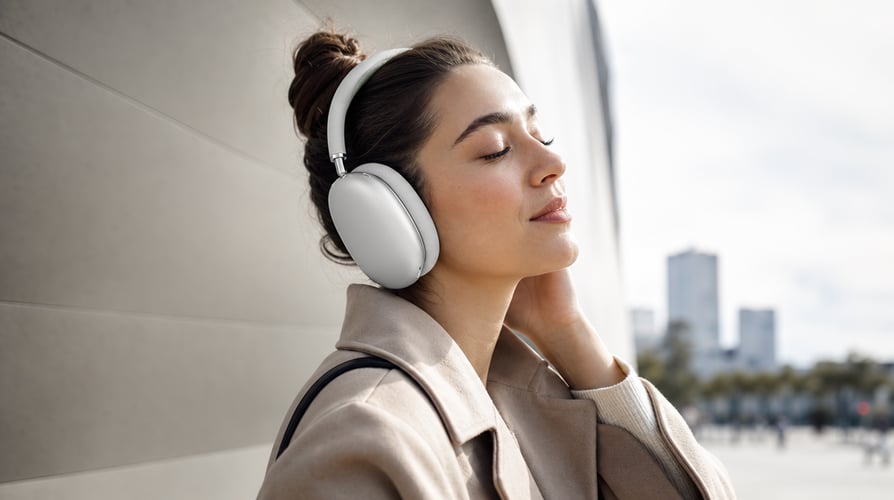
Plan a portrait that fits your profile: a clear face, a suitable background, and clothing that matches the context. Check account eligibility for real-person uploads before starting.

Ref
Image

Make the Portrait Fit Its Purpose

Buzzy supports prompt-led portrait edits. Give each request one visible job.

Backgrounds That Support the Face afterBackgrounds That Support the Face beforeBeforeAfter

Backgrounds That Support the Face

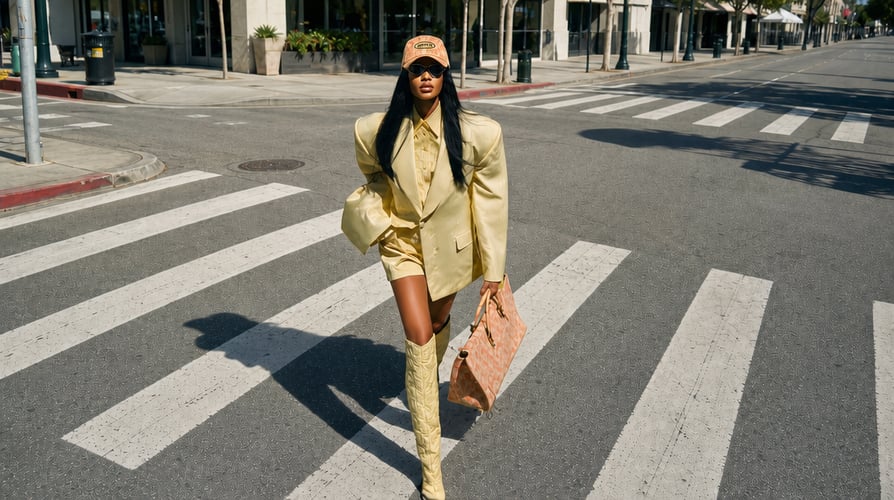
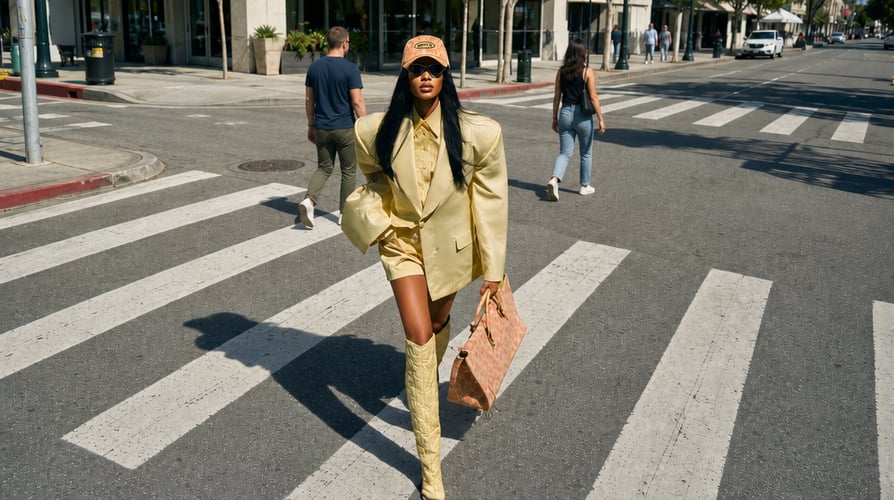
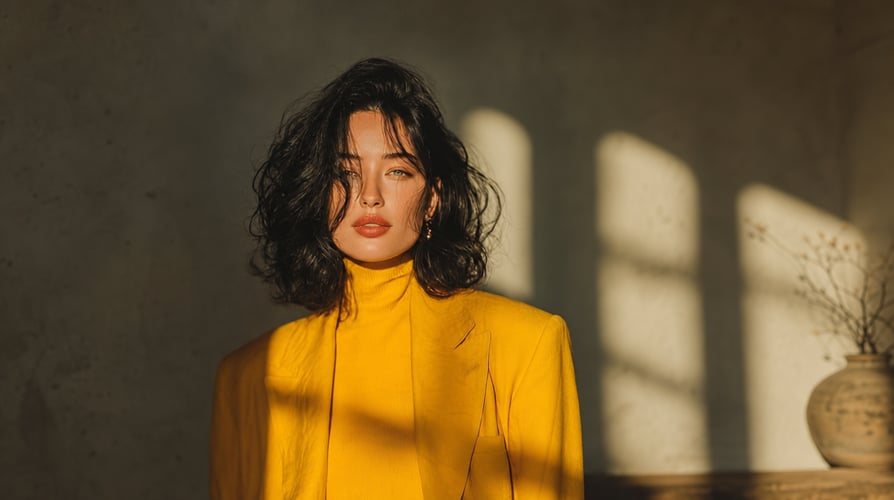
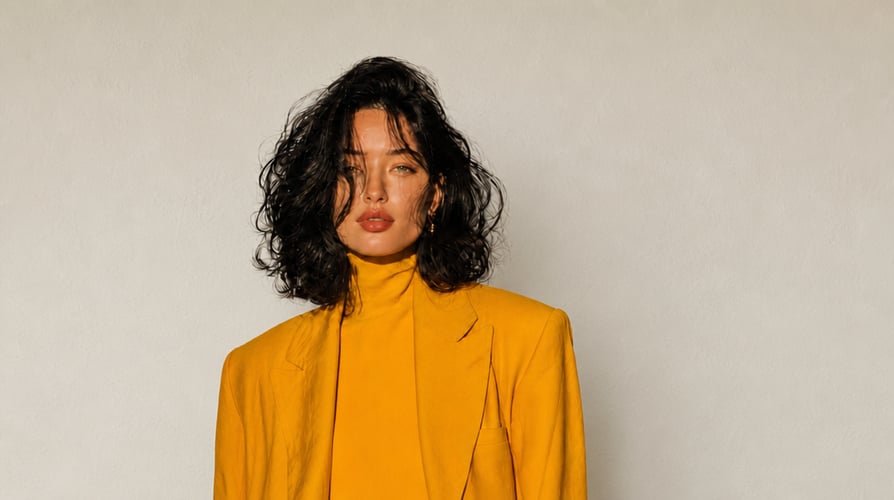
A busy room can compete with the subject in a small profile image. Request a plain studio background, a restrained office setting, or another environment suited to the intended use. Describe the background separately from the person so the reference remains central to the brief. Review hair and shoulder edges afterward; a cleaner setting should not redraw the subject.

Clothing Direction without a New Identity afterClothing Direction without a New Identity beforeBeforeAfter

Clothing Direction without a New Identity

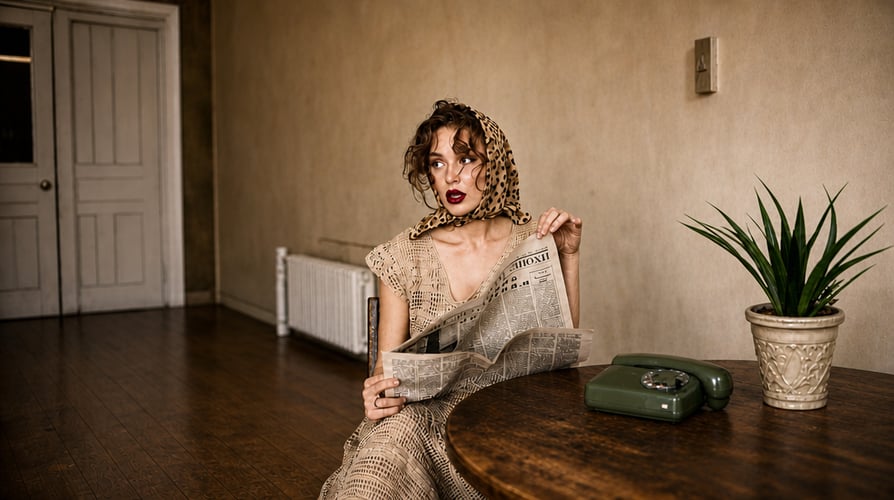
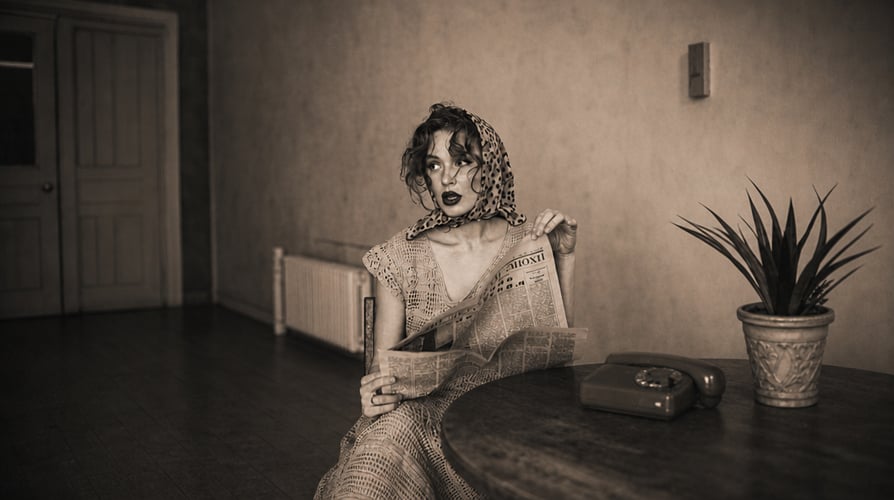
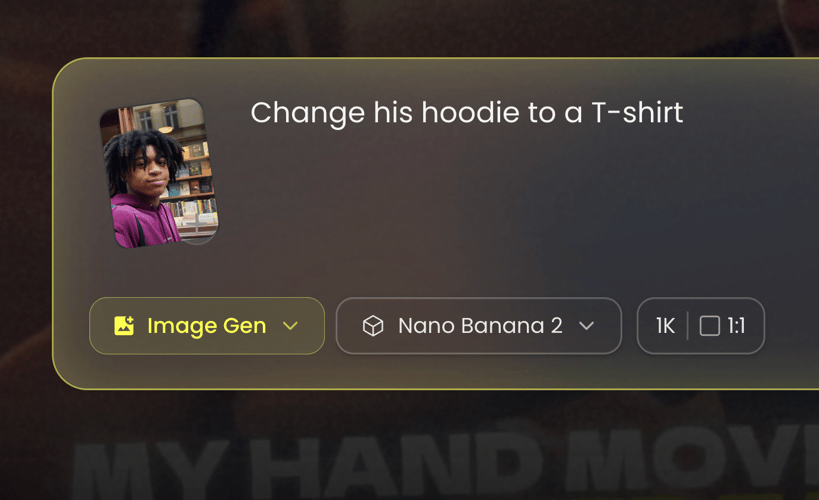
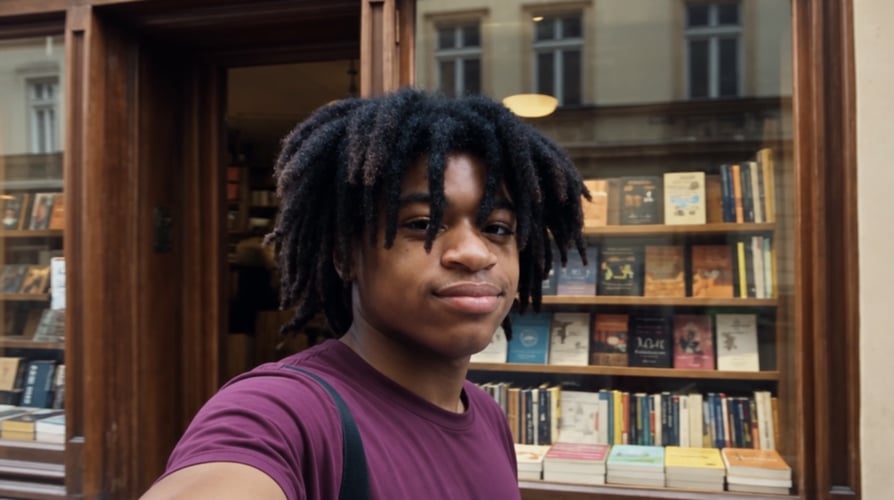
Buzzy’s image-editor page describes outfit changes for portraits. Name the clothing you want to explore, such as a dark jacket and plain shirt, while requesting the same facial structure and expression. Inspect collars, buttons, shoulders, and fabric after generation. Treat the result as a portrait concept, not proof that the person wore those clothes for a real photograph.

Lighting and Framing in Plain Language afterLighting and Framing in Plain Language beforeBeforeAfter

Lighting and Framing in Plain Language

Describe soft front light, a neutral expression, eye-level framing, or a head-and-shoulders crop when those choices fit the profile. Avoid vague quality labels that leave the actual picture undefined. A focused request helps you compare versions by the same criteria. Check the workspace’s visible ratio settings and allow room for the final destination’s crop.

Review Recognizability Before Style afterReview Recognizability Before Style beforeBeforeAfter

Review Recognizability Before Style

A portrait that looks polished is not automatically an accurate representation of its subject. Compare the face with the original reference, including eye spacing, jawline, hairline, and distinctive features. If a revision changes identity, simplify the request rather than adding more styling instructions. Keep the version that looks like the person and suits the intended profile.

How to Prepare a Reference-Led Headshot

Prepare the starting material, describe the intended change, and compare the result with the brief.

General Buzzy image-workflow illustration: choose a clear portrait and check access01

Choose a Clear Portrait and Check Access

Use a photo in which the face is visible, with an unobstructed head and enough room around the shoulders. Before uploading a real person’s image, check your account’s available upload access; Buzzy’s pricing page lists real-human-face upload among paid-plan features. Follow the file limits displayed in the selected workspace.

General Buzzy image-workflow illustration: specify the portrait’s setting02

Specify the Portrait’s Setting

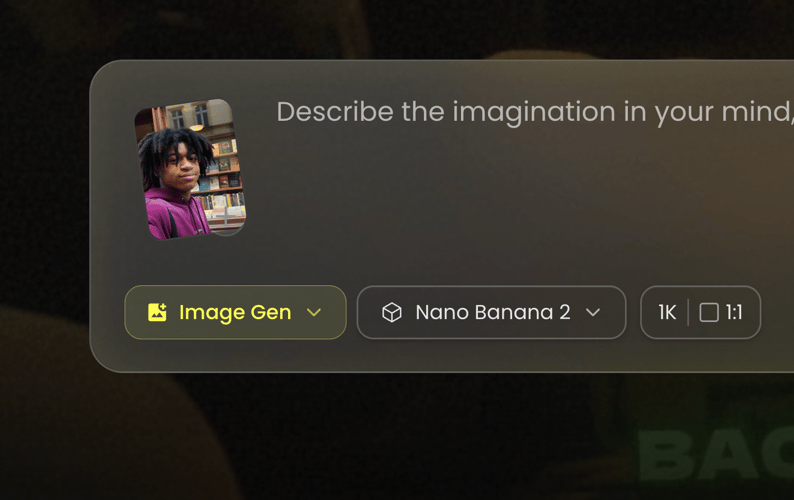
Describe the destination, crop, background, clothing, and lighting. For example: “Create a head-and-shoulders profile portrait from this reference, with a plain gray background and soft light. Keep the face and expression recognizable.” Use available resolution and ratio settings. Do not assume a dedicated headshot package, batch size, or studio preset.

General Buzzy image-workflow illustration: compare the face and the final crop03

Compare the Face and the Final Crop

Generate the concept and compare it with the source before evaluating style. Check facial features, hair, clothing edges, and the background. Place it in the intended profile crop and confirm that the face remains readable. If an identity detail changes, revise the prompt or choose another source rather than accepting a less recognizable portrait.

Direct the Parts of a Headshot That Viewers Notice

Use a specific instruction for each portrait decision.

  • Background Choice

    Describe a plain, office, or environmental setting that matches the profile. Keep competing objects and decorative detail out of the face area.

  • Outfit Direction

    Name the jacket, shirt, neckline, or color you want to explore. Review the generated clothing instead of assuming every seam will remain consistent.

  • Light and Shadow

    Request soft or directional light in ordinary language. Inspect the face for uneven shadows or skin texture that no longer matches the reference.

  • Expression Preservation

    State whether the original smile or neutral expression should stay. Changing several facial details at once makes identity drift harder to detect.

  • Head-and-Shoulders Composition

    Describe how much head, neck, and shoulder space belongs in the portrait. Preview the final profile crop before committing to that composition.

  • Hair and Edge Review

    Look closely where hair meets the background and clothing meets the shoulders. Small artifacts are easier to spot before a tight crop hides context.

  • Restrained Retouching

    If the source needs cleanup, name the distraction rather than requesting a new face. Preserve distinctive features that help people recognize the subject.

  • Follow-Up Editing

    Use a focused background, lighting, or clothing edit after the first concept. Keeping one change per revision makes the result easier to assess.

Different Profiles Need Different Portrait Decisions

Choose the image’s context before choosing its visual treatment.

Professional Network Profiles afterProfessional Network Profiles before

Professional Network Profiles

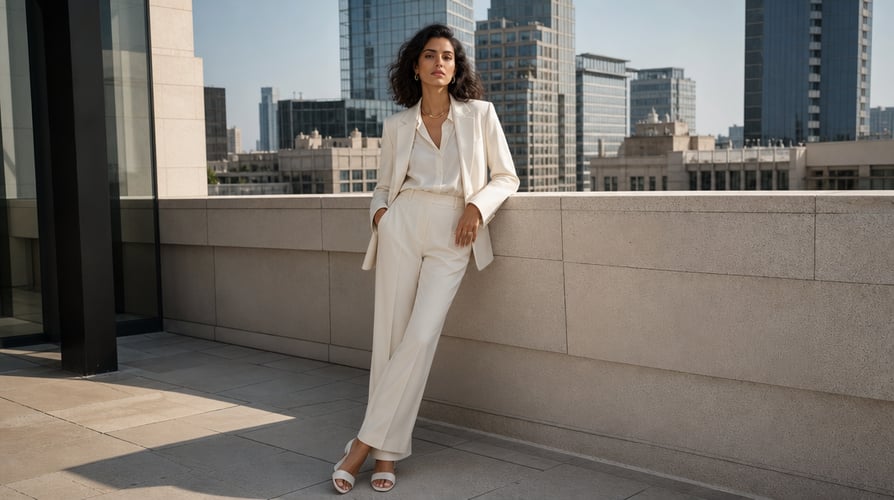
For a networking profile, prioritize recognizability and a clear face at small size. A simple background and restrained outfit can help keep attention on the subject. Test the circular or square crop used by the destination; extra space around the head may be more useful than elaborate scenery.

Team and Company Pages afterTeam and Company Pages before

Team and Company Pages

Use a shared brief for framing, light, and background when planning several team portraits. Review each person independently rather than treating a matching style as proof of matching identity. This is guidance for consistent art direction, not a claim that the retained template includes a dedicated team-batch feature.

Speaker and Author Introductions afterSpeaker and Author Introductions before

Speaker and Author Introductions

A speaker bio or author page may need more surrounding space than a profile avatar. Describe the intended crop and a background that supports the subject’s role. Keep the portrait truthful to the person and avoid adding workplace, award, or uniform details that would imply an unverified affiliation.

Personal Sites and Creative Portfolios afterPersonal Sites and Creative Portfolios before

Personal Sites and Creative Portfolios

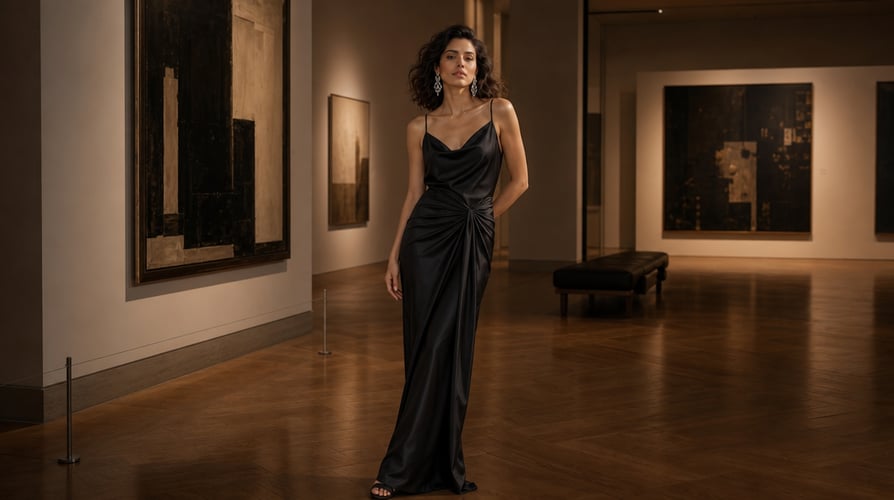
An environmental portrait can communicate a creative direction without becoming a formal studio image. Request an understated setting, palette, or lighting treatment while keeping the face central. Compare a plain version with the concept in the actual page layout before deciding which one communicates the desired introduction.

Get Inspirations

Explore Other Buzzy Image Workflows

Browse reference-led image creation and editing when the next task calls for a different visual change.

Seedance 2.5
Cinematic 4K, consistent shots
Try it
Agentic Canvas
Agent-driven node canvas
Try it
Kling 4.0
3 to 30 seconds long at up to 4K quality
Try it
Nano Banana 2.1
Fast and brand level image generation
Try it
Seedance 2.0
Motion-driven video creation
Try it
Google Omni
Cinematic video generation
Try it
Kling
High-fidelity physics simulation
Try it
Runway
Next-gen creative video tools
Try it
Nano Banana 2
Lightweight video synthesis
Try it
Veo 3.1
Google's advanced video generation
Try it
GPT Image 2
Photorealistic image generation
Try it
Hailuo
Fast and expressive video drafting
Try it
Pixverse
Stylized and dynamic video generation
Try it

Free AI Headshot Generator FAQ

Answers about the intended task, reference inputs, review decisions, and access conditions.

It guides a reference-led portrait workflow using Buzzy’s image-generation and editing tools. The focus is background, clothing, lighting, and framing around a recognizable face. It does not establish a dedicated headshot-training service or guarantee a fixed package of portraits.

Do not assume unrestricted access. Buzzy offers a “Start for free” entry, but its pricing page lists real-human-face upload among paid-plan features. Check your account’s current upload eligibility and generation allowance before using a personal reference.

Buzzy’s image-editor page describes portrait outfit and background changes. Write the requested change in the prompt and keep the subject’s identifying details explicit. Review the generated clothing, face, and edges rather than assuming the change preserves every detail automatically.

Choose a clear image with an unobstructed face, readable expression, and enough space around the head and shoulders. Heavy blur, extreme angles, or accessories covering the face make comparison harder. Follow the selected workspace’s upload rules.

Exact identity preservation is not guaranteed. Compare eye spacing, face shape, hairline, expression, and other distinctive details with the source. Reject a portrait that changes the person even if its lighting or background looks appealing.

A profile portrait is a relevant creative use case, but review the result against the destination’s requirements and your own expectations before using it. Check recognizability and the final crop. Do not infer endorsement, acceptance, or usage rights from this page.

The verified image workflow has a reference-image input and a written prompt. No dedicated headshot training set or mandatory number of selfies was verified for this image workflow. Follow the live input instructions rather than requirements advertised by another headshot service.

Request one change at a time and preserve the original expression and distinctive features. Review skin, eyes, hair, and clothing at full size. A restrained background or lighting edit can be easier to judge than a request that changes the face, outfit, pose, and setting together.

Choose a Portrait That Introduces the Right Person

A Free AI Headshot Generator search is often less about taking a new photograph than making an existing portrait fit a particular introduction. The first decision is where the picture will appear. A company biography, a networking avatar, and a creative portfolio can use different framing and background choices without changing the person’s identity.

Set the Context Before the Style

For a compact profile image, the face needs to remain clear after cropping. For a biography layout, shoulders and some surrounding space may help the composition. Describe those requirements directly. Avoid asking for an elaborate location simply because it sounds impressive; the background should support the introduction rather than imply a workplace or professional credential that is not real.

Select a Reference You Can Evaluate

A clear reference makes it easier to judge whether a generated portrait still represents the subject. Keep the original expression, hairline, and important facial details in mind before writing the prompt. An obscured or heavily filtered selfie offers less reliable information for comparison. Better starting material can be more useful than repeatedly adding instructions to an unclear source.

Write a Headshot Prompt without Redesigning the Face

Try a brief such as: “Use this portrait as the reference. Create a head-and-shoulders composition with a simple charcoal background and soft front lighting. Keep the original facial structure, expression, hairline, and skin tone recognizable. Explore a plain dark jacket without changing the pose.” This is an example request, not a tested identity-preservation guarantee.

Change the Setting Before the Person

If the existing portrait already has a readable face, begin with the distracting setting. Review that version before changing clothing or light. Each extra request creates another detail to inspect. This order lets you decide whether a simpler edit is enough, rather than assuming every photo needs a full studio-style reconstruction.

Check Small-Size and Full-Size Views

Use a small preview to assess profile readability, then inspect the full image for altered features and edge artifacts. Look at the eyes and mouth as well as collars, hair, and shoulders. A circular crop can hide some background defects but cannot make an inaccurate face acceptable. Keep the source and candidate portrait together while deciding.

Keep Access and Portrait Accuracy Separate

A “Start for free” sign-up label does not confirm that every photo-upload or generation operation is included. Buzzy’s current pricing and access page lists real-human-face upload among plan features, so check account eligibility first. For broader visual edits, explore Buzzy’s reference-led image model workflow. Choose a usable portrait only after reviewing the person, the setting, and the final crop.
Plan a Portrait That Still Looks Like You

Choose the reference, background, and crop that fit your introduction. Confirm real-person upload access, then review identity before style.

25M
Customers
190 countries
#1
Product of the month
Product Hunt
4.8
G2
Buzzy