
Native 30-Second Video Generation
Generate up to 30 seconds in a single video, with room for richer action, camera movements, and product reveals. Extend your story to two minutes through multiple video extensions.
Create cinematic videos with Kling 4.0—up to 30 seconds in 4K, with up to 15 reference assets, 10 keyframe images, multilingual lip-sync, and immersive stereo sound.
Tell longer stories with more creative control. Explore native 30-second video generation, up to 15 multimodal references, precise keyframe control, and upgraded visuals and sound.
Generate up to 30 seconds in a single video, with room for richer action, camera movements, and product reveals. Extend your story to two minutes through multiple video extensions.
Bring your creative direction into focus. Combine up to 15 multimodal references to guide the result and help keep characters, products, and scenes closer to the look and feel you have in mind.
Shape how your video unfolds, moment by moment. Use up to 10 keyframes to guide key visual moments and transitions, from the opening frame to the final reveal.
Bring your scenes to life with more stable motion, improved lip-sync, and high-quality stereo audio. Explore output up to 4K and support for 10-bit HDR for greater visual detail and depth.
Keep developing your idea after the first generation. Explore video editing and extension to refine your footage, carry the action further, and shape your scene as your creative direction evolves.
Build your scene, guide the action, and refine your next take.
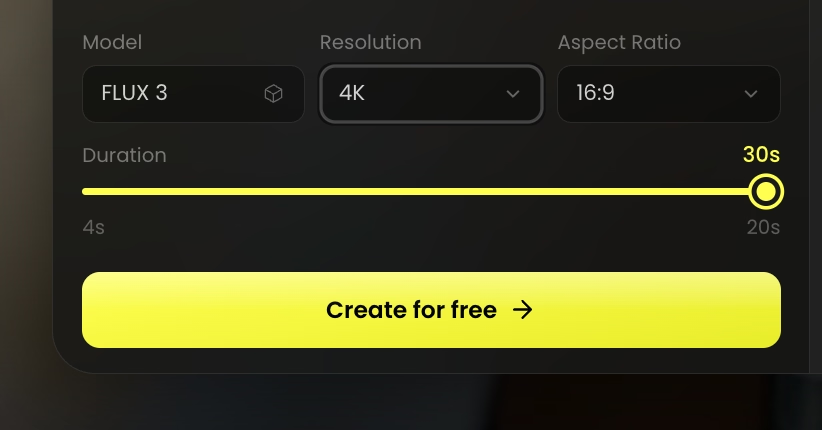 STEP 01
Choose Kling 4.0 when available and describe your subject, setting, action, camera movement, and sound.
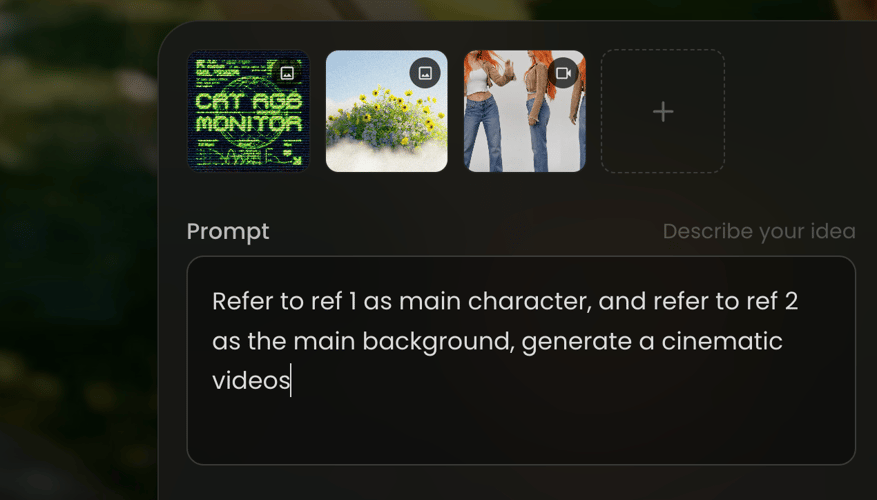 STEP 02
Add supported references or keyframes to guide the result. Choose from the duration, resolution, and aspect ratio options available in your workspace.
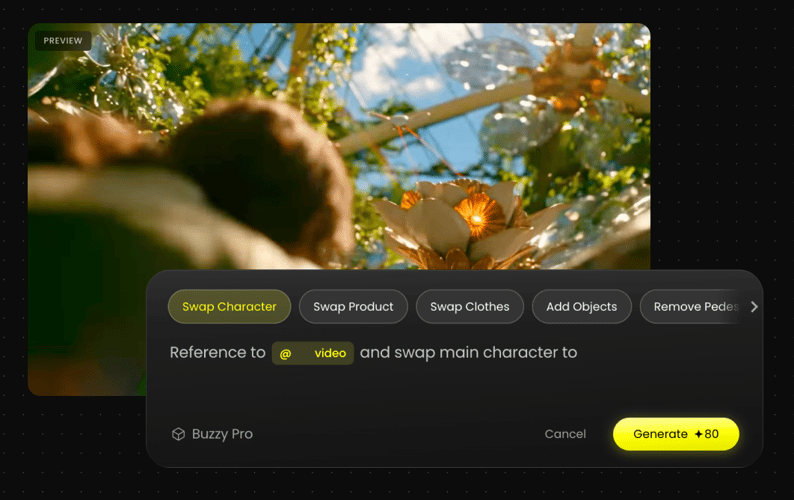 STEP 03
Generate your video and review its motion, continuity, and sound. Adjust your prompt or references, then download your favorite take.
Generate up to 30 seconds in one go, giving your story room for a stronger setup, richer action, and a memorable reveal.
Use up to 15 reference assets to help keep characters, products, and settings aligned with your creative vision.
Guide your video with up to 10 keyframe images. Shape key moments and transitions with more control than a text prompt alone.
Create videos in up to 4K with support for 10-bit HDR, bringing richer colors, finer detail, and greater depth to your scenes.
Bring characters to life with multilingual lip-sync and stereo audio, making conversations feel more natural and scenes more immersive.
Explore more ways to create images, shape your visuals, and turn ideas into videos with Buzzy.
Get to know Kling 4.0, its announced capabilities, and what to check before you create.
Kling 4.0 is the next-generation AI video model from Kuaishou. Its announced capabilities include native 30-second generation, up to 15 multimodal references, up to 10 keyframes, and upgraded visual and audio performance.
As of September 29, 2026, Kling 4.0 is in testing, with a full launch planned for October 2026. An exact launch date has not been announced. Availability on Buzzy may differ from the model provider’s rollout.
Kling 4.0 has been announced with native generation of up to 30 seconds per video. Available durations depend on the version, mode, and settings offered in your workspace.
The announced Kling 4.0 model supports up to 15 multimodal references. Supported file types and input limits depend on the selected mode and platform configuration.
Kling 4.0 has been announced with support for up to 10 keyframes to guide visual moments and transitions. Check the available controls in your workspace before preparing your inputs.
The Kling 4.0 preview highlights output up to 4K and support for 10-bit HDR. Available resolution and HDR combinations depend on the model version and output mode.
The preview highlights high-quality stereo audio, improved lip-sync, and support for multiple languages, accents, and dialects. Review generated speech and synchronization before using a video in your campaign.
Video editing and extension are among the announced Kling 4.0 capabilities. Supported inputs, controls, and extension limits depend on the version and features available on your platform.
Kling 4.0 Flash is a separate variant with early access announced ahead of the full Kling 4.0 launch. Do not assume both versions offer identical generation limits, output settings, or creative controls.
Check the Buzzy model selector for current access. Model availability, pricing, usage limits, and supported features are determined by the options and plan terms shown on Buzzy.
A longer AI video clip gives a scene more room to develop, but it also creates more chances for the subject, setting, and action to drift. Start with a one-sentence brief: who or what is on screen, what changes during the shot, and what the viewer should understand by the end. Then decide which details belong in the text prompt and which need an image or video reference. This text-to-video planning step is useful for a product reveal, a short film, or a social media video.
Write the scene as a beginning, a visible change, and an ending rather than a list of adjectives. For example, a product video might open on a close-up, follow one continuous camera move as the product is used, and finish on a clean hero frame. Specify the subject's action and the camera's action separately. “The camera tracks beside the runner” gives clearer direction than “dynamic cinematic movement.” Treat motion control as a planning decision: name the direction, speed, and subject of the movement. Add lighting, setting, and mood only after the main action is understandable.
For dialogue, identify the speaker, the line, and the intended pause or reaction. If the scene needs ambient sound, describe it as part of the location. Keep on-screen text short and proofread it in the generated frame; do not assume a generated label, subtitle, logo, or product name will be accurate without review.
Kling AI has announced multimodal references and keyframe guidance for Kling 4.0, but more files are not automatically better. Give each reference a role: one image for a character's appearance, another for a product, or a frame for the opening composition. If two images conflict on clothing, color, viewpoint, or time of day, resolve that conflict before generation. Name the details that must remain stable in the scene brief. A reference-led workflow differs from a text-to-video workflow: the reference supplies visual direction that the prompt alone may leave ambiguous.
Use keyframes when the opening and ending need deliberate composition or when a transition must land on a particular visual beat. A keyframe can guide an important moment; it is not a guarantee that every intermediate movement will match a storyboard exactly. Review the generated animation for continuity in faces, hands, objects, and background geometry, especially around rapid motion and cuts. Prepare only the reference types and quantities that the selected Buzzy mode actually accepts. For a reference-first alternative, compare the controls on Buzzy's Seedance 2.0 page before reusing the same assets.
The first video preview should answer one question: does the action read clearly from start to finish? Watch without sound to catch awkward camera movement, disappearing objects, or a subject that changes between frames. Then listen without watching. Check whether dialogue is intelligible, whether the voice matches the intended speaker, and whether sound effects fit the depicted action. Finally, watch and listen together to assess lip-sync and timing. For another audio-led video workflow, review Veo 3.1 on Buzzy; do not assume its settings match Kling 4.0.
For a commercial or social post, inspect the beginning at normal mobile viewing size. The subject and action should be recognizable before a viewer has to read supporting copy. Leave enough visual space for any caption or interface overlay that will be added later. Before delivery, check the exported file in its intended placement for crop, aspect ratio, text legibility, audio balance, and any unwanted frame at the start or end.
If a result misses the brief, change one control at a time. First tighten the action and camera description. Next replace an ambiguous reference or adjust the keyframes. Then revise the sound instructions. This makes it easier to tell which change improved the next take. Save the promising version before experimenting further, and compare revisions against the original brief rather than judging each clip in isolation.
Kling 4.0's announced limits describe the model, not a promise that every mode or setting is live on Buzzy. The page currently labels access as presale, while its visible generator selector shows MiniMax-H3. Check the live selector, supported inputs, duration, resolution, plan terms, and export options before committing to a production deadline. Until the Kling 4.0 option is available in your workspace, the same brief can help you test an available model. Buzzy's Kling 3 page is a related starting point, but its controls and outputs are not interchangeable with Kling 4.0.
Turn your creative direction into longer, more expressive scenes. Explore Kling 4.0 and plan your next story, product reveal, or campaign with Buzzy.