من النص إلى الفيديو انطلاقًا من موجز اللقطة
ابدأ بمطالبة تسمّي الموضوع والحركة والمشهد وسلوك الكاميرا وسياق الصوت لمشهد جديد.
حوّل مطالبة أو صور البداية والنهاية إلى مقطع فيديو بدقة 480P أو 768P. اختر التنسيق، ووجّه اللقطة، وأنشئ مجانًا.
سير عمل مركّز من النص إلى الفيديو ومن الصورة إلى الفيديو لمقاطع قصيرة بدقة 480P أو 768P.
ابدأ بمطالبة تسمّي الموضوع والحركة والمشهد وسلوك الكاميرا وسياق الصوت لمشهد جديد.
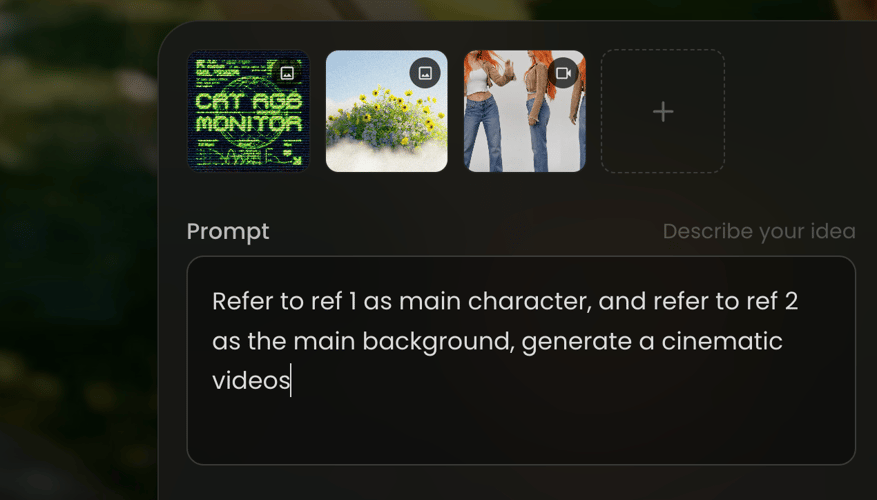
ارفع صورة أولى أو أخيرة أو كلتيهما، ثم صف الحركة أو الانتقال بين الإطارات المحددة.
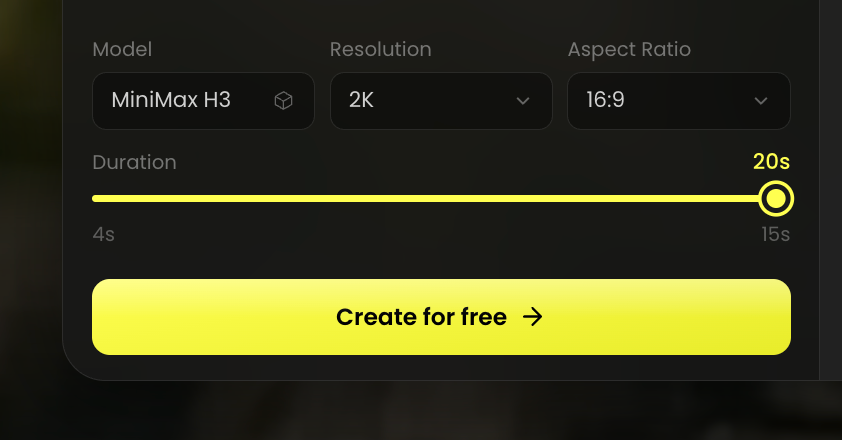
اختر 480P أو 768P وحدّد مدة بعدد صحيح من 5 إلى 15 ثانية بمعدل 24 إطارًا في الثانية.
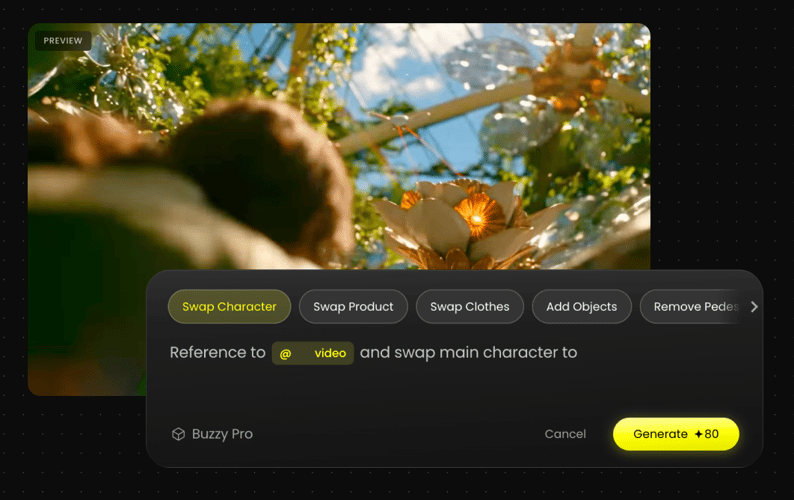
لتكوين بخمس ثوانٍ بدقة 768P، تشير Buzzy وfal إلى معيار أقل من ثلاث ثوانٍ؛ ويختلف التوقيت حسب الطلب والظروف.
أعد طلب فيديو مركّزًا من مطالبة أو إطارات صور محددة.
STEP 01حدد MiniMax H3 Max، ثم اختر 480P أو 768P ومدة من 5 إلى 15 ثانية.
STEP 02اكتب الموضوع والحركة والمشهد واتجاه الكاميرا. ارفع صورة أولى أو صورًا أولى وأخيرة للعمل من صورة إلى فيديو.
STEP 03اختر إنشاء مجانًا، وراجع الحركة أو التأطير أو الانتقال، وعدّل قرارًا إبداعيًا واحدًا للّقطة التالية.
اختر من النص إلى الفيديو لمشهد جديد، أو استخدم صور البداية والنهاية لتوجيه انتقال من صورة إلى فيديو.
اختر 480P أو 768P، وحدد نسبة عرض إلى ارتفاع للنص إلى الفيديو، وحدّد مدة من 5 إلى 15 ثانية للّقطة.
صف ما يتغيّر عبر المقطع، ثم أضف سلوك الكاميرا فقط عندما يكون مهمًا للحظة.
ضمّن أجواء أو توجيهًا صوتيًا في المطالبة مع اعتبار المخرجات توليدية وليست مضمونة.
استخدم المعيار المعلَن لخمس ثوانٍ بدقة 768P كسياق للاختبارات السريعة، مع السماح بتفاوت التوقيت حسب الطلب والظروف.
قارن نطاقات النماذج المدعومة، ثم تابع مقطعًا مولَّدًا في محرر فيديو Buzzy.
تفاصيل أساسية للإعداد واختيار النموذج لـ MiniMax H3 Max على Buzzy.
MiniMax H3 Max نموذج عالي السرعة لتوليد الفيديو درّبته fal.ai لاحقًا على MiniMax H3. على Buzzy يتوفر للعمل من النص إلى الفيديو ومن الصورة إلى الفيديو، بما في ذلك سير العمل بإطار أول وإطار أخير. يُخرج مقاطع فيديو بدقة 480P أو 768P من 5 إلى 15 ثانية بمعدل 24 إطارًا في الثانية.
حدد MiniMax H3 Max في Buzzy، وأدخل مطالبة، وارفع اختياريًا صورة أولى أو صورًا أولى وأخيرة، واختر الدقة ونسبة العرض إلى الارتفاع المناسبة، وحدّد المدة، ثم اختر إنشاء مجانًا. تعرض Buzzy 768P و16:9 و15 ثانية كإعداد أولي للمولّد.
اختر من النص إلى الفيديو عندما تبدأ بمطالبة، أو من الصورة إلى الفيديو عندما تريد إطارًا أولًا أو أخيرًا أو كليهما لتوجيه المقطع. لا يدعم H3 Max توليدًا بصورة مرجعية أو فيديو مرجعي أو صوت مرجعي. للنص إلى الفيديو تشمل النسب المدعومة 21:9 و16:9 و4:3 و1:1 و3:4 و9:16؛ ويتبع من الصورة إلى الفيديو نسبة صورة الإدخال.
قارن النماذج عندما يحتاج مشروعك إلى عناصر تحكم تتجاوز سير عمل النص إلى الفيديو والصورة إلى الفيديو بالإطار الأول/الأخير في H3 Max، أو عندما تحتاج مسار إخراج أعلى من 768P. H3 Max هو الخيار المركّز للمقاطع السريعة بدقة 480P أو 768P؛ اختر نموذجًا مدعومًا آخر عندما تختلف المدخلات المطلوبة أو دقة الإخراج.
يمكن توليد الفيديو والصوت معًا. يمكنك تضمين سياق صوتي في المطالبة، لكن لا ينبغي اعتبار التوليد وعدًا بحوار محدد أو نتيجة مزامنة شفاه أو نتيجة صوتية بعينها.
لتكوين بخمس ثوانٍ بدقة 768P، تشير Buzzy وfal إلى أن MiniMax H3 Max يمكنه التوليد في أقل من ثلاث ثوانٍ. هذا معيار معلَن لذلك التكوين، وليس ضمانًا زمنيًا عامًا لكل مطالبة أو مدة أو طابور أو ظرف توليد.
اكتب لقطة أو ارفع صور البداية والنهاية، واختر 480P أو 768P، وأنشئ أول مقطع فيديو قصير لك.