Text-to-Video from a Shot Brief
Start with a prompt that names the subject, action, setting, camera behavior, and sound context for a new scene.
Turn a prompt or first and last images into a 480P or 768P video clip. Choose your format, direct the shot, and create for free.
A focused text-to-video and image-to-video workflow for short clips at 480P or 768P.
Start with a prompt that names the subject, action, setting, camera behavior, and sound context for a new scene.
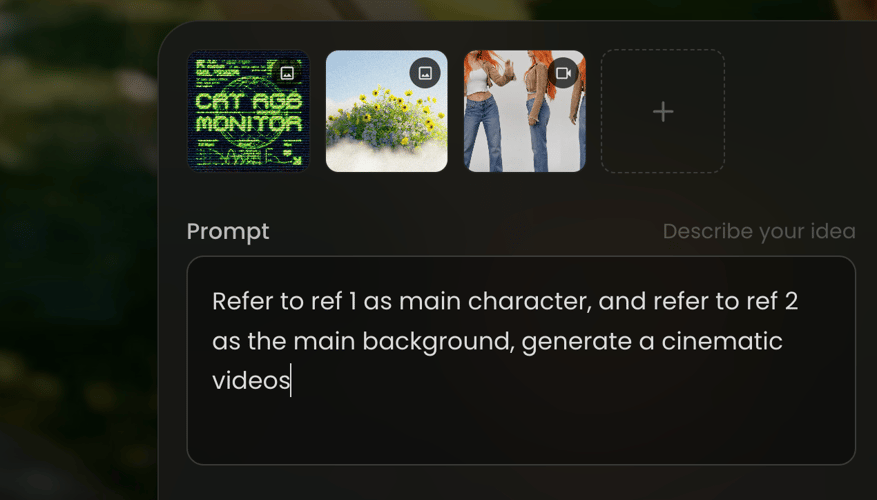
Upload a first image, a last image, or both, then describe the motion or transition between the selected frames.
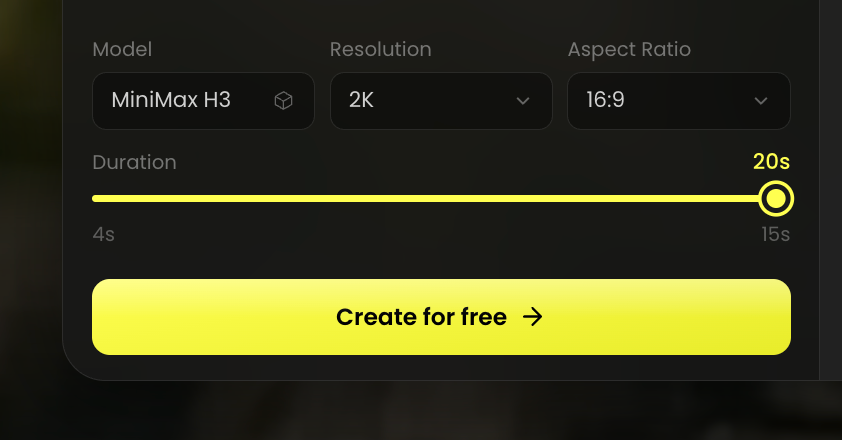
Choose 480P or 768P and set a whole-number duration from 5 to 15 seconds at 24 FPS.
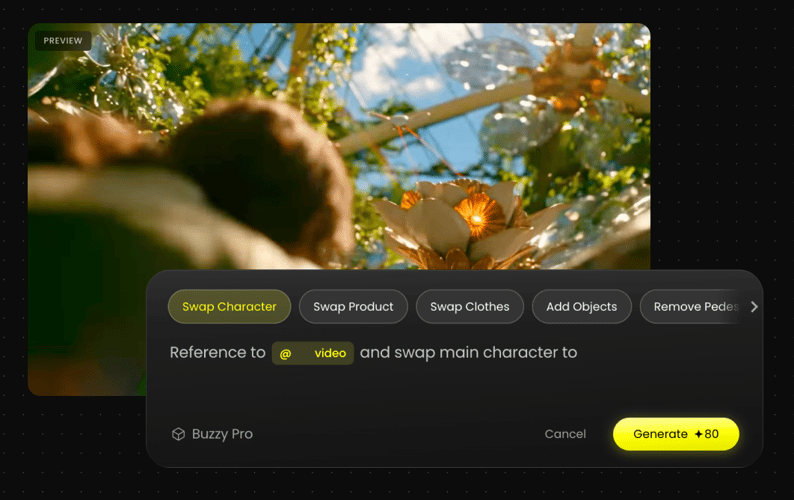
For a five-second 768P configuration, Buzzy and fal state a benchmark of under three seconds; timing varies by request and conditions.
Set up a focused video request from a prompt or selected image frames.
STEP 01Select MiniMax H3 Max, then choose 480P or 768P and a duration from 5 to 15 seconds.
STEP 02Write the subject, action, setting, and camera direction. Upload a first image or first and last images for image-to-video.
STEP 03Select Create for free, review the action, framing, or transition, and revise one creative decision for the next take.
Choose text-to-video for a new scene or use first and last images to guide an image-to-video transition.
Choose 480P or 768P, select a text-to-video aspect ratio, and set a 5-to-15-second duration for the shot.
Describe what changes across the clip, then add camera behavior only when it matters to the moment.
Include ambience or sound direction in the prompt while treating the output as generative rather than guaranteed.
Use the stated five-second 768P benchmark as context for rapid tests, while allowing timing to vary by request and conditions.
Compare supported model scopes, then continue a generated clip in the Buzzy video editor.
Key setup and model-selection details for MiniMax H3 Max on Buzzy.
MiniMax H3 Max is a high-speed video-generation model post-trained by fal.ai on MiniMax H3. On Buzzy, it is available for text-to-video and image-to-video work, including first-frame and last-frame image workflows. It outputs 480P or 768P video clips from 5 to 15 seconds at 24 FPS.
Select MiniMax H3 Max in Buzzy, enter a prompt, optionally upload a first image or first and last images, choose the resolution and applicable aspect ratio, set the duration, and select Create for free. Buzzy displays 768P, 16:9, and 15 seconds as the starting generator setup.
Choose text-to-video when you are starting with a prompt, or image-to-video when you want a first frame, a last frame, or both to guide the clip. H3 Max does not support reference image, reference video, or reference audio generation. For text-to-video, supported ratios include 21:9, 16:9, 4:3, 1:1, 3:4, and 9:16; image-to-video follows the input image ratio.
Compare models when your project needs controls beyond H3 Max’s text-to-video and first-/last-frame image-to-video workflow, or when you need an output path above 768P. H3 Max is the focused choice for fast 480P or 768P clips; choose another supported model when your required inputs or output resolution differ.
Video and audio can be generated together. You can include sound context in the prompt, but a generation should not be treated as a promise of a specific dialogue, lip-sync result, or sound outcome.
For a five-second 768P configuration, Buzzy and fal state that MiniMax H3 Max can generate in under three seconds. That is a stated benchmark for that configuration, not a universal timing guarantee across every prompt, duration, queue, or generation condition.
Write a shot or upload first and last images, choose 480P or 768P, and create your first short video clip.