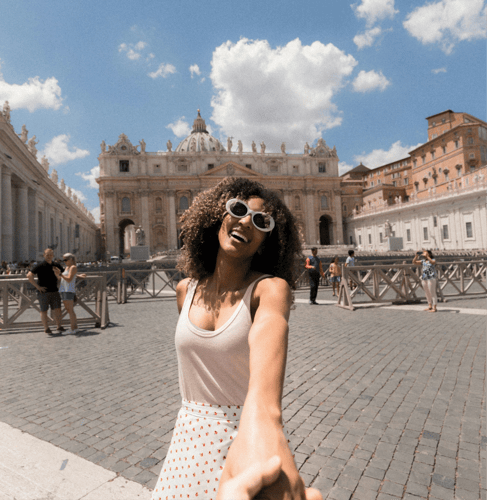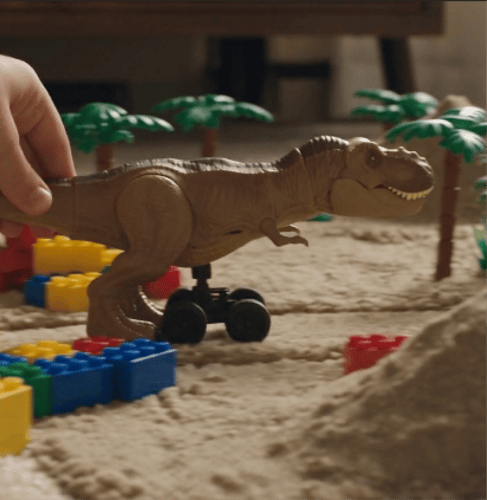
Ghibli AI Generator: Create a Painted Animation Clip

Bring a subject image, describe the painted motion, and use the preview on this page as the look to follow. The result to review is one continuous shot with a brushed background, not a multi-scene film.

Recreate this painted clip

Add your image and follow the painted look in the preview.

Style preview

The clip on this page is the look to follow

Add your imageA clear subject photo or illustration works best

Style brief

インスピレーションを探す

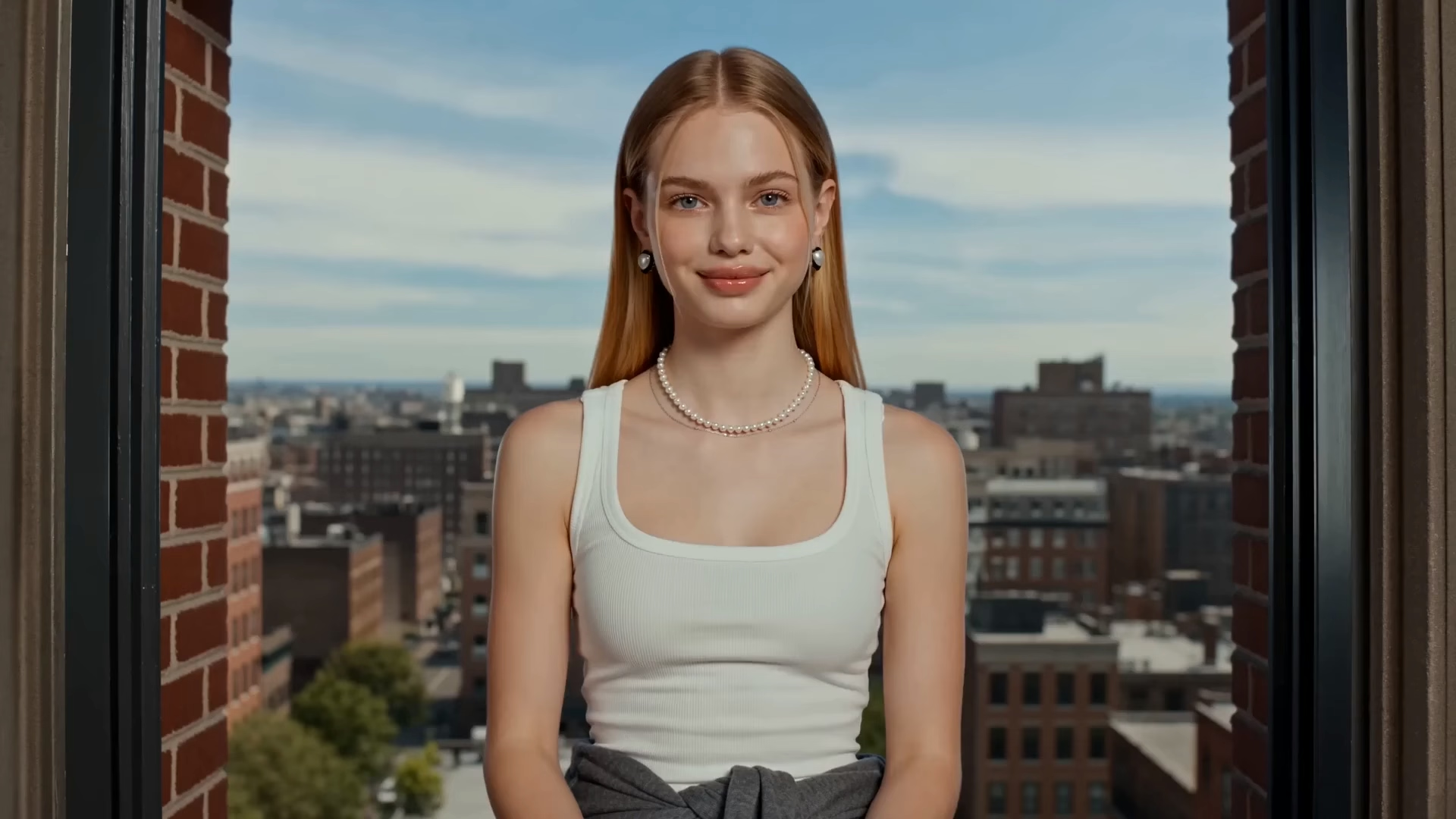
Window-side painted animation starter
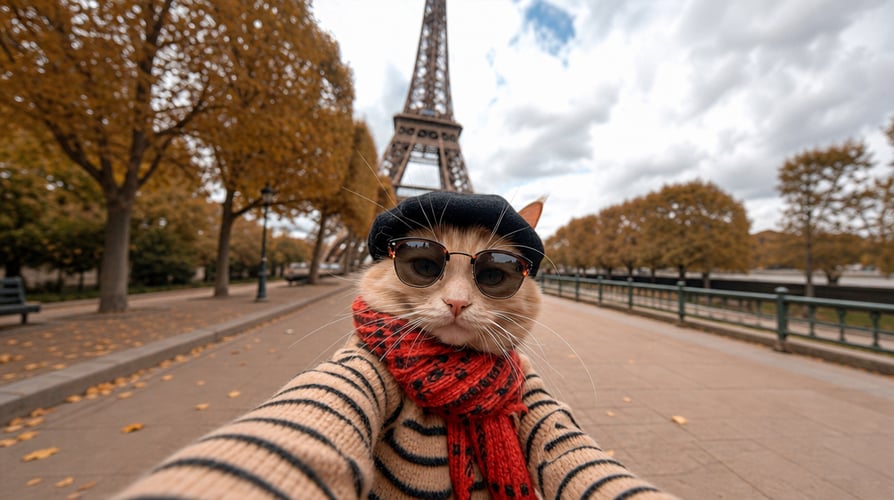
Countryside walk painted animation starter
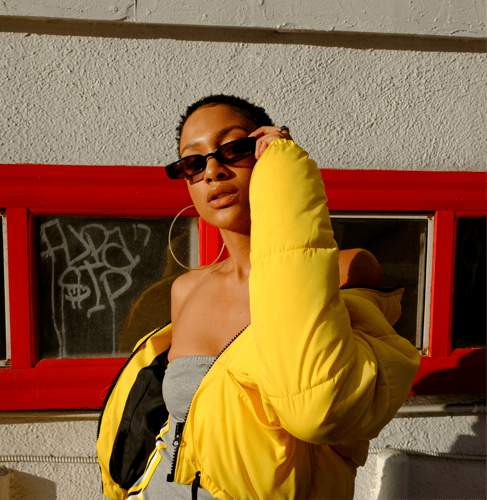
Rainy street painted animation starter
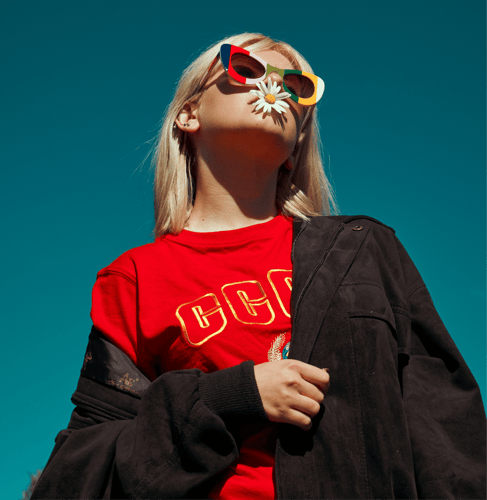
Hill path painted animation starter

Paint One Clip with the Ghibli AI Generator

Follow the preview, add your own image, then check identity and painted motion before a longer export. Use the brief for light, camera distance, and one action. Leave film titles and existing characters out of the line.

Add a subject image for the painted animation template01

Start from a Clear Subject

Choose one image with a readable face, character, or object and a simple background. Note the colors and shapes you need to keep. A waist-up frame is enough for a slow turn. Use a wider plate when the motion is a walk, so the feet have somewhere to land. Text in the upload tends to warp, so crop captions out before you submit. This step sets who or what is in the frame. It does not outline a feature-length story.
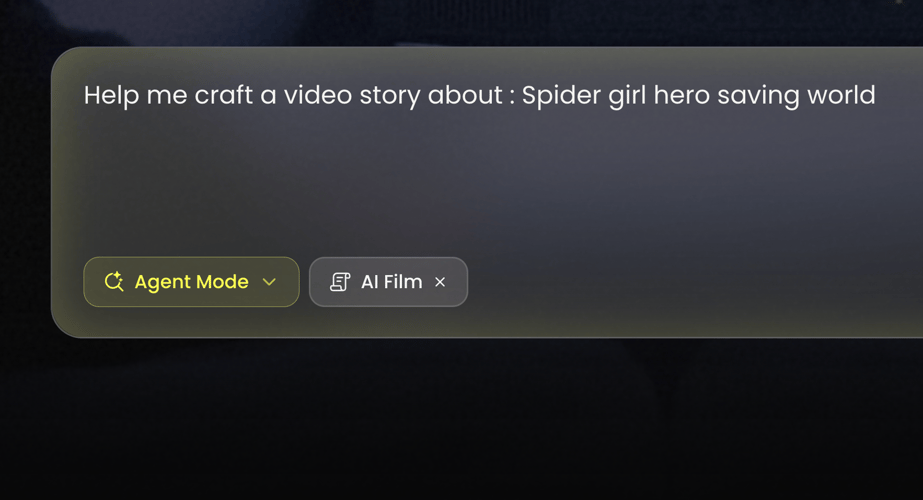
Write a brief for palette, motion, and camera02

Describe the Painted Motion

The Ghibli AI Generator template takes its painted look from the preview, so the brief only needs light, camera distance, and one action such as a slow turn or a walk. Leave film titles and existing characters out of the line. If the subject drifts, change the motion sentence before you rewrite the whole palette.
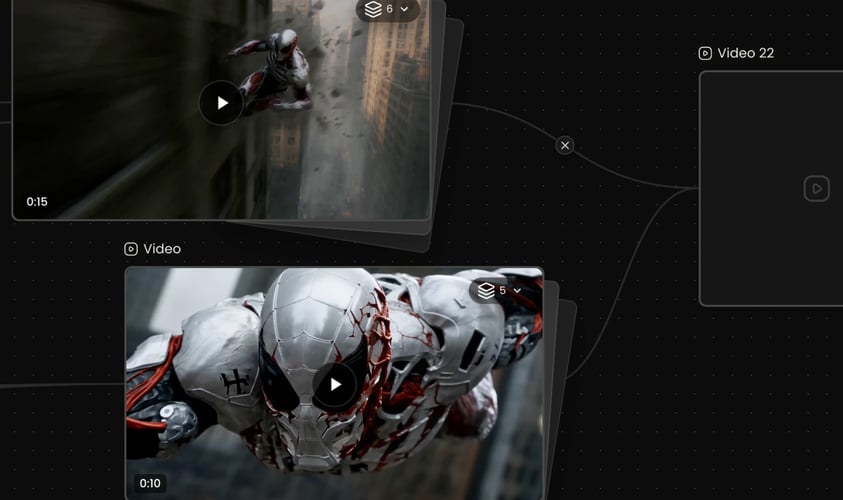
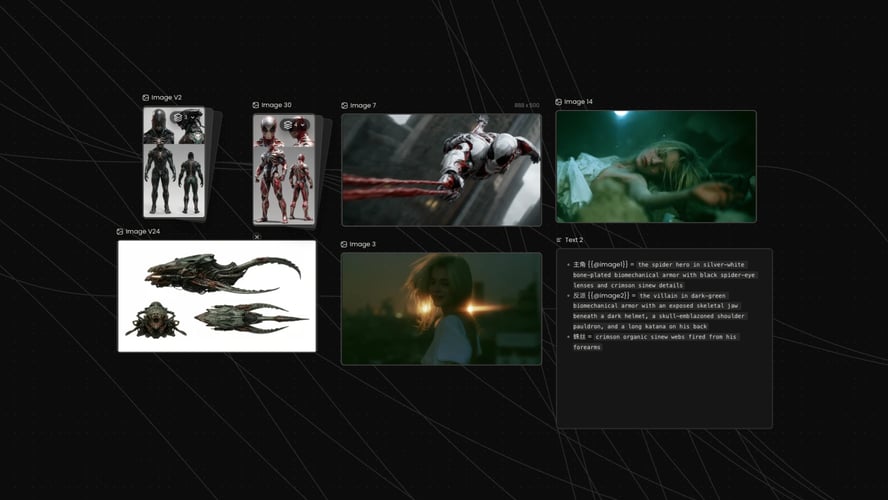
Review the first painted clip before a longer export03

Review the First Take

Play the short result and check identity, hands, and background detail. If the palette is right but the action is muddy, edit only the motion line on the next pass. If the subject no longer matches the upload, simplify the image before you generate again. Extend the clip only after that first watch holds. Credit use follows the allowance shown for your account and the action you select.
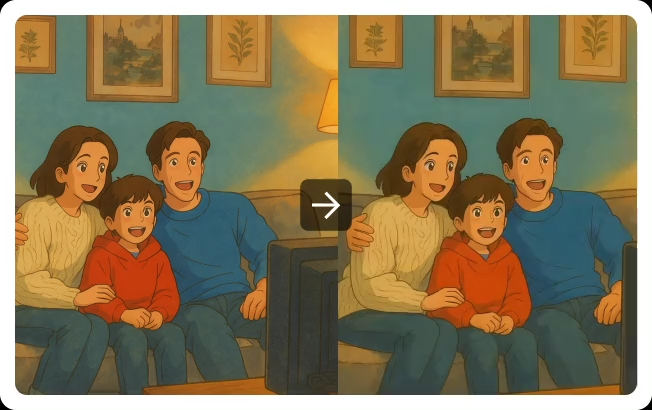
Painted Clips, Animation Ideas, and Longer Films

This page stays on one painted clip from the preview. Open an animation workflow when you are still shaping the idea, or a film workflow when the job needs connected scenes.

Seedance 2.5
Cinematic 4K, consistent shots
Try it
Agentic Canvas
Agent-driven node canvas
Try it
Kling 4.0
3 to 30 seconds long at up to 4K quality
Try it
Nano Banana 2.1
Fast and brand level image generation
Try it
Seedance 2.0
Motion-driven video creation
Try it
Google Omni
Cinematic video generation
Try it
Kling
High-fidelity physics simulation
Try it
Runway
Next-gen creative video tools
Try it
Nano Banana 2
Lightweight video synthesis
Try it
Veo 3.1
Google's advanced video generation
Try it
GPT Image 2
Photorealistic image generation
Try it
Hailuo
Fast and expressive video drafting
Try it
Pixverse
Stylized and dynamic video generation
Try it

Ghibli AI Generator Questions Before You Export

What the first painted take should prove, which image to upload, what you can change, and when a film workflow is the better next step.

Judge one continuous shot: a readable subject, gentle movement, and a background that feels brushed rather than photographic. Compare a stable edge from the upload, such as a hairline or an object silhouette, at the start and the end of the take. If the paint softens that edge, simplify the background in the brief before you extend. The preview on this page is the look you are following. The result is not a finished multi-scene movie, and it does not grant rights to Studio Ghibli films, characters, or logos. Treat the first generation as a preview you can accept or revise. Hold the take to one camera move. A second angle inside the same brief reads as a cut, and this template is for a single painted shot. If rain, grass, or a curtain moves, that motion should stay slower than the subject so you can still find the person.

Upload a clear subject: a person, an original character design, or a simple scene plate where the face or main shape is easy to see. A busy collage, a tiny distant subject, or a frame full of small text is harder to keep stable. A waist-up portrait can carry a slow turn. A full-room plate is more useful when the preview’s motion is a walk. You can add another image if the recreate panel still shows an upload slot. Use that slot for a palette note, not a second character, unless you are ready to judge two identities. Confirm the file types in the workspace. The preview clip is the style reference. Your upload is the subject. If you only have a written idea and no image yet, the first take will invent more of the frame. Side light on the upload is worth naming in the brief, because the painted pass can flatten it into an even glow. If the face depended on that shadow to stay recognizable, say which side the light comes from and check that side on the first take.

You can replace the uploaded image, rewrite the style brief, and use the recreate controls on the panel: subject media, prompt text, and the reference clip. Useful brief edits are palette, time of day, camera distance, and how much the subject moves. Ask for one change at a time so you can see what moved. A renamed prompt does not replace watching the first take. Check that the subject still reads and that the painted background does not swallow faces, hands, or the object you care about. Resolution, duration, and credit cost stay on the live action you select. This page does not publish a fixed export spec.

No. Buzzy is not Studio Ghibli, and this template is not an official Ghibli release, model, or partnership. The style name on this page means the hand-painted animation look people search for: soft backgrounds, gentle motion, and naturalistic light. Do not upload logos, title treatments, or character names from those films and expect a licensed result. Keep the brief on original subjects and original scenes. Searching for the look is not a request to reproduce a specific frame. Describe light and setting in plain words. If a take echoes a famous frame too closely, change the setting, the action, or the character design before you export. A color palette described as “late afternoon” or “overcast noon” is safer than naming a film. If the result still recalls a famous frame, change the building shapes or the season before you export.

Stay here when you want one painted clip based on the preview. Open the AI Animation Generator when you are still shaping an animation idea, a reference, and a creative route rather than recreating this look. Open the AI Film Maker when the job is a story with connected scenes, shot planning, and a longer cut. Do not force chapter breaks, narration, or a full storyboard into this single-template brief. Come back when you have a subject image and want the painted clip first.

A painted style can drift. Faces soften, hands merge into the background, or the camera wanders away from the subject. A short first take shows whether identity, palette, and motion survived. If the look is right but the action is muddy, change only the motion line. If the subject no longer matches the upload, simplify the image or tighten the brief before you spend more credits. Change only the line that failed, then watch that one change. Buzzy shows a start-for-free entry, and generation still follows the credit and plan limits in your account. This page does not promise unlimited free exports, a fixed resolution, or a guaranteed runtime.

Follow Buzzy’s current terms for generated media, and only upload images you have the right to use. A painted result is still your generated clip under those terms. It is not a license to reproduce Studio Ghibli films, characters, soundtracks, or trademarks. Review likeness rights if the upload shows a real person. Export after the preview reads clearly on a first watch, including faces, hands, and any text you asked for. This template does not add captions or a guaranteed audio track unless the live panel offers that control. The Ghibli AI Generator template also does not clear a film still you place beside the clip. Confirm the usage rules in your account before you publish.

Preview the Painted Clip First

Open the Ghibli AI Generator preview, add a subject with a readable face, and check that the painted background has not swallowed the hands.

25M
ユーザー
190 カ国
#1
今月のプロダクト
Product Hunt
4.8
G2
Buzzy