Kling Motion Control: Recreate the Move in the Preview

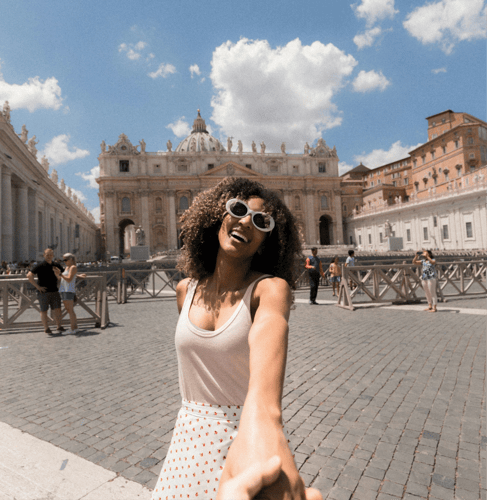
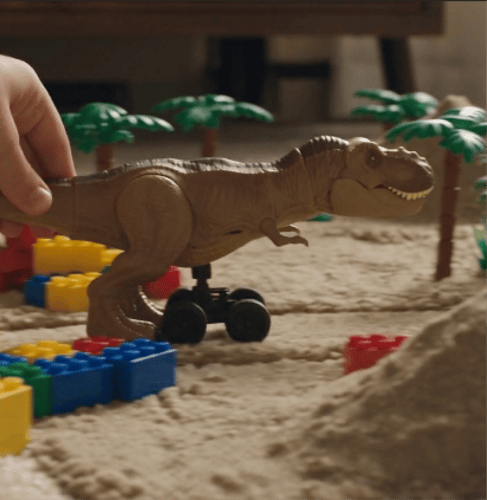
Bring a character image, keep the preview’s motion as the reference, and review the first take before you extend it. Watch the face, the hands, and whether the timing still matches.

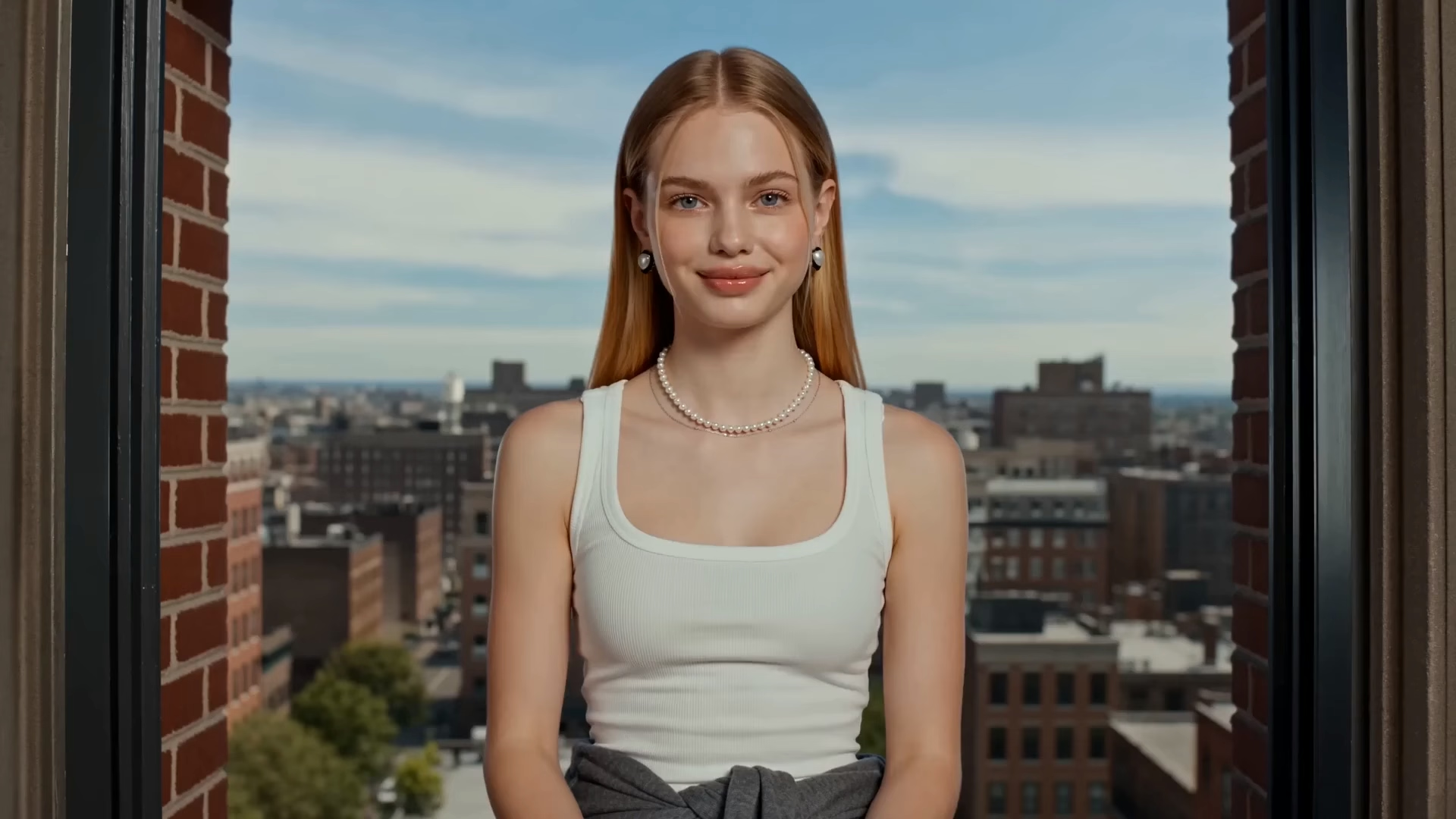
Recreate this motion

Add a character image and follow the move in the preview.

Motion preview

The clip on this page is the move to follow

Add a character imageA readable face and body transfer more cleanly than a crowd shot

Motion brief

インスピレーションを探す

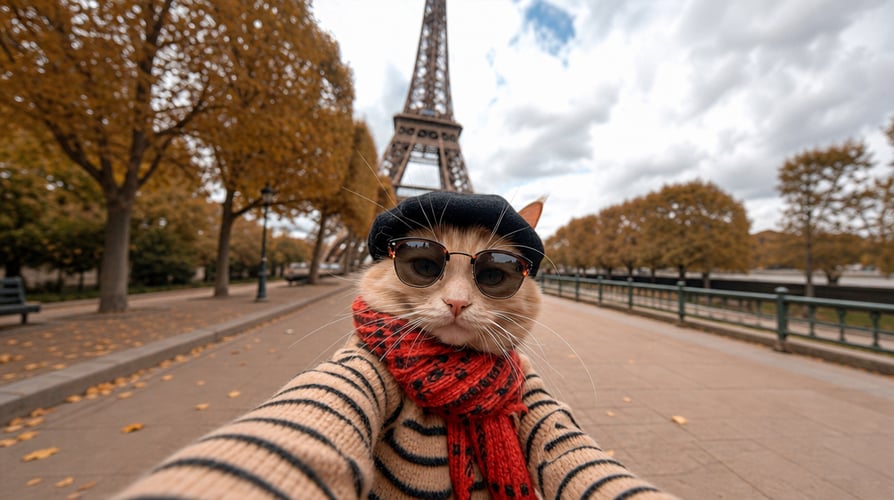
Dance phrase motion starter
Walk-in motion starter
Gesture motion starter
Turn-and-stop motion starter

Follow the Preview with Kling Motion Control

Add a character image, follow the preview’s move, then check identity and limb paths before a longer export. Name camera distance and energy in the brief. Open the model workspace when you need orientation, resolution, or original audio.

Add a character image for motion transfer01

Add a Readable Character

Choose one image where the face, torso, and limbs are easy to see. Front or three-quarter views usually transfer more cleanly than a distant crowd. A full-body or three-quarter frame gives the move somewhere to land. A tight headshot leaves the limbs to be invented. Note the outfit you want to keep. This step sets who performs the move. It does not outline a multi-scene film.
Describe the move the preview should transfer02

Point at the Reference Move

This Kling Motion Control template uses the preview as the move to follow. Write one line for camera distance, outfit, and energy, and name a single action if you need to narrow it, such as a walk or a gesture. Leave celebrity names and brand logos out of the brief.
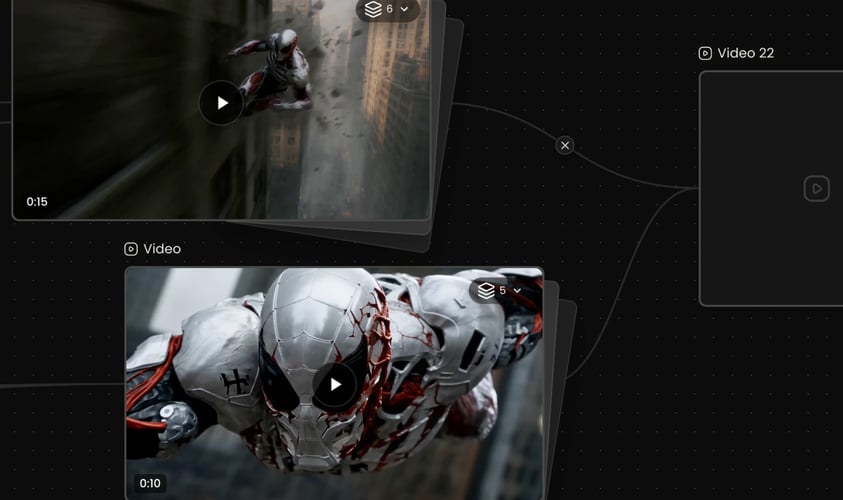
Review the first motion-matched take before a longer export03

Check the First Take

Play the short result and watch the face, hands, and whether the timing still matches the preview. If the person drifts, simplify the image or the action and generate again. When the person is right and the action is muddy, change only the motion line. This model can be priced by the second in the create panel. Read that cost before a longer duration. Open the model workspace when you need orientation or original audio. Credit use follows the allowance shown for your account.
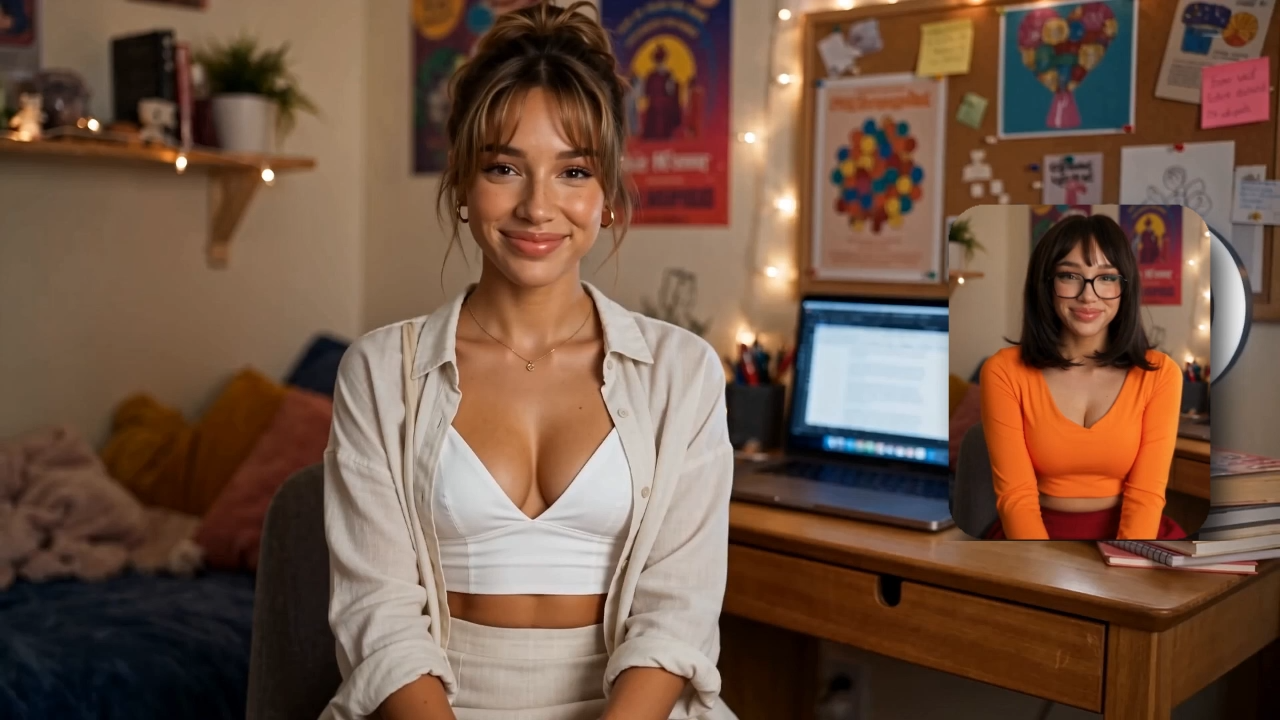
Reference Moves, Workspace Controls, and Kling Video

This page stays on one motion-matched clip. Open the motion workspace for orientation and audio, or a general Kling video page when you are not transferring a reference move.

Seedance 2.5
Cinematic 4K, consistent shots
Try it
Agentic Canvas
Agent-driven node canvas
Try it
Kling 4.0
3 to 30 seconds long at up to 4K quality
Try it
Nano Banana 2.1
Fast and brand level image generation
Try it
Seedance 2.0
Motion-driven video creation
Try it
Google Omni
Cinematic video generation
Try it
Kling
High-fidelity physics simulation
Try it
Runway
Next-gen creative video tools
Try it
Nano Banana 2
Lightweight video synthesis
Try it
Veo 3.1
Google's advanced video generation
Try it
GPT Image 2
Photorealistic image generation
Try it
Hailuo
Fast and expressive video drafting
Try it
Pixverse
Stylized and dynamic video generation
Try it

Kling Motion Control Questions for the First Take

What the preview transfers, which settings live in the model workspace, and when a general Kling video page is the better next step.

You get one clip that follows the motion in the preview. You add a character image and a short brief for camera, outfit, and energy. The result to judge is a single take: the same person you uploaded, performing a move timed to the reference. It transfers performance. It does not build a multi-scene film, and it does not promise that every finger and frame will match the reference on the first try. Watch the hands at the moment the reference changes direction. If they melt there, shorten the action before you extend. Accept or revise after that first watch. Pick one direction change in the preview, such as a hand reversing or a foot planting, and see whether your character hits it. If that moment smears, the rest of a longer export will smear too. A plain floor and even light make that check possible. A cluttered set hides it.

Prepare a character image with a readable face and body, plus a motion idea that fits the preview. Solo, clearly lit movement transfers more cleanly than a crowded group routine. A full-body frame beats a headshot when the reference uses the legs. Confirm the file types shown in the recreate panel before you upload. The clip on this page is the motion reference. Your image is the performer. Only upload a person when you have the right to depict them, and only use a reference move you have the right to follow. If the reference is long, judge the clearest few seconds first. Write the outfit color you need to keep before you generate, then look for that color at the end of the move. If the reference is faster than the pose in your still, say “steady camera” and shorten the action rather than asking the still to invent a spin it does not show.

On this page you can replace the character image and rewrite the motion brief. The preview stays the reference move. For model settings, open the motion-control workspace. When that panel shows them, Character Orientation is Image or Video, and Keep Original Audio is a switch. The same workspace lists 480p and 720p, aspect ratios including 16:9, 9:16, 1:1, 4:3, 3:4, and 21:9, and a duration range of 5 to 20 seconds. Confirm those values on the live panel before you export. This template does not redefine what Image versus Video orientation does beyond the labels in that panel.

This URL is the preview and the recreate brief for one reference move. The workspace is where this model runs, including orientation, original audio, resolution, ratio, and duration when those controls are enabled. A promo on the workspace page, including any limited free window, applies only as that page states it today. This template does not repeat that offer. If you want a Kling video that is not driven by a reference performance, use the Kling 3.0 page instead of forcing a motion-transfer brief. Orientation and original audio are workspace choices. This page does not restyle them. If you only need a Kling clip from a text idea, with no performance to follow, leave this template and start from the general Kling video page instead of pasting a motion brief you will not use.

Motion transfer drifts when the body in the image and the body in the reference do not line up. Faces soften, hands merge, or the timing slips by a beat. A short preview shows whether identity and the move survived. If the person is right and the action is muddy, change only the motion line. If the face no longer matches the upload, simplify the image before a longer generation. This model can be priced by the second in the create panel. Read the cost shown for your account before you extend the clip.

Buzzy shows a start-for-free entry, and generation still follows the credits and plan limits in your account. This page does not promise unlimited exports, a permanent free tier, or that every resolution is included. Check the allowance on the action you select. Any time-limited offer belongs to the page that states it, and it can change. Budget the first take as a check, then spend a longer duration only after the move and the face both hold. A longer duration repeats the same transfer. It does not add a second scene or a new camera setup. If the five-second check already misses the face, twenty seconds will miss it for longer and cost more where the panel prices by the second. Read that number, then decide.

Follow Buzzy’s current terms for generated media. A motion-matched clip is still a generated performance under those terms. The Kling Motion Control template does not give permission to copy a choreographer’s routine, a celebrity likeness, or a branded character you do not represent. Review likeness rights for the person in the upload and rights for the reference move before you publish. Keep Original Audio, when you leave it on in the workspace, does not grant a license to the source soundtrack. Confirm usage rules in your account if the clip will run in an ad or on a channel.

Preview the Reference Move First

Open the Kling Motion Control preview, add a character image, and watch whether the timing still matches the reference move.

25M
ユーザー
190 カ国
#1
今月のプロダクト
Product Hunt
4.8
G2
Buzzy