AI Aging Filter: Create an Older-Look Clip

Bring one face photo, name a single motion, and follow the older appearance already playing in the preview.

Follow this older look

Add your image and match the age direction in the preview.

Style preview

The clip on this page is the age look to follow

Add your imageA clear face works better than a distant crowd shot

Look brief

İlhamı Keşfet

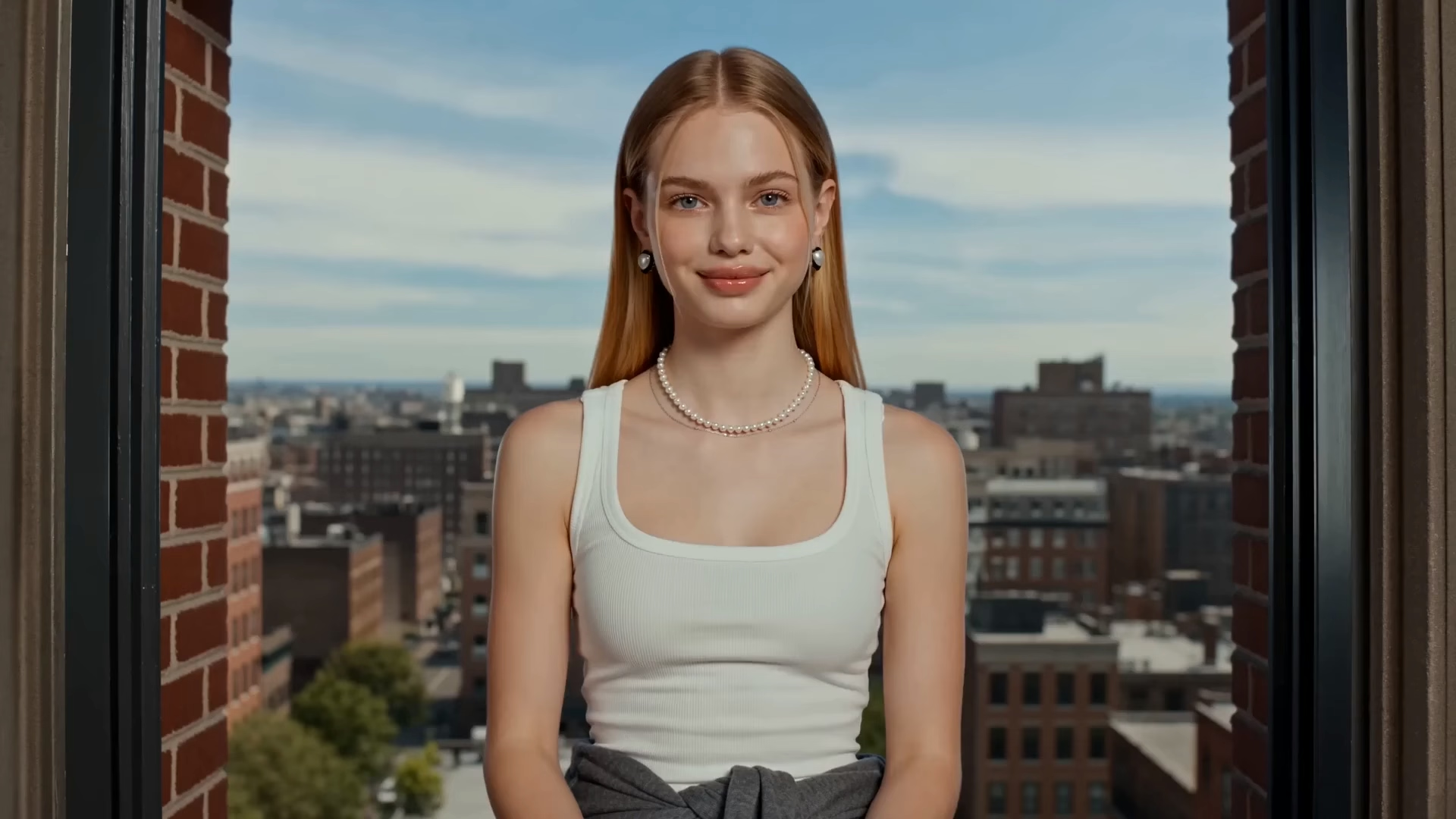
Studio turn older-look starter
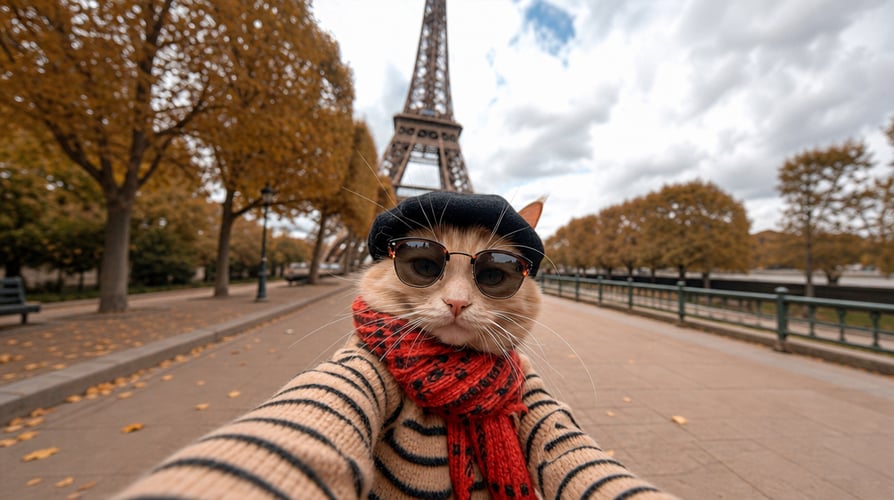
Hallway walk older-look starter
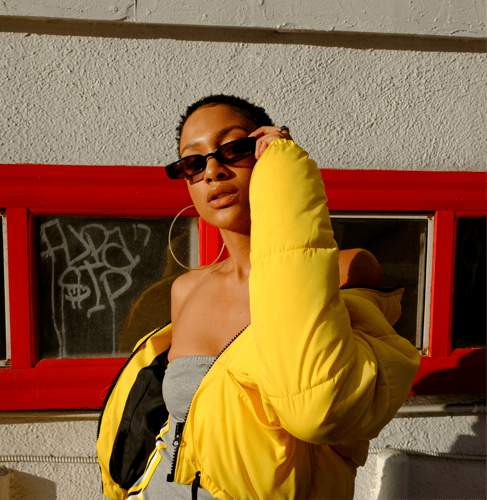
Window seat older-look starter
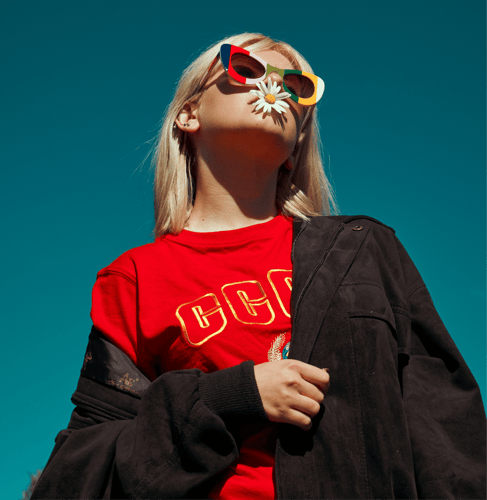
Flat backdrop older-look starter

How to Apply the AI Aging Filter

Follow the preview, add your own image, then check the face before a longer export.

Add a face image for the older-look template01

Start with a Clear Face

Choose one photo or illustration where the eyes, mouth, and jaw are easy to see. Front or three-quarter views transfer more cleanly than a distant crowd shot. Note the clothes and hair you want to keep. This step sets who is in the frame. It does not forecast a real lifespan.
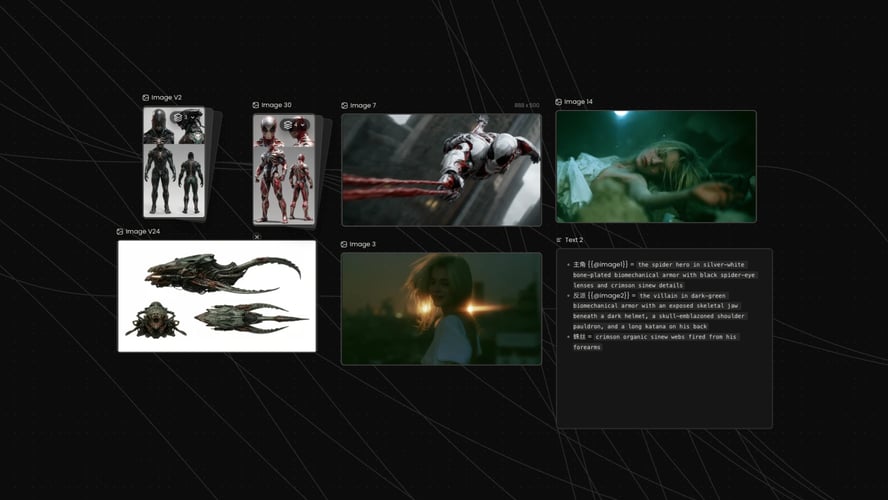
Write a brief for light, clothing, and camera02

Set Light and One Motion

Write a short brief for clothing, light, camera distance, and one movement, such as a slow turn or a short walk. The preview on the page already carries the older look you are following. Leave celebrity names, medical claims, and brand logos out of the brief.
Review the first older-look clip before a longer export03

Check the Age Direction

Play the short result and check the face, hair, and whether the clothes still read. If the person no longer matches the upload, simplify the image or the motion line and generate again. Extend the clip only after that first watch holds. Credit use follows the allowance shown for your account.

A Different Portrait Job

This page stays on one older-look clip. Open another workflow when you want a cartoon treatment or a character you can reuse across posts.

Seedance 2.5
Cinematic 4K, consistent shots
Try it
Agentic Canvas
Agent-driven node canvas
Try it
Kling 4.0
3 to 30 seconds long at up to 4K quality
Try it
Nano Banana 2.1
Fast and brand level image generation
Try it
Seedance 2.0
Motion-driven video creation
Try it
Google Omni
Cinematic video generation
Try it
Kling
High-fidelity physics simulation
Try it
Runway
Next-gen creative video tools
Try it
Nano Banana 2
Lightweight video synthesis
Try it
Veo 3.1
Google's advanced video generation
Try it
GPT Image 2
Photorealistic image generation
Try it
Hailuo
Fast and expressive video drafting
Try it
Pixverse
Stylized and dynamic video generation
Try it

Questions About the AI Aging Filter

What to upload, what you can edit, which choices stay on the live panel, and how to use the finished clip.

This page is a video template for a short clip that follows an older appearance. People often search that look as an aging filter. Here it means the age direction shown in the preview, not a forecast of how a real person will look later. You start from the clip already on the page, add your own image, and write a brief for clothing, light, camera distance, and one movement. The result to judge is one continuous take: a recognizable face and the older appearance in the preview. It is generated imagery. It does not record a medical change, and it does not turn one brief into a life story. Use the first generation as a preview you can accept or revise. Typical jobs are a character age test, a story beat, or a single portrait clip. Do not present the export as an unedited photograph of someone's future.

You need a subject image and a short look brief. Upload a clear photo or illustration where the face is readable. A simple background beats a crowded room. Extreme cropping, heavy sunglasses, or a tiny distant figure makes the eyes and mouth harder to keep. Front and three-quarter views transfer more cleanly than a profile lost in shadow. Confirm the file types shown in the recreate panel before you submit. The preview clip on this page is the look reference. Your upload is the person that look should follow. Only use a photo when you have the right to depict that person. A photo of a stranger, pulled from a social feed without permission, is the wrong input. Optional notes in the brief are clothing, time of day, and how far the camera sits. You do not need a second reference video for this template.

You can replace the uploaded image, rewrite the look brief, and use the recreate controls on the panel: subject media, prompt text, and the reference clip. The prompt is editable. Useful edits are clothing, light, camera distance, and how much the subject moves. Ask for one change at a time so you can see what moved. A new sentence does not replace watching the first take. Check that the face still matches the upload and that hair, ears, and clothes still read as the same person. The older appearance comes from the preview you are following, so a prompt line alone will not replace that clip. If you want a seated shift instead of a turn, change only that line and generate again. Resolution, duration, and credit cost stay on the live action you select. This page does not publish a fixed export spec, a named model, or a guaranteed runtime.

No. The clip is a generated look based on your image and the preview. It is not a medical projection, a dermatology result, or a record of how a face will change over the years. Do not present the export as an unedited future photograph. If you need health guidance about skin or aging, use a qualified professional. On this page, judge the frame: whether the face still matches, whether hair and clothes still read, and whether the motion still looks like one person. Watch the preview for the actual age cues, such as how the hair, skin, and posture read in that clip, instead of assuming a fixed year count. A failed take often shows a drifting face, an ear that melts into the hair, or clothes that change color halfway through the turn. Fix that in a new short preview before you spend credits on a longer export.

Model name, resolution, duration, and credit cost are not fixed in this page copy. The recreate panel shows the action you are about to run, including whichever model that action uses. Read that panel before you generate. This template does not add a separate slider for years of age in the written brief. The preview clip is the age reference, and the prompt covers clothing, light, camera, and one motion. If the panel offers extra controls on the day you open it, those controls are the ones that apply. Do not assume a file format, a frame rate, or an audio track that the panel does not list. A start-for-free entry can appear in the product, and generation still follows the credit and plan limits in your account. This page does not promise unlimited exports.

Follow Buzzy's current terms for generated media, and only upload images you have the right to use. An older-look result is still a generated clip under those terms. It is not permission to depict a real person you do not represent, and it is not a tool for harassment or for passing a generated face off as an unedited photo. Review likeness rights before you publish, and label the clip as generated when a viewer could mistake it for a real later photograph. Confirm the usage rules in your account before the clip runs in an ad or on a channel. Stay on this template when you want one older-look clip based on the preview. Open the cartoon look template when the job is a simplified outline and flat color instead of an age direction. Open the original virtual character workflow when you need a persona and a portrait series you can carry into later posts. Do not force a life story or a narration track into this single brief.

Check the Older Look First

Add your image, follow the preview on this page, and check the face before a longer export.

25M
Müşteri
190 ülke
#1
Ayın ürünü
Product Hunt
4.8
G2
Buzzy