AI Baby Dance Video Generator for Cartoon Dance Clips

Bring a cartoon baby character, pick a readable dance reference, and preview the motion before you treat the cut as finished. Judge the short first take for a stable face, the same outfit, and feet that stay in frame.

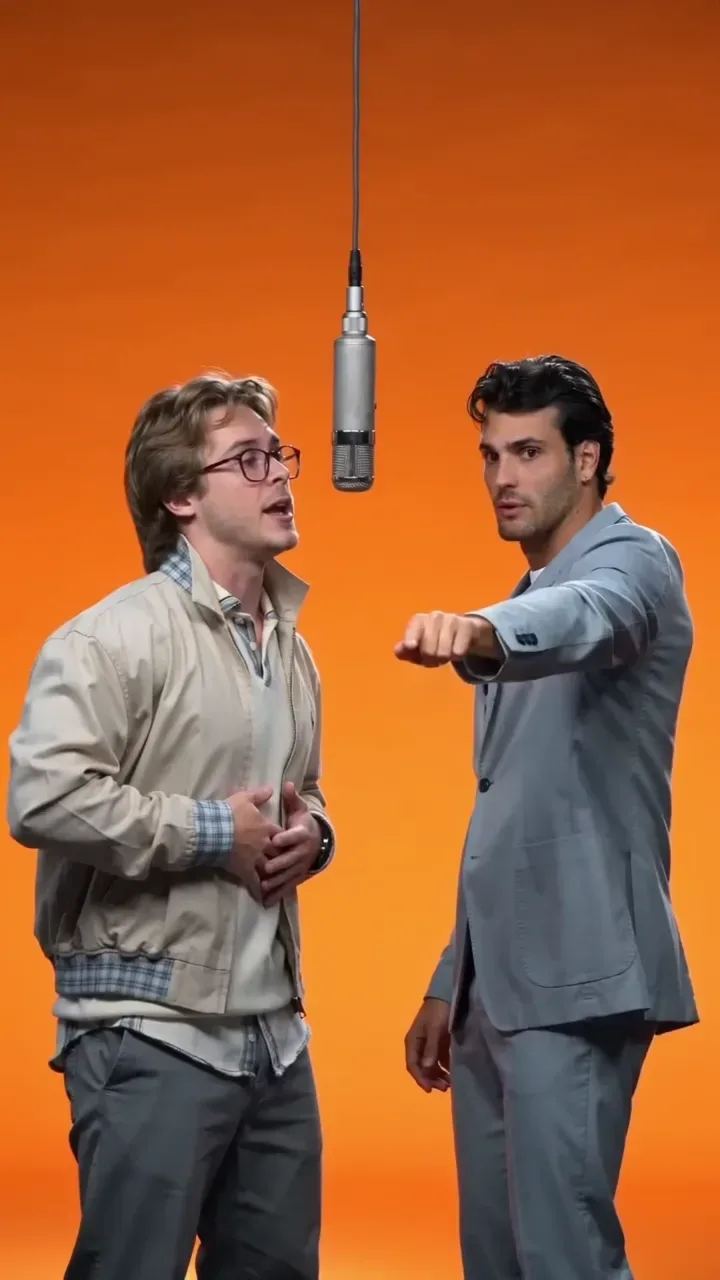
Recreate this dance clip

Upload a cartoon baby character and keep the dance reference readable. Preview the first take before a longer export.

TikTok486K

Dance reference

Solo choreography with clear limbs works best

Add cartoon baby imageFront-facing or three-quarter character art with a clear face and outfit

Dance brief

İlhamı Keşfet

Cartoon baby soft side-step dance starter
Cartoon baby bounce and clap dance starter
Cartoon baby hip-hop groove starter
Cartoon baby spin and wave dance starter

How to Run an AI Baby Dance Video Generator Preview

Prepare the cartoon baby, attach a readable dance reference, then verify motion before you spend more credits on a longer cut. Treat identity, choreography, and the choice to extend as three separate checks. Changing the character and the reference in one retry will not show which input broke the feet.

Prepare a cartoon baby character image for dance transfer01

Prepare the Cartoon Baby Character

Choose a clear cartoon or illustrated baby image with a readable face, torso, and outfit. Front-facing or three-quarter views usually transfer better than extreme angles. Note the colors and props you want to keep. If the phrase claps or points, both hands need to be in the still, because a face-only crop cannot carry that motion. A busy background on the character plate competes with the dance, so prefer a simple plate. Confirm upload rules in the live recreate workflow before you start. This step sets identity only. It is not a kids story outline, a learning episode, or a sing-along script.
Add a dance motion reference for the baby character02

Attach a Readable Dance Reference

Add a short dance clip where feet, arms, and timing stay visible. Solo choreography that keeps one facing direction usually transfers more cleanly than a crowded routine or a clip that turns from front to back mid-phrase. Write one sentence for energy, camera distance, and background. Confirm accepted file types and the credit cost of the selected action in the workspace before you submit. Public trend pages may advertise a fixed baby-dance preset. On Buzzy, the verified path is a character image plus a reference you can watch.
Verify the cartoon baby dance preview before a longer export03

Generate, Verify, Then Extend

Create a short preview first. Inspect face stability, outfit continuity, hand and foot paths, and whether the baby still reads as the same cartoon character. Pause on the first frame and the last frame and compare face shape and onesie color before you spend more credits. If limbs twist or the face drifts, change one input, the dance or the character plate, and generate again. Buzzy offers a “Start for free” entry, but generation uses the credits and plan limits shown in your account. This page does not promise unlimited free baby dance videos. When the preview holds, extend the clip or refine one missed detail at a time.
When a Cartoon Dance Needs a Different Tool

Stay on dance motion here. Open a kids story workflow only when you need chapters and narration instead of a dance loop. A multi-shot song visual is a different job from this single routine.

Seedance 2.5
Cinematic 4K, consistent shots
Try it
Agentic Canvas
Agent-driven node canvas
Try it
Kling 4.0
3 to 30 seconds long at up to 4K quality
Try it
Nano Banana 2.1
Fast and brand level image generation
Try it
Seedance 2.0
Motion-driven video creation
Try it
Google Omni
Cinematic video generation
Try it
Kling
High-fidelity physics simulation
Try it
Runway
Next-gen creative video tools
Try it
Nano Banana 2
Lightweight video synthesis
Try it
Veo 3.1
Google's advanced video generation
Try it
GPT Image 2
Photorealistic image generation
Try it
Hailuo
Fast and expressive video drafting
Try it
Pixverse
Stylized and dynamic video generation
Try it

Questions About the AI Baby Dance Video Generator

What to put in the character plate, how a dance loop differs from a kids story, which preview controls are real, and what to check before you publish.

Use one cartoon or illustrated baby, not a photo of a real child and not a collage of several characters. The face, torso, and outfit need to read at a glance, in a front or three-quarter view. Write down the colors you want locked, such as a onesie stripe or a hair shape, because those are the details you will compare on the last frame. A busy background on the plate competes with the dance, so a plain backdrop is easier to judge. Props you want in the clip, such as a small hat, should already be in the image. The brief can name them. It cannot reliably invent a prop the plate never showed. This image sets identity only. It does not outline a learning episode or a story with chapters. Confirm the file types in the recreate panel, and only upload a character you have the right to depict. If the illustration uses a thick outline, keep that outline in the note you check later. A soft repaint that erases the outline is a failed identity even when the dance timing looks right.

A dance loop is one continuous motion clip: the same character, one reference, no scene cuts. The AI Kids Video Generator is for animated kids stories, learning videos, and sing-along adventures that need a script and scenes. If you need chapters or narration, use that workflow instead of forcing a plot into a dance brief. If the performer should be an older dancer rather than a cartoon baby, use the reference dance template and review footwork there. Mixing those jobs in one brief makes the first take harder to judge, because the preview on this page is a dance, not a storyboard. Keep the dance brief to one room and one loop. Scene headings, lesson titles, and sung lyrics belong on the story workflow, where they can be reviewed as scenes instead of as a single motion.

You can swap the character image, swap the dance reference, and rewrite the brief for outfit, room, camera distance, and energy. The recreate panel is the control surface: subject media, prompt text, and the reference clip. Ask for one change at a time. If the face drifts, simplify the character plate before you rewrite the room. If the feet lag, shorten the reference instead of adding more adjectives. A trend name does not replace that check. Resolution, duration, and credit cost stay on the action you select. This page does not publish a fixed export size, a guaranteed soundtrack, or captions unless the live panel shows those controls.

Choose a short solo clip where you can see both feet, both arms, and a beat you can count. One facing direction is easier than a turn from front to back. A crowd, a whip pan, or a routine that leaves the frame makes the limb check unreliable. Match the character’s facing to the reference when you can. If you only have a long trend video, cut your attention to the clearest few seconds and say so in the brief, then judge that phrase before you ask for more. Duration limits and credit cost depend on the action you select. Read them in the workspace before you submit. This page does not promise that every public baby-dance template will replay as a one-click preset. A reference filmed from the ceiling, or one that cuts between angles, gives the character no stable floor. Pick a clip with a horizon you can still see, then match that camera height in the brief.

Buzzy shows a “Start for free” entry, and generation still follows the credits and plan limits in your account. Check the allowance for the action you select before a preview or a longer cut. This page does not promise unlimited exports, a permanent free tier, or a fixed resolution and runtime. There is no guaranteed audio track or caption burn-in unless the live panel offers that control. Budget the first take as a check. Extend only after the face, the outfit, and the feet hold. You also need rights to the character likeness and to the dance reference. A finished clip does not clear a real child’s photo, a branded mascot, or choreography you do not own.

Motion transfer can change the face, the hands, or the timing when the character and the reference do not line up. A short preview lets you judge identity, footwork, and framing before you spend more credits. Compare the first frame with the last frame. The onesie color and the face shape should still match the plate. Revise one missed instruction at a time, character clarity or dance complexity or camera, rather than rewriting the whole brief after every take. If you change two inputs at once, the next result will not tell you which change helped. Play the reference and the preview muted first. If the feet already miss the phrase without sound, a soundtrack will not repair the transfer. Fix the motion, then decide whether audio belongs on a later pass.

Follow Buzzy’s current terms for generated media, and confirm you have rights to the character and the dance reference you uploaded. Generated motion does not by itself grant permission to use a child’s photo, a branded mascot, or copyrighted choreography. Do not present the export as a recording of a real child. Export only after the preview reads clearly on a first watch, including the face, the hands, and the feet. If the clip will run in an ad or on a channel, confirm the usage rules in your account before you publish.

Preview the Cartoon Baby Dance First

Open the AI Baby Dance Video Generator preview, add the character and a dance reference, and confirm the credit cost before you extend a take that already holds.

25M
Müşteri
190 ülke
#1
Ayın ürünü
Product Hunt
4.8
G2
Buzzy